Fulfillment by Amazon uses barcodes to identify and track inventory throughout the fulfillment process. Every item sent to Amazon through FBA requires a barcode.
There are three kinds of barcodes for identifying products:
- Manufacturer barcodes (eligible barcodes include UPC, EAN, JAN, and ISBN)
- Amazon barcodes (such as FNSKU)
- Transparency authenticity code (brand owner only, may be required to help prevent counterfeit)
To Print Amazon barcodes:
- Go to Inventory → Manage All Inventory
- Scan your list of products and find the one you want to print labels for.
- Click Edit on the right of the selected product
- In the dropdown menu, click Print item labels
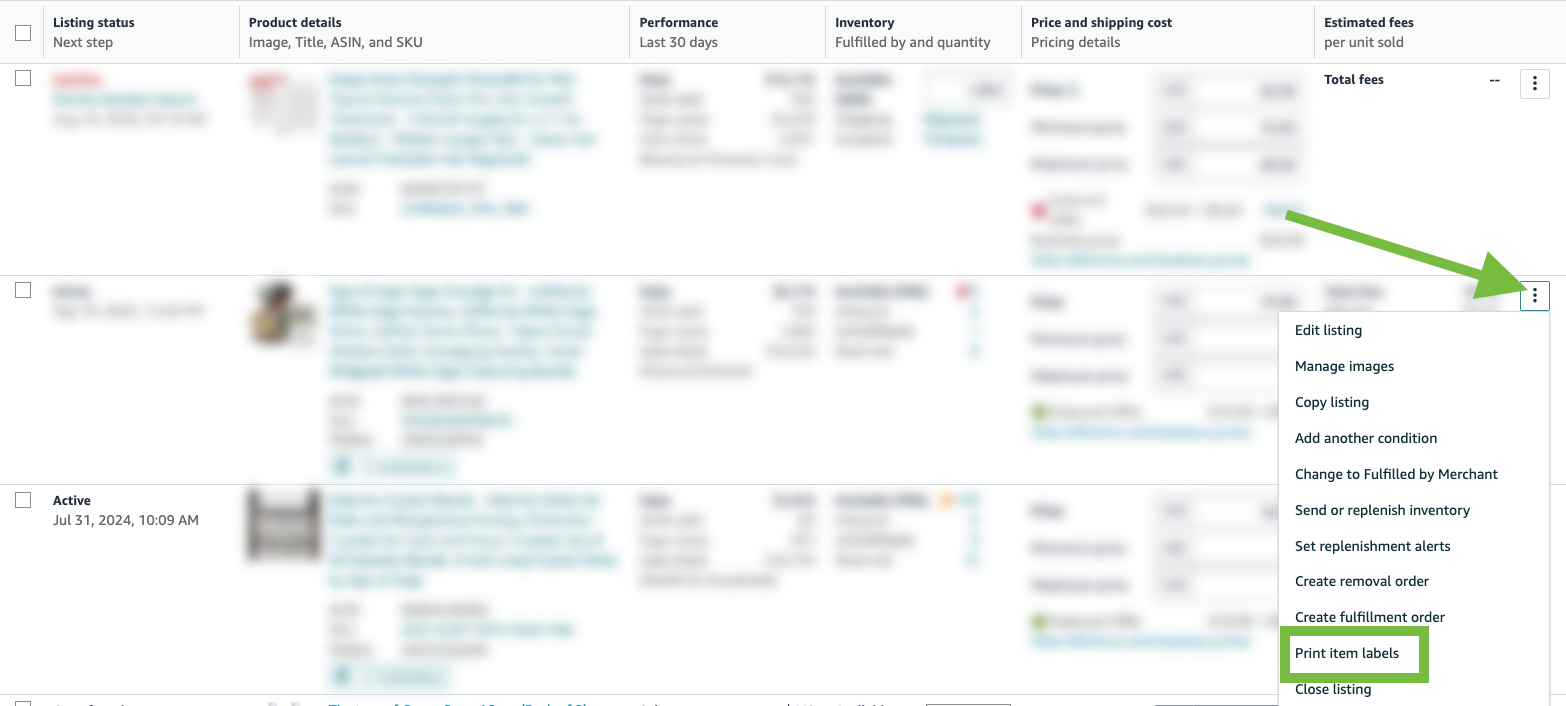
- Enter how many labels you want to print in the "Number of labels to print" box
- Select the drop-down beside the Paper/Sticker Type and choose your preference
- When you’re finished, click Print Item Labels
 You can also print labels during the shipping creation process.
1. Go to Inventory → Shipments
2. From the Shipment drop-down menu, select "Send to Amazon". If there is an existing workflow in progress, click "Start New" to initiate a new workflow.

3. Enter the ASIN/SKU in the search bar or select it from the list.

4. Click Print SKU labels.
5. Enter the number of labels to print in the Print label box. Then click the Print button.

To learn more about Amazon barcodes, please visit FBA product barcode requirements and Print Amazon barcodes
