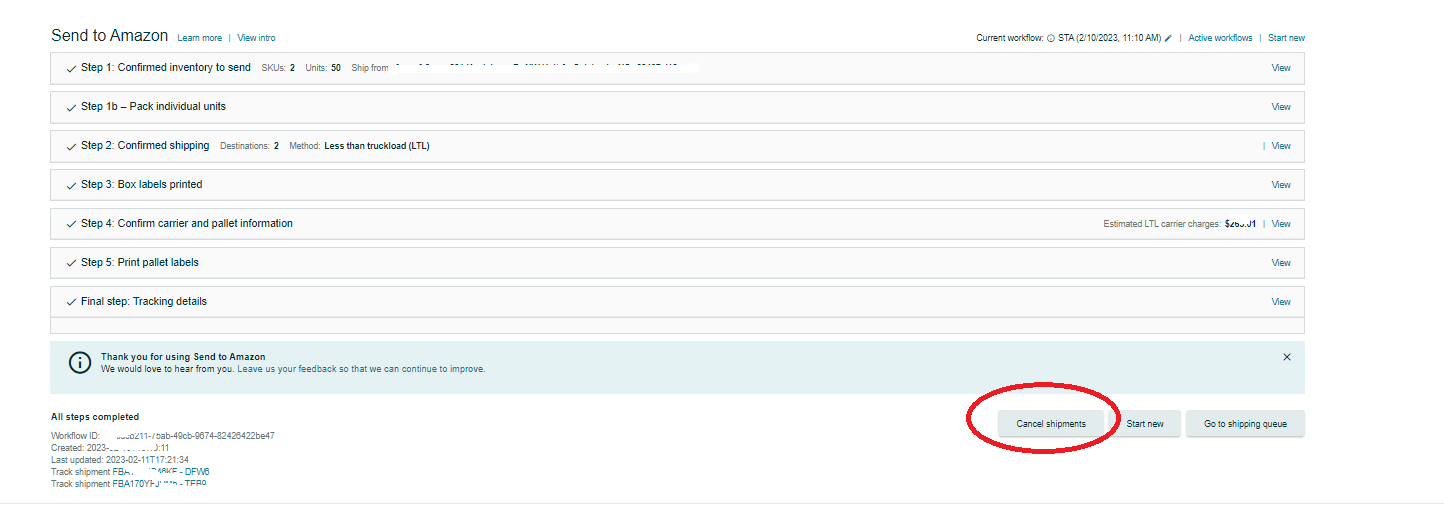
You can cancel shipment by clicking Cancel shipment at the bottom of the workflow page. This will cancel all shipments that you created and move them into Canceled status in your Shipping Queue.
To cancel a shipment, follow these steps:
Log in to your account and look for the FBA shipment that you would like to cancel.
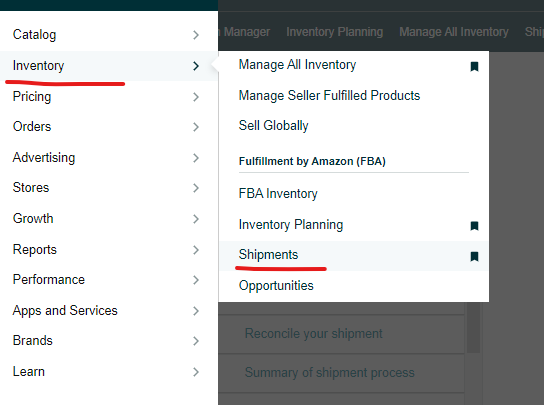
- Go to Inventory → Shipments
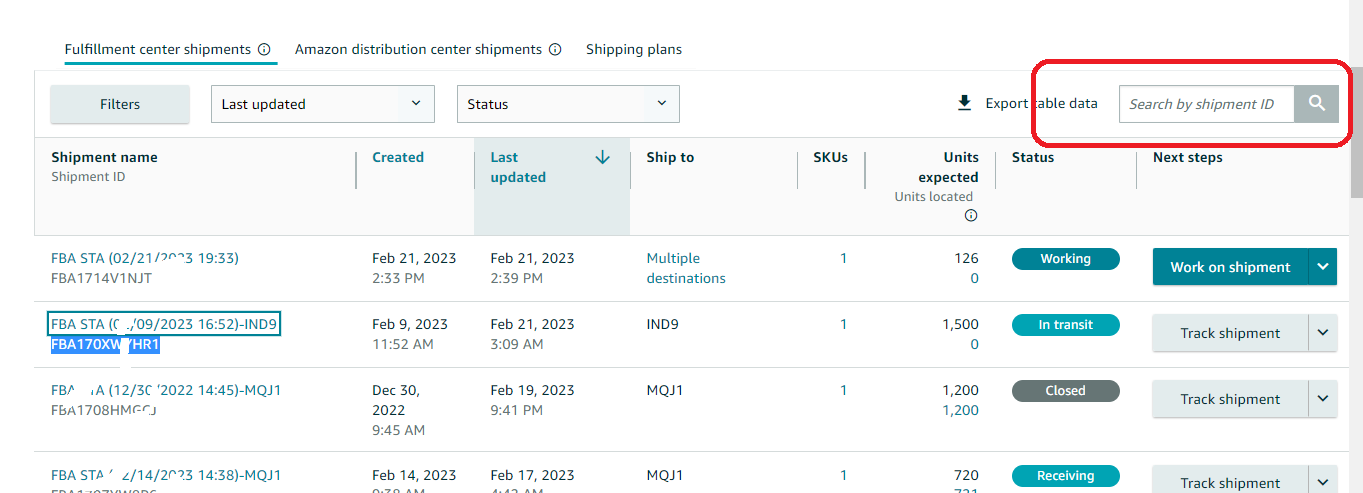
- Look for the FBA Shipment ID in the shipping queue page or search the ID on the search box.
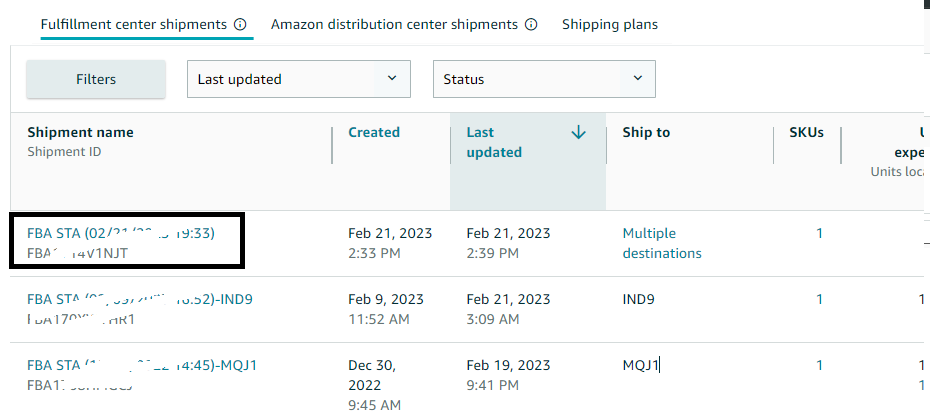
- Click the Shipment ID link
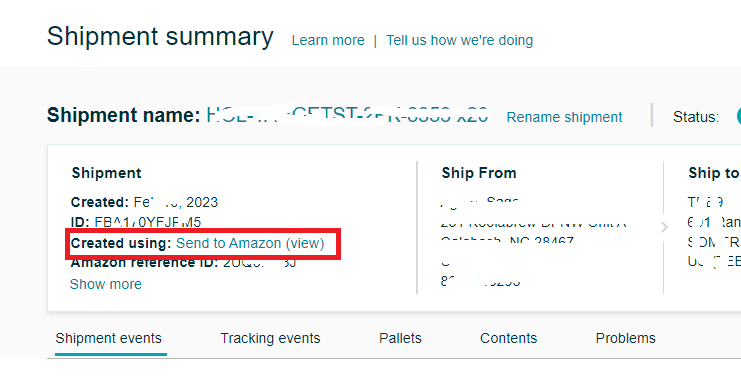
- In the Shipment summary page, click the Send to Amazon (view) below the Shipment Name.
- Scroll down to the bottom and click the Cancel shipments button.
NOTE: Applicable for Amazon partnered carrier charges
Small parcel shipments have 24 hours to void Amazon partnered carrier charges and receive a full refund after you confirm the shipping selections and accept the charges.
For pallet shipments, after you have confirmed your shipping selections and accepted the charges, you have one hour to void Amazon partnered carrier charges and get a full refund.
If the shipments go beyond the time frame above, you can still cancel the shipment and request a refund for the unused shipping label by contacting seller support.
For more information about Send to Amazon: Cancel your shipment, see here https://sellercentral.amazon.com/help/hub/reference/GP29SYECJZGJ9XMR
