Advertising SOP for Excel Macro Usage:
Streamlining Bulk File Filtering and Bulk Optimizations
Who is this for?
This SOP is intended for anyone managing advertising campaigns.
Objective:
The objective of this SOP is to guide users through a series of steps to enhance their Amazon advertising workflow. Specifically, it aims to automate the process of filtering, sorting, and adding new columns to a bulk file containing data related to Sponsored Products (SP), Sponsored Brands (SB), and Sponsored Display (SD) campaigns. The provided macros facilitate these tasks, ensuring efficiency and accuracy in campaign management.
Note: Your bulk file should include SB and SD data or else our Macro will not work.

Procedure:
1. Enabling the Developer Option in Excel
Open Excel.
Navigate to 'Options' > 'Customize Ribbon' > 'Main Tabs'.
Check the box beside 'Developer'.
Click 'OK'.


2. Recording a Dummy Macro
Open the bulk file and enable editing.
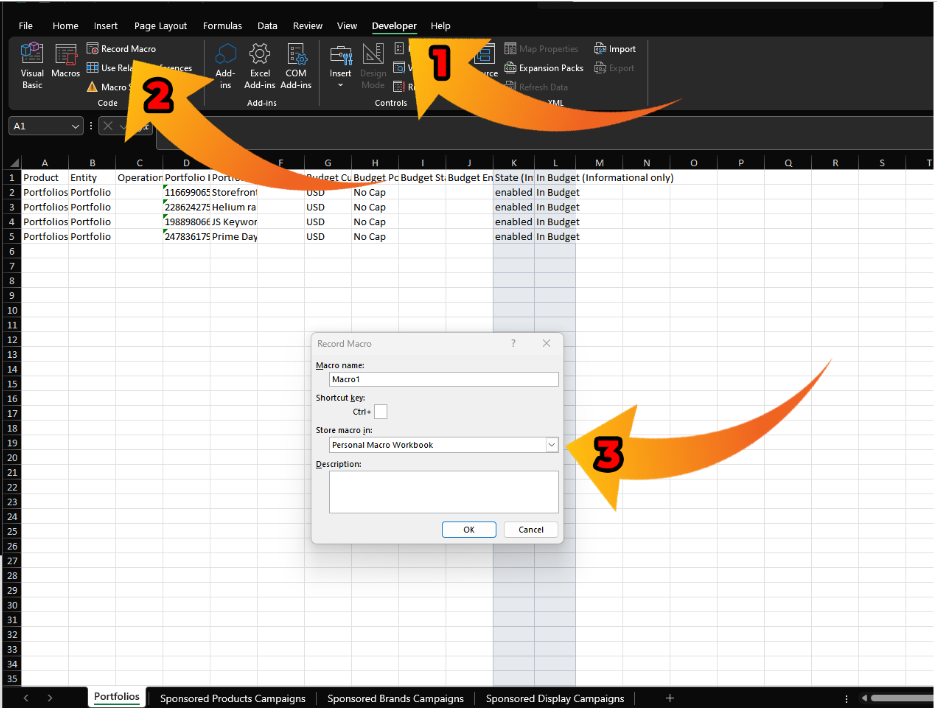
Go to the 'Developer' tab and click 'Record Macro'.
Store the macro in the 'PERSONAL MACRO WORKBOOK'.
Type random text in one cell and press 'Stop Recording'.
This creates a dummy module folder in Excel.
3. Deleting Dummy Macro Code
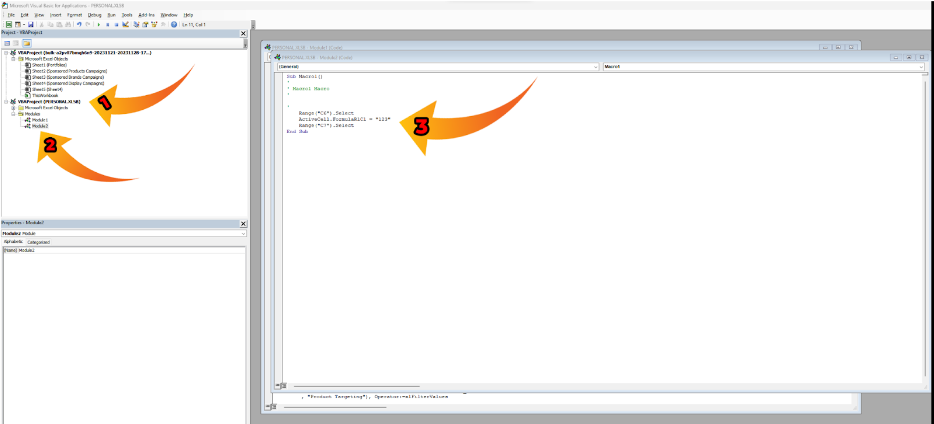
Click the 'VISUAL BASIC' tab.
Open 'VBA Project (PERSONAL)', then open 'Module 1'.
Delete the dummy macro code.
(In this example, it’s in module 2 because I already have a Macro in Module 1.)
4. Inserting Custom Macro Code
OPTION 1: Copy and paste the code below into the module
OPTION 2: Download module

5. Saving and Setting Shortcut Keys
Press 'Ctrl + S' to save and close the Visual Basic UI.
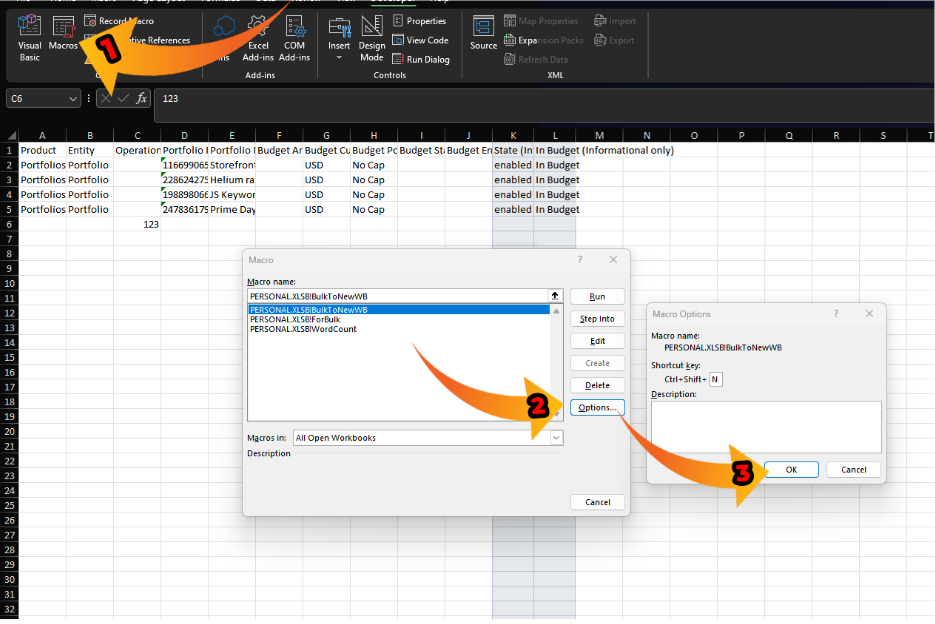
Open 'MACROS' and set shortcut keys for each macro:
For Bulk To New WB: 'Ctrl + Shift + N'
For Bulk Filter: 'Ctrl + Shift + Q'
For Word Count: 'Ctrl + Shift + W'
Save and close the bulk file.
6. Testing the Macro
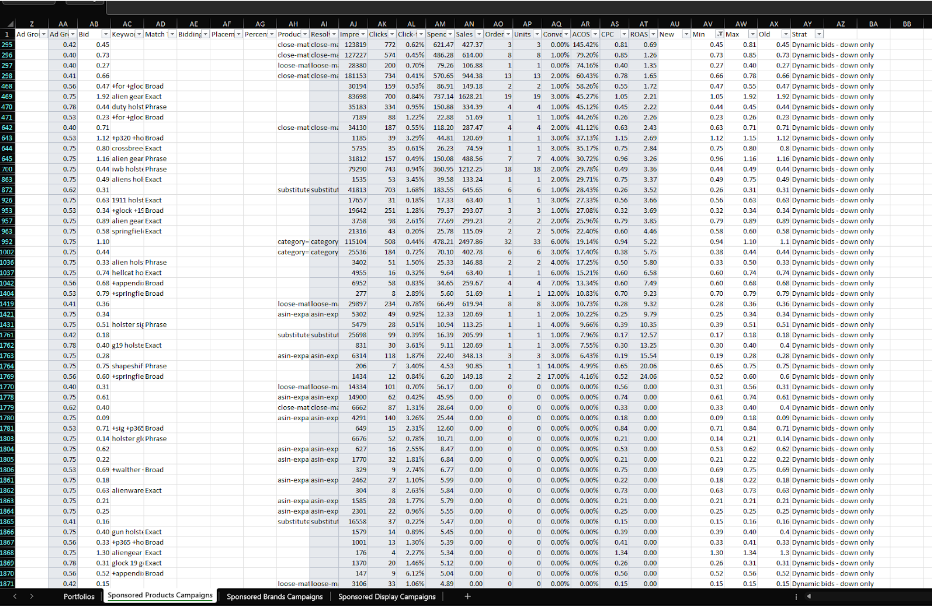
Reopen the bulk file and test the shortcut key 'CTRL + Shift + Q'.
The macro will filter targets, sort data, and add new columns for bid to CPC computation and bidding strategy.
7. Preparing Data for New Workbook
After setting new bids, filter the 'New Bid' column to remove blanks.
Use the macro 'CTRL + SHIFT + N' to transfer filtered data to a new workbook.
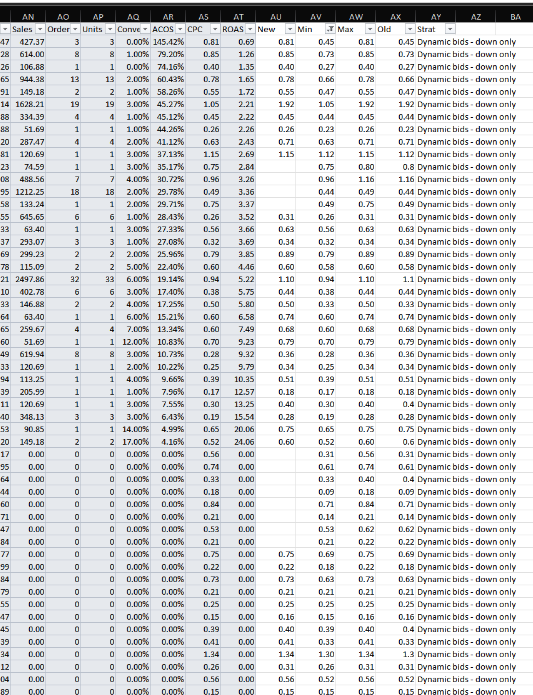
This will transfer the filtered data from bulk to a new workbook and automatically add “update” to the operations column.
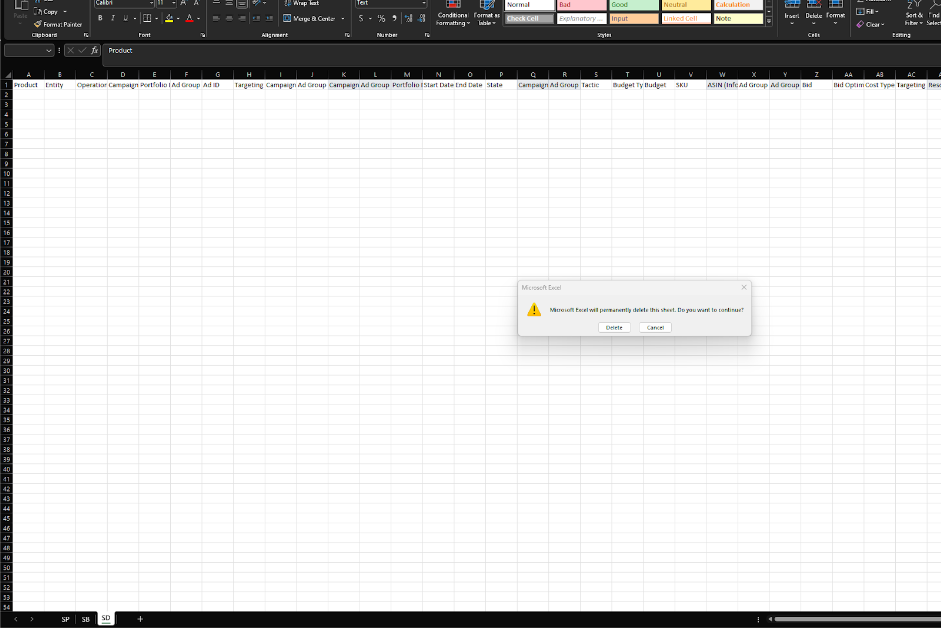
Note: If there’s a blank workbook, please delete it before uploading your bulk.
8. Final Steps
In the new workbook, copy and paste the new bid into the 'BID' column. Delete any blank workbook before uploading your bulk.
Save the file. It is now ready for upload.

NOTE:
Ensure that your bulk file incorporates SB and SD data; otherwise, our Macro will not function correctly.

Ensure the bulk file is not renamed from its default name for the code to apply correctly.
Delete any blank workbook before uploading your bulk.
