Bulk Operations - Bid Adjustment
Who is this for? Individuals are responsible for managing and optimizing advertising campaigns using bulk operations bid adjustments, including advertising managers, digital marketers, or other professionals involved in online advertising campaigns.
Objective: To provide guidelines for bulk operations bid adjustments in an advertising campaign to ensure consistency and efficiency.
Notes:
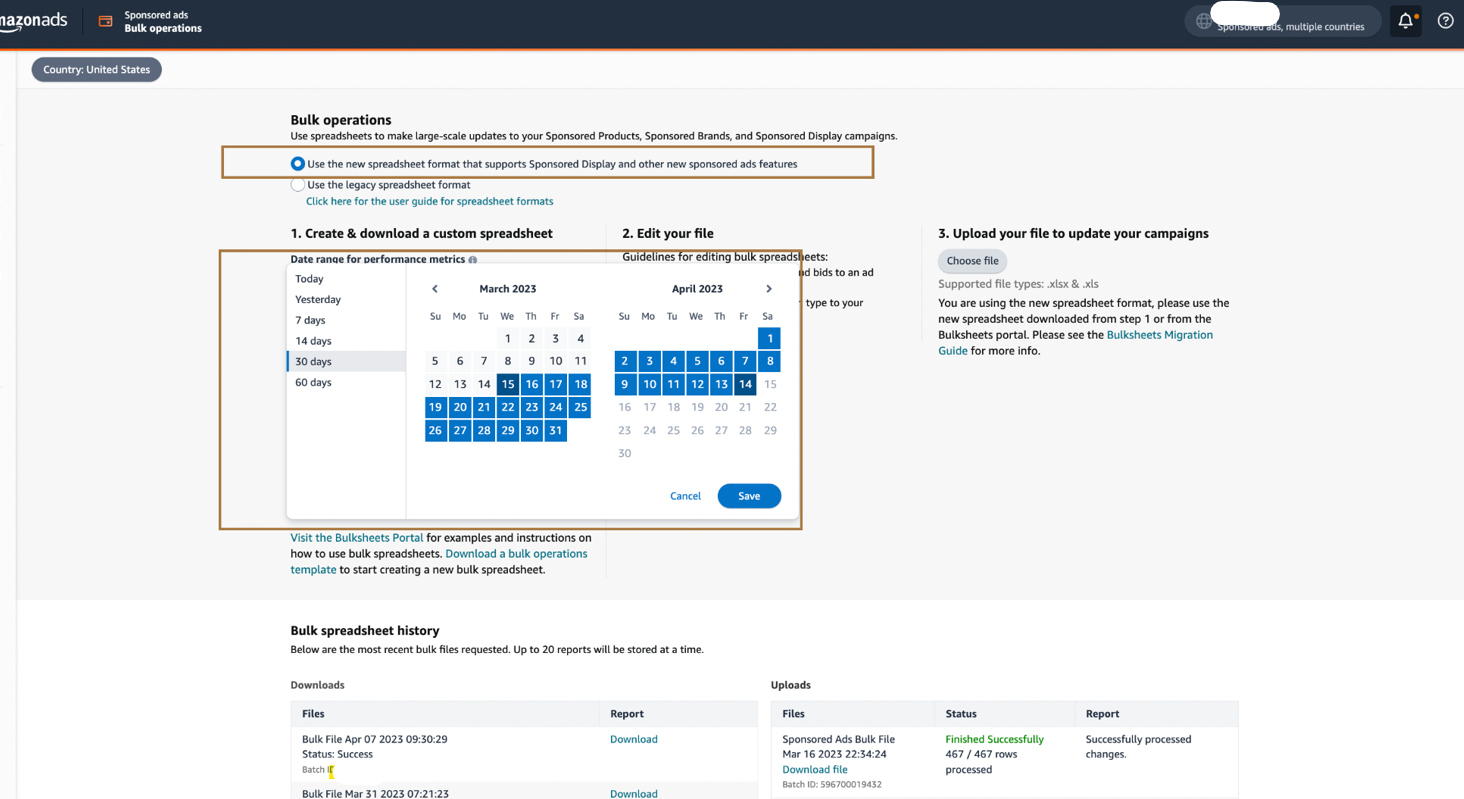
There is a two-day attribution window. When downloading bulk operations, exclude the last two days from the data as this data is still being processed by Amazon and may not be accurate. For example, when downloading a 30-day bulk file, download Jan 23 to Feb 23 (assuming today is February 25).
After selecting a date range from two days ago, exclude the following from the bulk file by check-marking the box:
Exclude:
- Terminated Campaigns
- Placement Data for Campaigns
- Brand Assets Data
- Click on Create a Spreadsheet for download. This may take a few minutes, depending on the size of the file (usually up to a maximum of 30 minutes).
- Once the bulk file is downloaded, rename the file using our current naming conventions: Name of the account, beginning, and end date as well as today's date.
- Before making any changes, download the bulk upload file and keep it as a backup

Preparing the Spreadsheet - Sponsored Products Sheet and Sponsored Brands
- Convert to number by clicking on the yellow triangle when selecting the following columns (S to Y): Impressions, Clicks, Spending, Orders, Total Units, Sales, ACos. Originally, it is stored as text. We need these columns to be numbered so we can use them for calculations.
- After the ACOS column, add 3 new columns namely: CPC (Cost Per Click), % Change, and New Bid.
- Filter the ‘Status’, Ad Group status, and Campaign Status to show only ‘enabled’. Remember to remove all ‘blanks’
- Filter the ‘Max Bid’ column to remove all ‘blanks’ and convert to a number using the yellow triangle.
- Review the target ACOS for the account.
- Download both a 30/60 day bulk operations report and a 7-day bulk report for the best optimization
Optimizing the Bids
- Filter the ACOS column in descending order (Largest to Smallest). Highlight or color High ACOS targets, as needed. The targets that are close to the target ACOS can pass and should not be touched.
- Fill out the CPC column, which is spend divided by clicks. Convert this into currency.
- In the % column, calculate the ratio between ‘Max Bid’ divided by CPC. Convert this into currency.
- Convert the ‘New Bid’ Column into currency.
- Fill the Excel formulas down (for the CPC, % Change, and New Bid) and analyze the data.
- Reduce the bids according to the target ACOS. For example, you may want to reduce the bid of targets that are way above their target ACOS by 50%. This can be done by multiplying CPC by 0.5 in the ‘New Bid’ column. You should reduce the targets by a lower percentage as the targets come closer to their target ACOS (e.g., by 30%).
- If a target is below target ACOS, you may consider increasing the bid instead. This can be done by multiplying the CPC by 1.20 (e.g. increasing by 20%).
- Think about the changes you make - you may choose to reduce, increase or leave the bids as is based on your analysis and target ACOS of the account. You are the expert and this is a tool to assist you. Do not forget to do contextual analysis.
Possible Order of Optimizations:
Filter the bulk file and filter for the following:
- High ACOS (based on target ACOS) - Reduce the bids
- Low ACOS (based on target ACOS) - Increase the bids
- 20 Clicks No Sale - Reduce the bids or pause as needed.
- Increase the bid of low impressions (less than 70 clicks in 7 days). Only increase the bids by 2 to 5 cents using the 7-day bulk file.
Uploading the File
- Write an update in the operation columns before uploading the file
- Once the desired bid changes are complete, copy the data into a new file and paste it.
- Now save the new file and name it as follows: Brand SP Bulk Upload High ACOS-2022-02-25
- Copy the new bids and paste them into the ‘Max Bid’ column. Save the file.
- Ensure you are in the correct account and upload the file. Once the upload is complete, you will see ‘successfully completed’ in green with the exact number of rows completed.
- If errors occur, review and correct them using the report attached from Amazon
- Double-check your bulk upload by manually going into one of the campaigns.


Weekly Check-in
After the ‘New Bid Column’ has the following fields in each column:
- Target
- Select the keyword/target cell
- Describe the action (reduced, increased bid)
- On Campaign (select campaign name cell)
- In the final cell, use the & sign and put the data in the cells together to create the check-in
- It should look similar to this: Target ‘back pain’ reduced bid on campaign SP-KW-Broad Phrase Exact by 10%.
