To create parentage in Walmart
- Log in to Walmart seller central account. Go to https://seller.walmart.com/

- Download Maintenance Spec Sheet by going to Items under the Product Catalog. Click the Update Items found on the upper right corner and click the Update Items in Bulk.

- You will be redirected to the screen below
- Select fulfillment type: Seller Fulfilled

- Select update method: By Category

- Download the maintenance spec sheet.

To know what is the correct product category to download. Go to the Items section and check the category of the listing that needs an update.

- After selecting the category, click Download.

- Once the maintenance spec sheet is downloaded fill out the required attributes SKU, Product ID Type, Product ID, and supply values for these attributes
Variant Attribute Names (+)
- This is a variation type, for example, you chooce countPerPack you have to put value for countPerPack column for each child. (see images below)
Variant Group ID - Parent SKU
Is Primary Variant (Yes/No)


- Once filled out Save and go back to the Update items in bulk screen. Drag or select the filled-out maintenance spec sheet.

- Click Submit.

- A success message will pop out. Then the file will be processed.

- Check the feed ID on the Activity Feed under Product Catalog to see if the update is successfully processed.

- Go back to Items, to check if the variation is successfully created, the listings should show like the image below. Click View to confirm in the PDP.
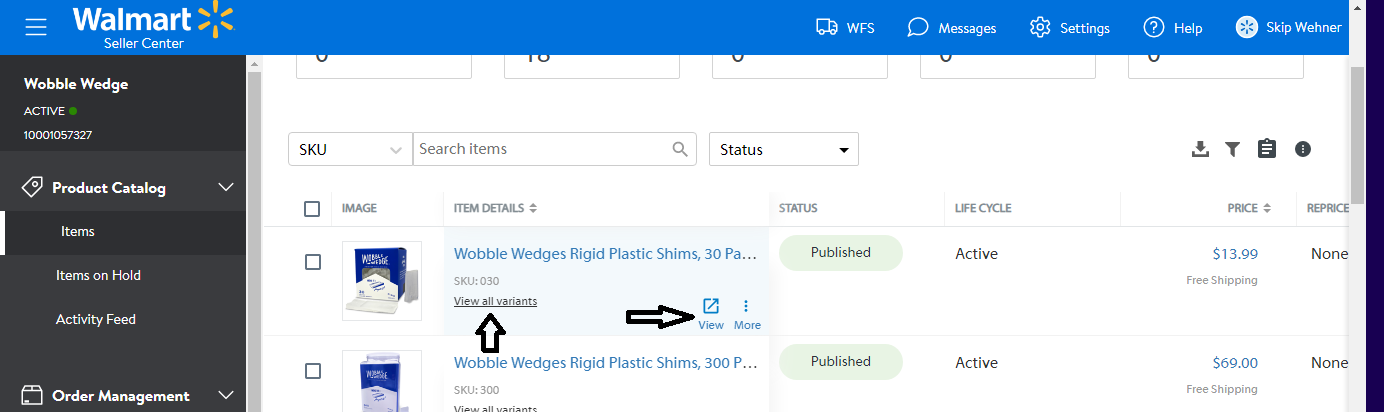
- The variation must show on the PDP.

