Who is this for? For sellers using Seller Central who need to generate a Removal Order Detail Report. It provides step-by-step instructions on how to access and download the report.
Objective: To guide sellers in generating a Removal Order Detail Report in Seller Central. The report provides crucial information about removal orders, including order type, order status, product information, removal fees, and tracking information for returns.
The Removal Order Detail Report is a valuable tool for sellers using Seller Central to gather comprehensive information about their removal orders. This report not only provides details on order types, order status, and quantities by removal type but also offers insights into the associated product information and removal fees charged for completed removal orders. Additionally, sellers can access tracking information for pending and completed returns, providing visibility into the shipment process.
To generate a Removal Order Detail Report in Seller Central, please follow the steps below:
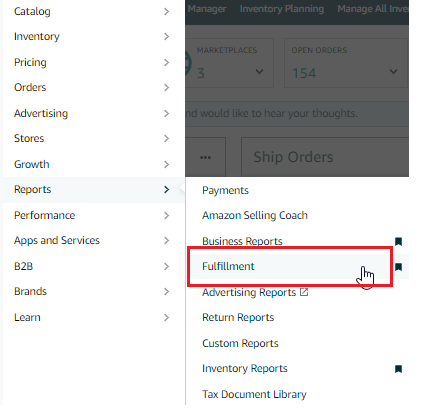
- Go to the "Reports" tab on the top menu and select "Fulfillment" from the drop-down menu.
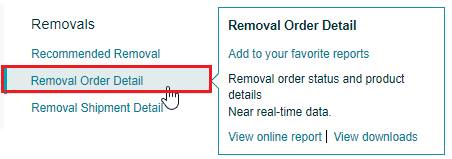
- Under the "Removals" header on the left side of the page, click the "Removal Order Detail" link.
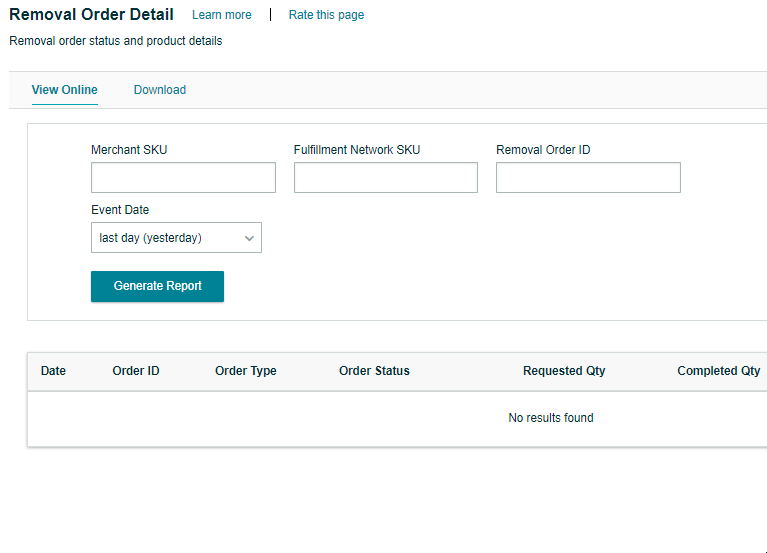
- On the following page, choose the event date by selecting from the drop-down menu or selecting "Exact Dates" and entering the "From" and "To" dates using the calendar icons. You can also enter your Merchant SKU, Removal Order ID, or Fulfillment Network SKU to generate a more specific report.
 To download a Txt or a CSV copy of the report, follow the instructions below:
1. On the same page, click "Download".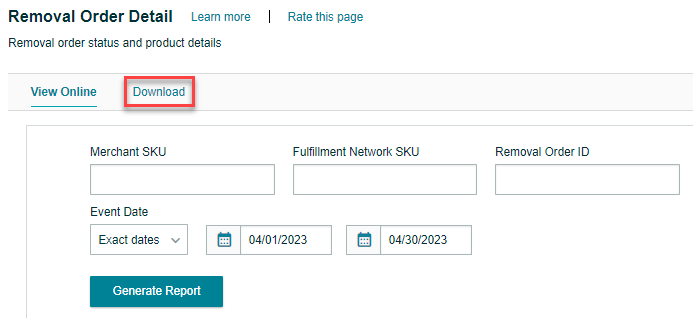
2. Select the event date by choosing from the drop-down menu or selecting "Exact Dates" and entering the "From" and "To" dates using the calendar icons.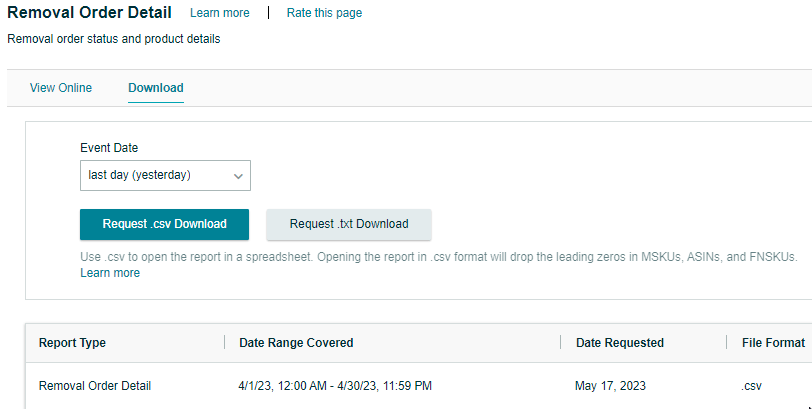
3. Click the "Request .csv Download" button to download the report in Excel format, or click the "Request .txt Download" button to download it in text format.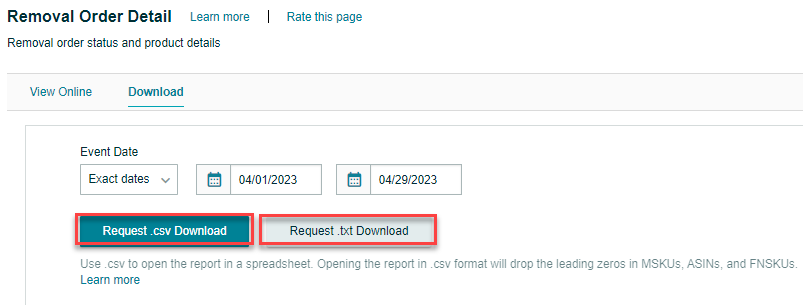
- The "Report Status" column in the table below will show the status as "In Progress".
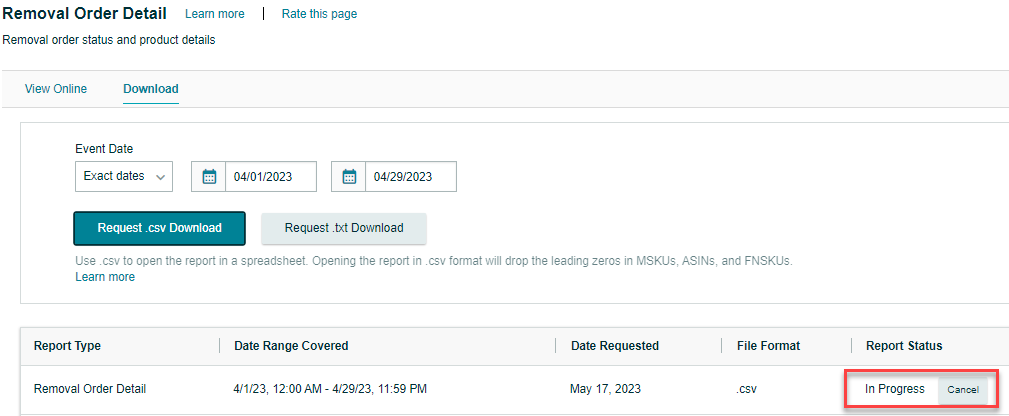 5. Once the report is ready for download, the status will change to "Download". Click the "Download" button in the "Report Status" column to download your report.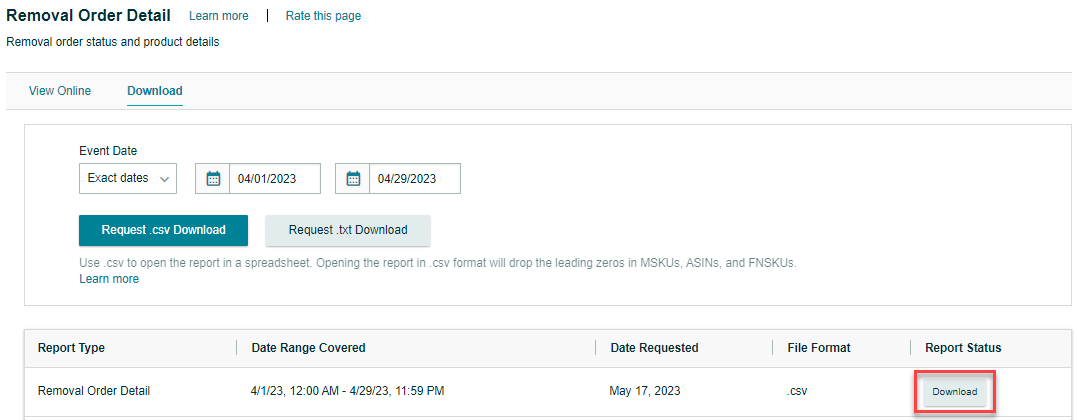
 To download a Txt or a CSV copy of the report, follow the instructions below:
 5. Once the report is ready for download, the status will change to "Download". Click the "Download" button in the "Report Status" column to download your report.
