Who is this for? Individuals who wish to effectively utilize Amazon coupons.
Objective: To increase customer engagement and boost sales by creating and promoting effective Amazon coupon campaigns that incentivize shoppers to purchase products at a discounted price, while also building brand loyalty and increasing product visibility on the Amazon platform.
Amazon Coupons are a way for online shoppers to save money on the products they're interested in, just like physical coupons you find in your Sunday newspaper. Amazon Coupons show up as a button under the product listing and are redeemable with a simple click on the "Clip Coupon" button.


Before implementing, it is important to communicate, and get client’s approval. Include the approval proof (screenshot or fireflies call link) as Task Details or as a Comment.
Setting up Amazon Coupons
Go to the Advertising menu, select Coupons.
There are 2 ways to create a coupon, in bulk or single entry/manual.
 Setting up Amazon Coupons Manually
 Setting up Amazon Coupons Manually
- Click the Create a new coupon button.
- You can follow the Amazon-recommended products, just tick the box beside the listing. Once ticked, it will be added to the list of Participating products.

- Or you can manually search for a particular ASIN just tick the small box. Then you will notice that there will be added quantity in the Participating products. Click the Continue button to continue.
- Up to 200 ASINs can be added manually to the coupon.
- Fill out all the necessary information:
- Schedule - Set the Start and End dates. Duration is from 1 up to 90 days only.
- Discount - Discount can be a Percentage or Money off
- Percentage - Minimum of 5% up to a maximum of 80%
- Money - The minimum and maximum amount should also be within the minimum and maximum percentages when computed (min 5% to max 80%).
- Limit - We can set the coupon redemption to one per customer.
- Budget - Minimum of $100 up to a maximum of $1,000,000
- The budget will be shared among the following 2 costs:
- USD equivalent of the discount you are offering
- Redemption fees ($0.60 for each redemption)
- The budget will be shared among the following 2 costs:
- Title - Choose a definition that accurately describes the product group added to the coupon.
- Depending on the percentage or money off selected, this will form the initial title of the coupon:
- Save 15% on ____________
- Save $15 on _____________
- Limit to a maximum of 100 characters only.
- Depending on the percentage or money off selected, this will form the initial title of the coupon:
- Targeting - You may choose to limit the audience of your coupon to one of the customers.
- Customer to target:
- All customer
- Amazon Prime members
- Amazon Student members
- Amazon Family members
- Customer to target:
- Once all information is filled out, you will notice the Continue button will turn to the color yellow. Click the button to continue.
REMINDER: The coupon will be deactivated automatically when it reached 80% budget utilization.

- The next page will display a summary of the coupon.
- Once all information is confirmed correct, click the Submit button.
- This will go back to the coupon page. Submitted coupons will initially be listed under Submitted.
- The number of coupons submitted will be displayed as well.

- Submitted coupons will automatically run based on the set Start date. All running coupons will be listed under Running as well as the number of coupons.
- If there are listed coupons under Needs Action, this will display the number of coupons having issues concerning the ASINs applied. Either the ASIN is suppressed or out of stock.
Setting up Amazon Coupons in Bulk
- Click the Create in bulk.
- It will open a new window. Select the Download template file link. This will automatically download the template file to fill out.


- Open the downloaded file and fill out the necessary information.
- Instructions for filling up the spreadsheet are posted in every column. You just need to follow the format as instructed.
- Once all information is filled out, save the spreadsheet and go back to the Amazon SC coupon page. Click the Choose file button and browse the spreadsheet created.
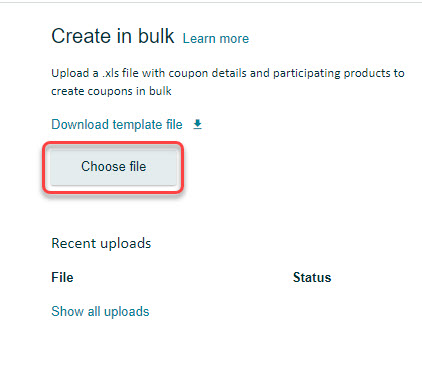
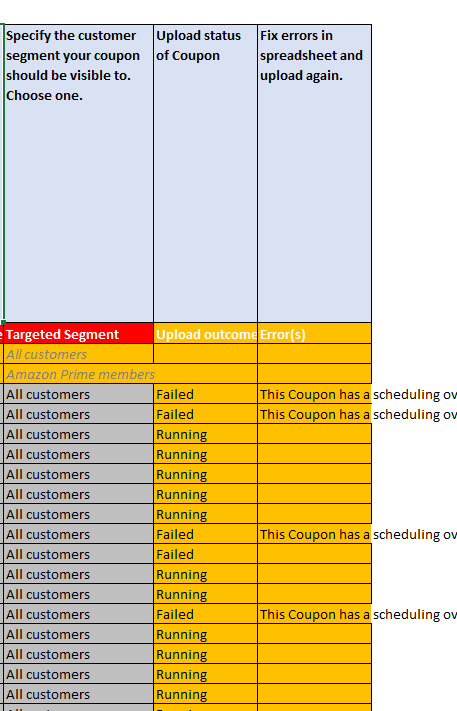
- Once uploaded, it will give a status report of the spreadsheet. We can download the report by clicking Status File.
- In the status report, it will display if the coupon created is Running. If in case it failed, it will also show the cause of the error.