Who is this for : This is for sellers on the Seller Central platform who need to download a Sales and Orders by Month Report for their business.
Objective: To provide step-by-step instructions on how to generate and download a Sales and Orders by Month Report on Seller Central. This report can provide valuable insights into the sales and order trends of a business over a specific time period.
The Sales and Orders by Month Report is a powerful tool for sellers on Seller Central to track their business performance and analyze sales and order data over time. This SOP will guide you through the process of accessing the report, customizing the fields, adjusting the date range, and downloading the report in CSV format. By following these instructions, you will be able to generate comprehensive reports that can aid in decision-making and help you gain valuable insights into your business's sales and order trends.
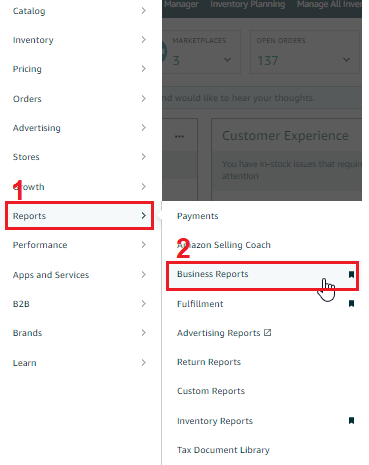
To generate a Sales and Orders by Month Report, go to the "Reports" tab in Seller Central and select "Business Reports" from the dropdown menu.
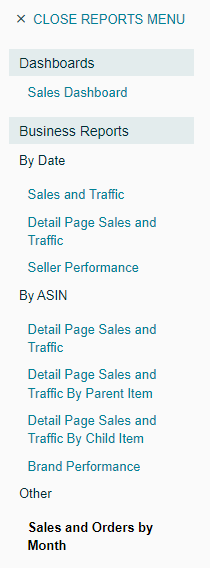
On the next page, choose "Sales and Orders by Month" under the "Other" subheading in the left-hand menu.
Choose the date or dates you want to include in your report using the available drop-down menus below the displayed graphs.

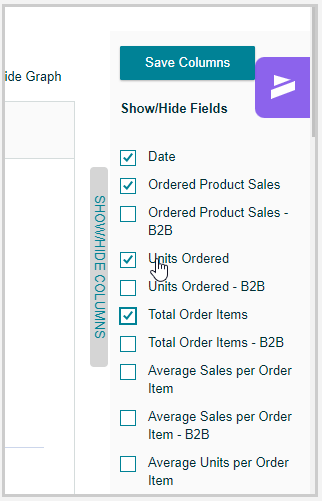
Click the "SHOW/HIDE COLUMNS" button on the left side of the page to access the available fields and select the ones you want in your report.
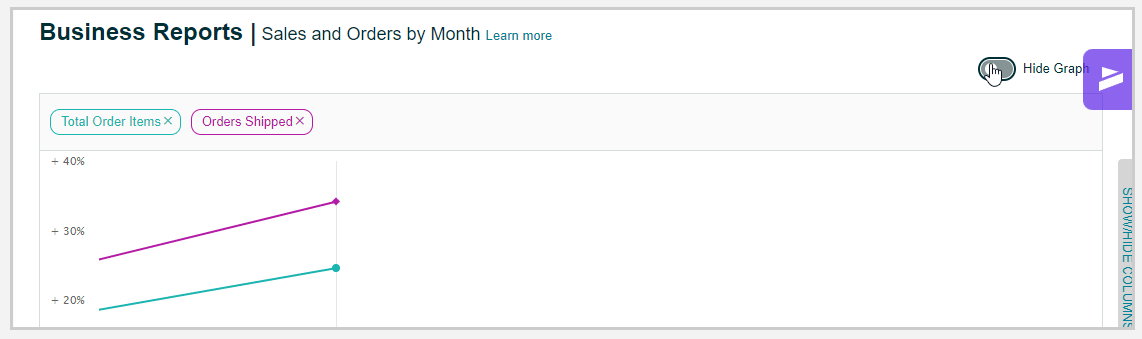
If you prefer to hide the graph, click the "Graph" icon in the top right corner of the chart. To show it again, click the same icon.
To customize the date range, drag the scrollbar or click the calendar icons under the graph or above the table.
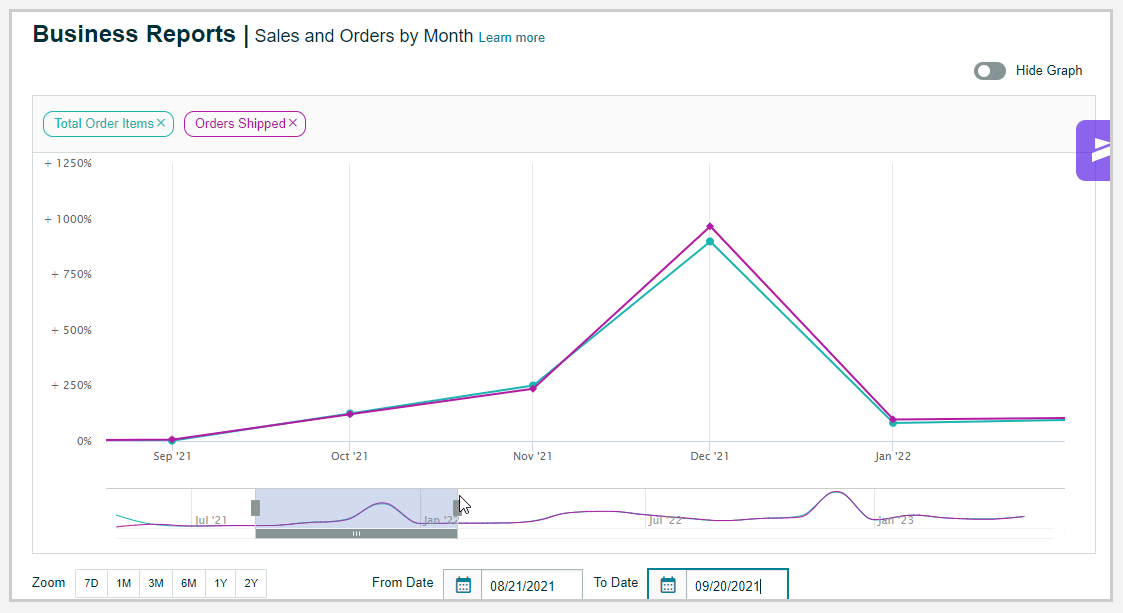
Zoom in on a specific period using the 7D, 1M, 3M, 6M, 1Y, or 2Y buttons on the left side of the graph.

Once you're satisfied with the report settings, click the "Download" button and select "CSV" from the dropdown menu to download your report.

