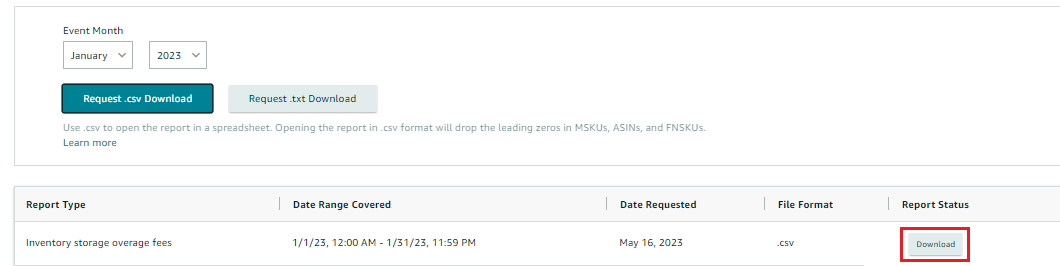
Who is this for? This is intended for individuals or teams responsible for inventory management and financial analysis on Seller Central. It is suitable for users who have access to Seller Central and need to generate an Inventory Storage Overage Fees Report to track and evaluate any additional fees related to excess inventory storage. This SOP will assist users in navigating to the appropriate section, selecting the desired report format, and downloading the report for review, analysis, and decision-making purposes related to inventory management and cost optimization.
Objective: To provide instructions for generating an Inventory Storage Overage Fees Report. This SOP aims to guide users in accessing and downloading a report that provides information on any overage fees incurred due to excess inventory storage. It enables users to monitor and analyze overage fees to optimize inventory management and minimize additional storage costs.
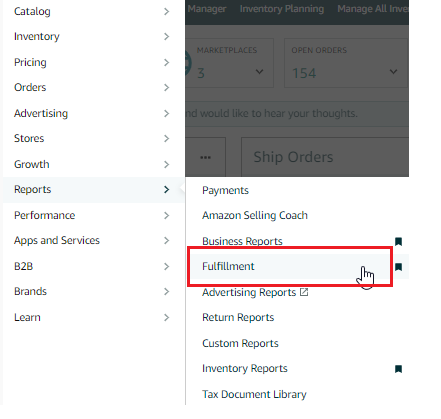
- To generate an Inventory Storage Overage Fees Report, go to the “Reports” Tab on the Top Menu of Seller Central and select “Fulfillment” from the Drop-Down Menu.
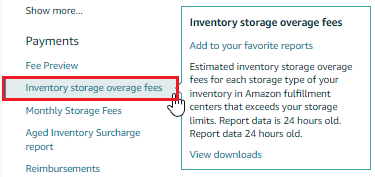
- Under the “Payments” Header on the left side of the page, click on the “Inventory Storage Overage Fees” link.
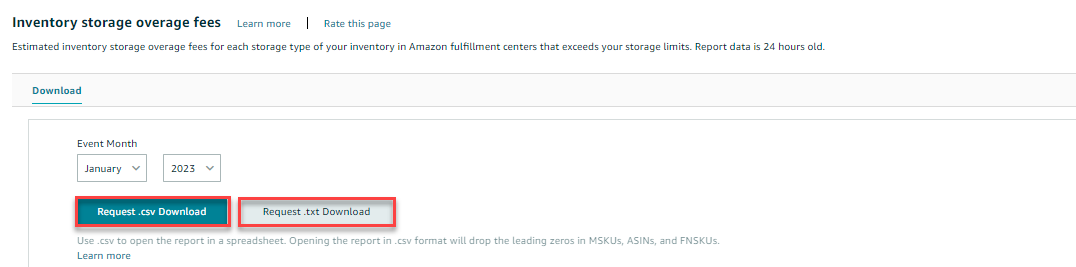
- On the next page, choose the desired “Event Month” and Year from the available Drop-Down Menus.
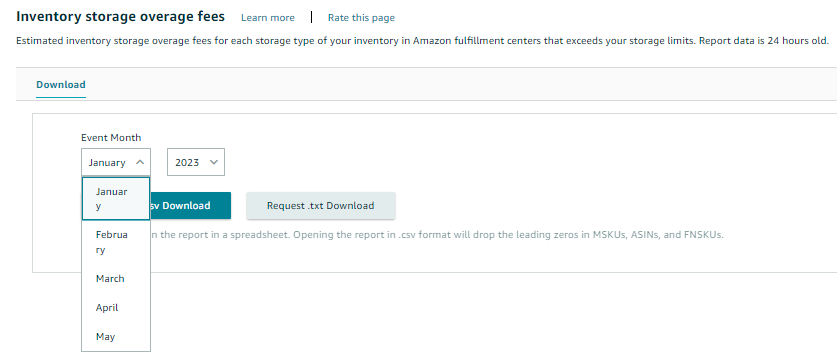
- If you prefer to download the report in an Excel format, click the “Request .csv Download” button. If you prefer to download the report in a text format, click the “Request .txt Download” button.
- The “Report Status” Column in the table below will show the status as “In Progress”.
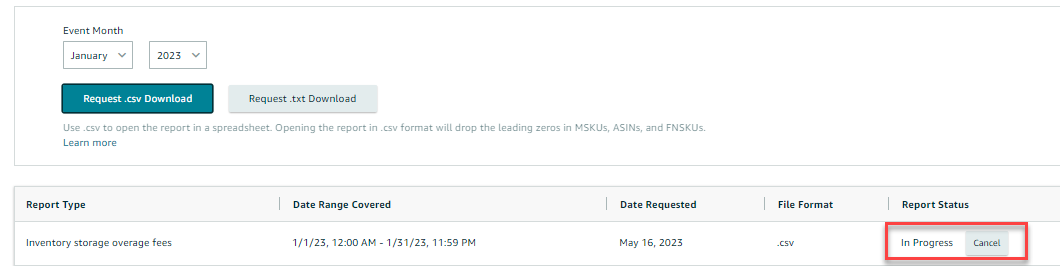
- Once the report is ready for download, this status will change to “Download”. To download your report, click the “Download” button in the “Report Status” Column.