Who is this for? This is designed for sellers on Seller Central who want to generate a Brand Performance Report to track their brand's performance on the platform. It is intended for individuals or teams responsible for analyzing business data and making informed decisions to optimize their brand's performance.
Objective: To provide clear instructions on how to download a Brand Performance Report from Seller Central. By following these steps, sellers will be able to access valuable insights and metrics related to their brand's performance, enabling them to make data-driven decisions to enhance their business strategies.
This SOP outlines the step-by-step process to download a Brand Performance Report on Seller Central. The report provides comprehensive data and performance metrics that are essential for evaluating and optimizing a brand's performance on the platform. By following these instructions, sellers will be able to generate a customized report tailored to their specific requirements and gain valuable insights into their brand's performance trends, sales data, and other key metrics. These insights can then be used to make informed decisions and implement effective strategies to drive growth and success on Seller Central.
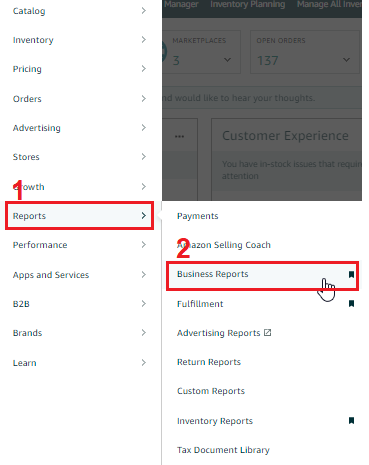
- To generate a report on your Brand's Performance, first, select "Business Reports" from the Drop-Down Menu under the "Reports" Tab in Seller Central's Top Menu.
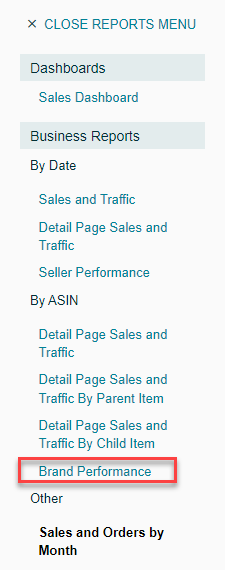
- On the next page, find the "Brand Performance" link in the left side menu under the sub-heading "By ASIN" and click on it.
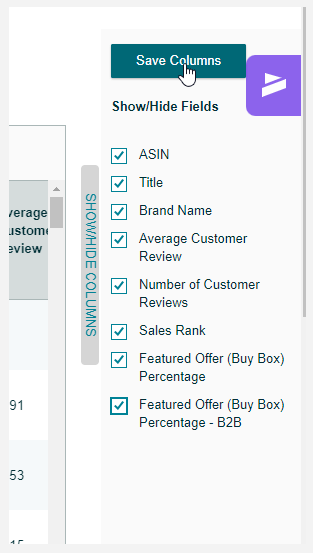
- Click on the "Columns" button located on the left side of the page to reveal the available Column Fields. From here, you can select or deselect which columns and information you would like included in your report.
- You can set your preferred date range by clicking the calendar icons for the "From" and "To" dates located beneath the graph and above the table on the right side of the page.

- Once you have finalized your report, click on the "Download" button on the right side of the page and select the "CSV" option from the drop-down menu to download your report.

