Who is this for?: This SOP is for those who are experiencing issues with stranded inventory within their FBA inventory. It is intended for those who need to troubleshoot and resolve an inventory error to ensure all products are active and available for purchase by customers.
Objective: The objective of this SOP is to locate and resolve stranded inventory errors by identifying the reason for the issue, relisting the inventory, and uploading an updated category listings report to fix the ASIN connection. The ultimate goal is to ensure all inventory is active and available for sale, with any stranded inventory issues resolved in a timely and efficient manner.
In order to effectively troubleshoot Stranded Inventory (Inventory Error), please follow the detailed step-by-step instructions provided below:
1. From the Seller Central home page, click the 3 line bar on the left side and select "Inventory." Then, proceed to FBA Inventory.
2. Hover your mouse over "Inventory" and then select "Stranded Inventory."
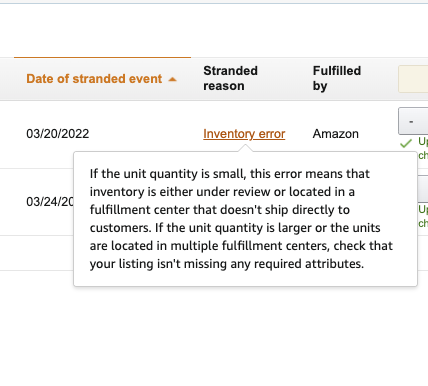
3. Identify the Stranded Reason.
- On the Stranded Inventory page, you'll find a list of your stranded inventory items along with the reasons Amazon has flagged them. Hover over the specific issue to get a detailed explanation of the problem. Identify which listings have an inactive offer and prepare to address the issue.
 4. Resolve Amazon listing error
 4. Resolve Amazon listing error
 - If your product isn't connected to any ASIN, it's considered a listing error. This can occur if your listing was deleted or never created. To relist your inventory, go to the Stranded Inventory tab, locate the last column of the problematic listing, and select the option "Refresh stranded reason". Wait for a few minutes and repeat this process multiple times.
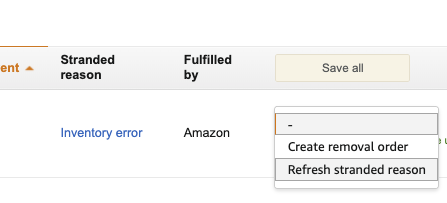
- If the listing is fixed, it will be removed from the Stranded Inventory, and the ASIN should show as "Active" in your inventory.
- If the issue persists, download the Category Listings Report and upload a full update on the ASIN.
5. Download the Category Listings Report
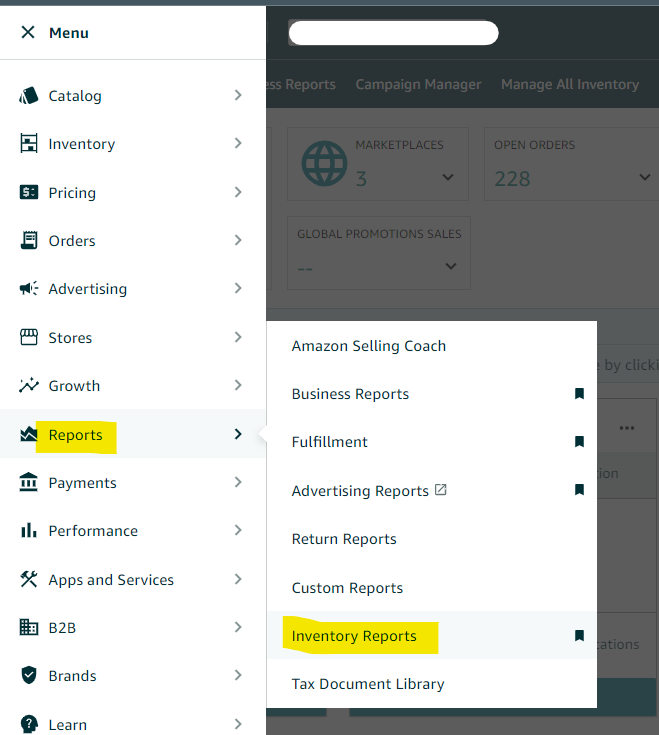
Go to 'Reports' and then select 'Inventory Reports' from the menu.
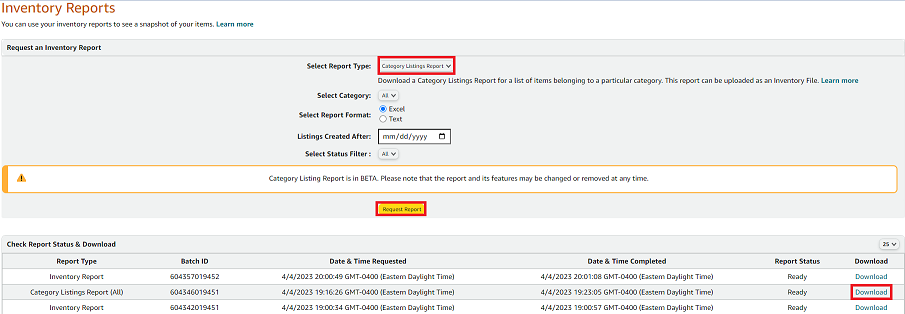
- To generate the necessary report, click on the "Select Report type" dropdown menu and select the Category Listing Report. After selecting the desired report type, click on "Request report" to generate the report. Once the report has been generated, click on "Download" to save a copy of the report to your computer.
- Open the downloaded file and search for the problematic listing (SKU) in the 'Seller SKU' column. Note: Ensure that you only update the problematic listing(s).
- Review all details for accuracy before proceeding with the upload.
6. Upload the update file
- Save the corrected file and upload it to Amazon by navigating to 'Catalog' and then select 'Add Products via Upload'.
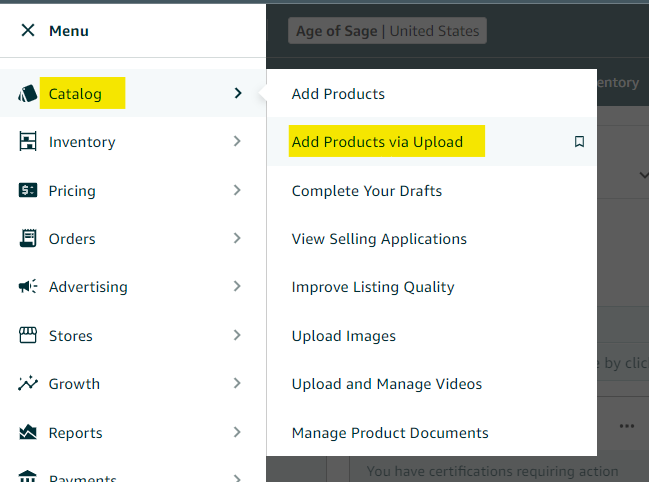
- From the 'Upload your spreadsheet' tab, click on "Drag and drop file or Browse files." Select the file you want to update and then click on the "Upload file" button.
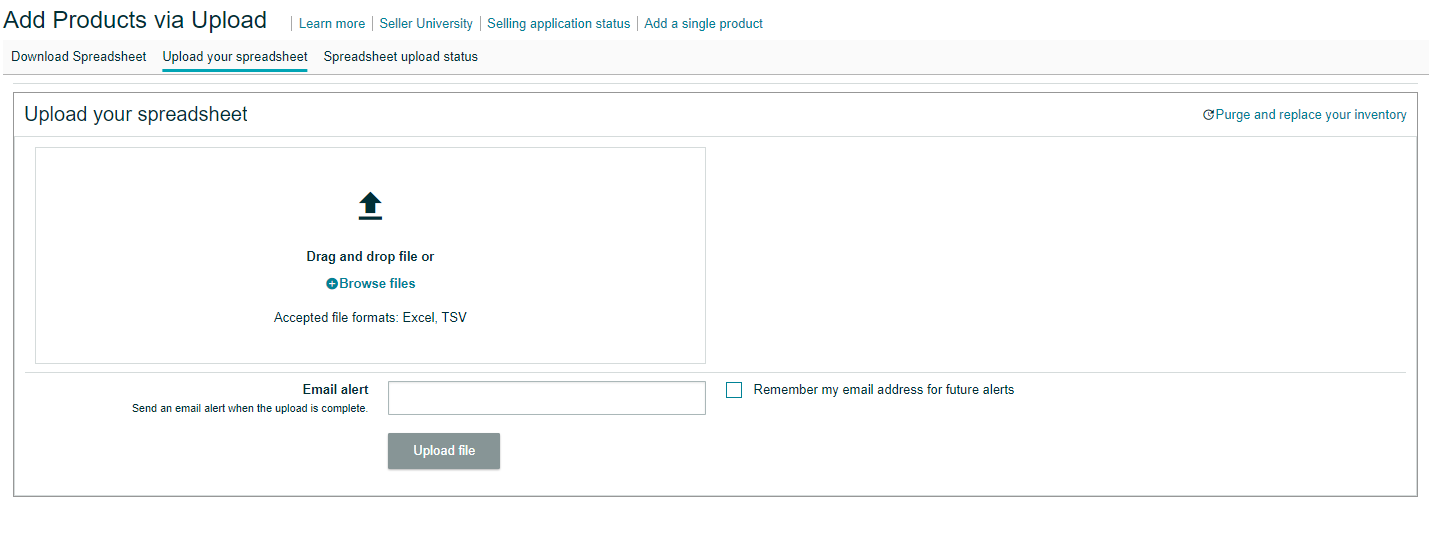
- Wait for at least 15 minutes for the inventory file to be processed.
- Ensure the file is uploaded successfully and record the BATCH ID.
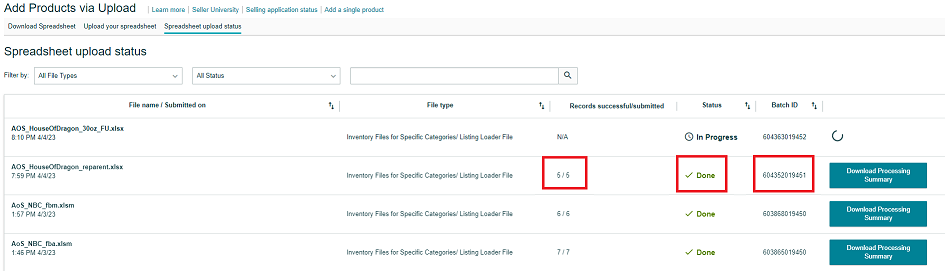
- Return to the 'Stranded Inventory' page to confirm whether the issue is resolved.
- Try to “Refresh Stranded Reason” again. Wait another 15 minutes – if it wouldn’t disappear in stranded inventory and the listing wouldn’t change to Active on its own, contact Seller Support and ask them to Reactivate this offer and provide the batch ID.
