Who is this for? Individuals who are uploading an occasion-themed brand store banner.
Objective: To minimize re-uploading different occasion-themed brand store banners.
Amazon Brand Stores allow you to showcase your brand and products in a multipage, immersive shopping experience. No matter the size of your brand, the Amazon Brand Store gives you an immersive place to introduce audiences to your story, mission, and products.
You can create multiple versions of your Store and schedule them to run during specific periods of time. This is very useful during holidays, simplifies the process, and saves extra work.
Creating Amazon Store Versions
- Go to Stores, then Manage Stores.
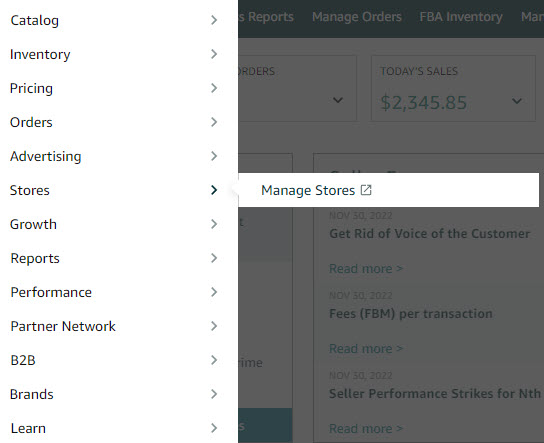
- Click Edit Store in line with the brand you are working on.

- Click the gear button of the version you want to duplicate.

- Click Copy version button

- Fill in the Version name box.

- Click Edit now to start customizing the new brand store version.

- You can customize the hero image (banner) or other stuff that suits the scheduled time.
- To replace the banner image, just click the image itself. A right sidebar will pop out, then click Upload New toupload the new banner image.
- The banner image must be at least 3,000 x 600 pixels in size.

- Once the new hero image is uploaded, click Done.
- Click Submit for Publishing button.

- In the pop-up window, select Request publishing dates.
- Fill in the Start and End dates you want the version of the brand store to go live.
- The bottom part will display other versions' start and end dates.

- Click Submit.
NOTE:
- If there is no other version besides the original and duplicate versions, the original version will go live right after the end date of the duplicate version.
- If there are other versions you want to go live after the duplicate version's due date:
- Wait for the duplicate version to go live first.
- Edit the other version's start date (the date right after the end date of the duplicate version)
- Submit the other version.
- Only 1 version can have no end date.

