Who is this for: This SOP is for Amazon sellers who need to upload their Cost of Goods (COGS) for accurate tracking and reporting of profitability.
Objective: To provide a step-by-step SOP for Amazon sellers on how to upload Cost of Goods (COGS) in Merchant Spring to ensure accurate tracking and reporting of profitability.
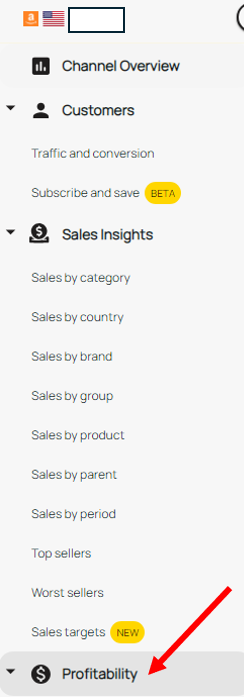
- Go to the "Profitability" tab on Merchant Spring.
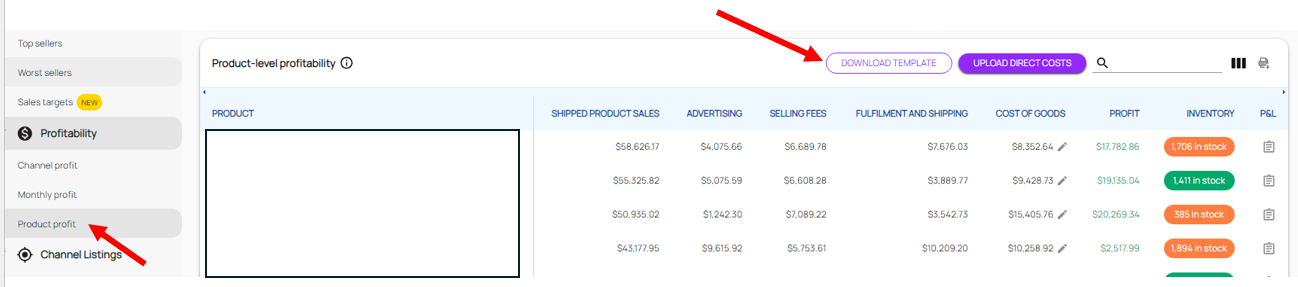
- Click on "Product Profit" and then select "Download COGS Template". The COGS Template will include all active SKUs.
- Fill out the CSV file with the appropriate COGS and ShippingCost values for each SKU.
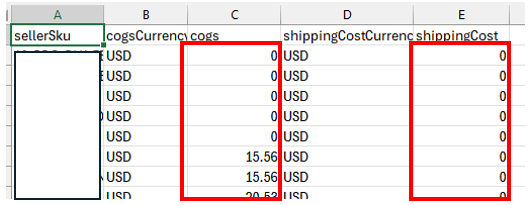
- Make sure to only make changes on the "cogs" and "ShippingCost" columns. Only input numbers. "ShippingCost" will only be for FBM products. If you accidentally input an amount for an FBA product, it will be disregarded by the system.
- When uploading the COGS file, you'll be asked to select an effective date. This would indicate that the COGS file you're uploading will be applied from that date onwards.
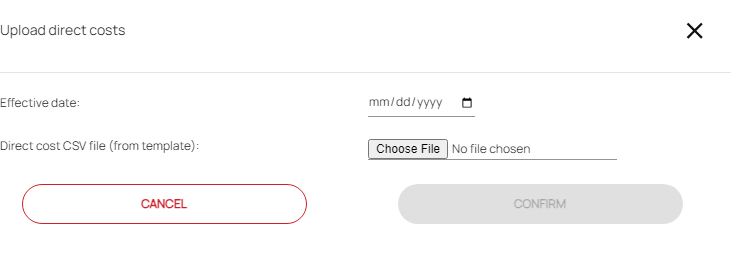
- You can select a past date as the effective date.
- If you select today's date as the effective date, the COGS will only be applied from today onwards and won't show up in historical reports.
By following these steps, Amazon sellers can ensure accurate tracking and reporting of their profitability by uploading their Cost of Goods (COGS).
