Who is this for: This is designed for sellers or individuals responsible for managing business reports on Seller Central. It provides step-by-step instructions on how to download a Business report.
Objective: To guide users in accessing and generating business reports on Seller Central. By following these instructions, users will be able to retrieve valuable sales data, analyze performance trends, and make informed business decisions based on the insights gained from these reports.
Business reports play a vital role in understanding the sales performance and overall health of your business on Seller Central. These reports provide valuable insights into key metrics and data that can be used to identify trends, evaluate product performance, and optimize your selling strategies.
This SOP will guide you through the process of accessing and downloading business reports on Seller Central. Whether you need to review sales data for a specific date, analyze performance by ASIN, or explore trends over time, these instructions will help you generate and customize reports to meet your specific requirements.
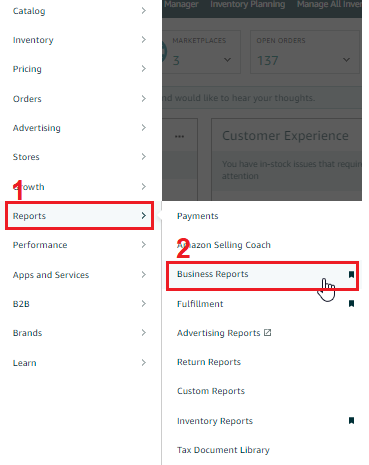
Go to Seller Central and click on the "Reports" tab in the top menu and select "Business Reports" from the drop-down.
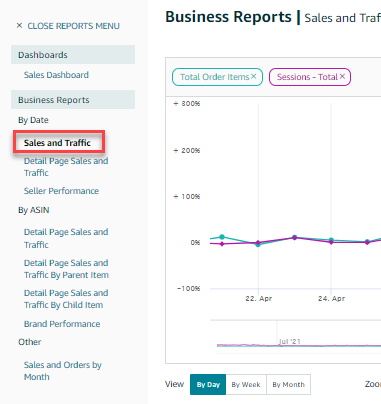
On the next page, click on the "Sales Dashboard" link located in the left-side menu.
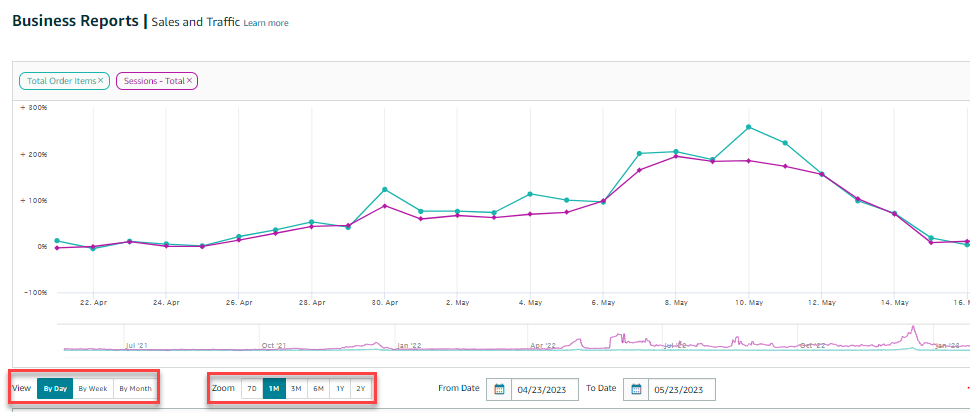
Choose the date or dates you want to include in your report using the available drop-down menus below the displayed graphs.
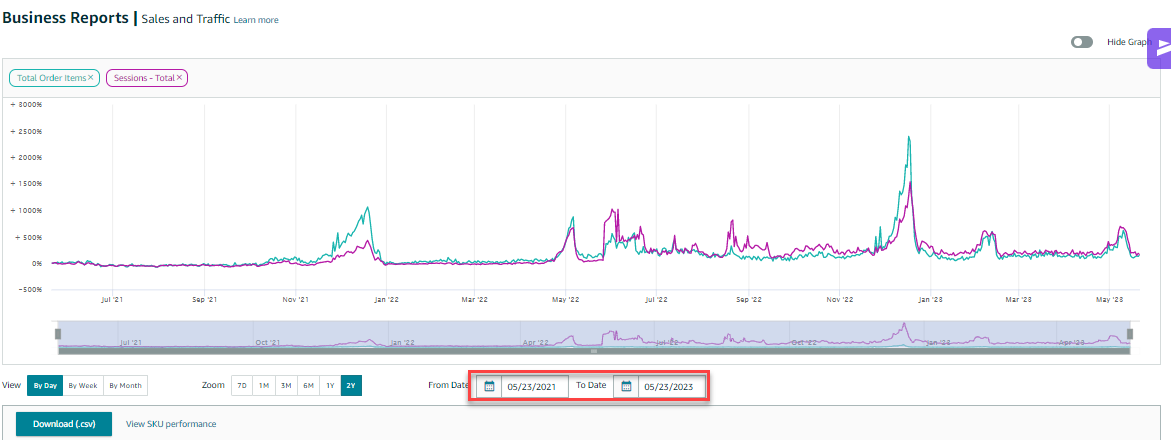
View your report by day, week, or month using the "View" button. Customize your graph by selecting the period (7D, 1M, 3M, 1Y, 2Y) you need to "Zoom" to.
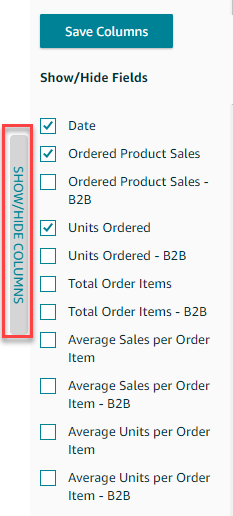
Click the SHOW/HIDE COLUMNS on the right-hand side of the screen to enable or disable a metric. Click "Save Columns" once you're satisfied with your selection.
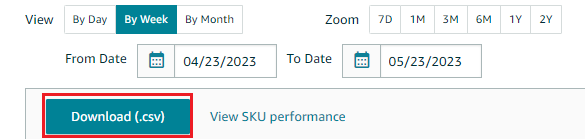
Click the "Download" button to download your report as a CSV file.