Who is this for? For individuals who want to edit ongoing Prime Exclusive Discounts.
Objective: To outline the steps and guidelines for editing a Prime Exclusive discount from a product or service. This SOP aims to ensure a systematic and efficient process for handling the removal of Prime Exclusive discounts, maintaining transparency, and avoiding any potential errors or customer dissatisfaction.
- You cannot edit a live Prime Exclusive Discount offer.
- You can only edit upcoming offers, and it may take up to two hours for your changes to take effect.
- There are two ways to edit a discount: Inline and Bulk Edit via Upload Template.
- Unless there is an urgent cause, it is important to communicate, and get client’s approval first before editing/cancelling Prime Exclusive Discount. Include the approval proof (screenshot or fireflies call link) as Task Details or as a Comment.
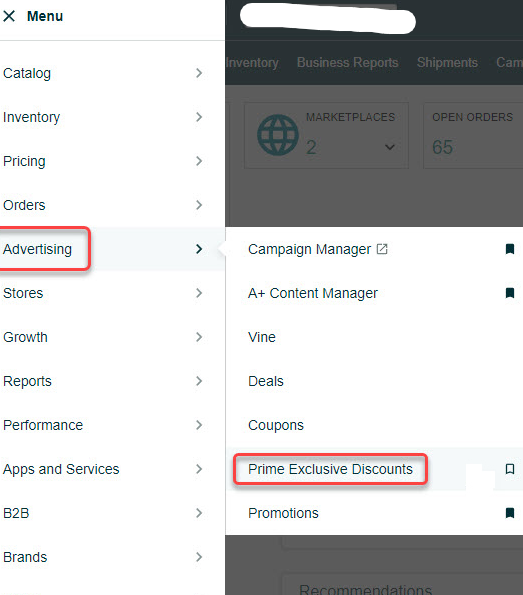
- To edit your offer Inline, select "Prime Exclusive Discounts" from the Drop-Down Menu under the "Advertising" tab on the top menu of Seller Central.
- Locate the discount offer you wish to remove products from on the Prime Exclusive Discounts page and click the "View Details" button to the right of the offer.

- You can now edit the Discount Type, Prime Discount, and Minimum Discount for each SKU in the table.
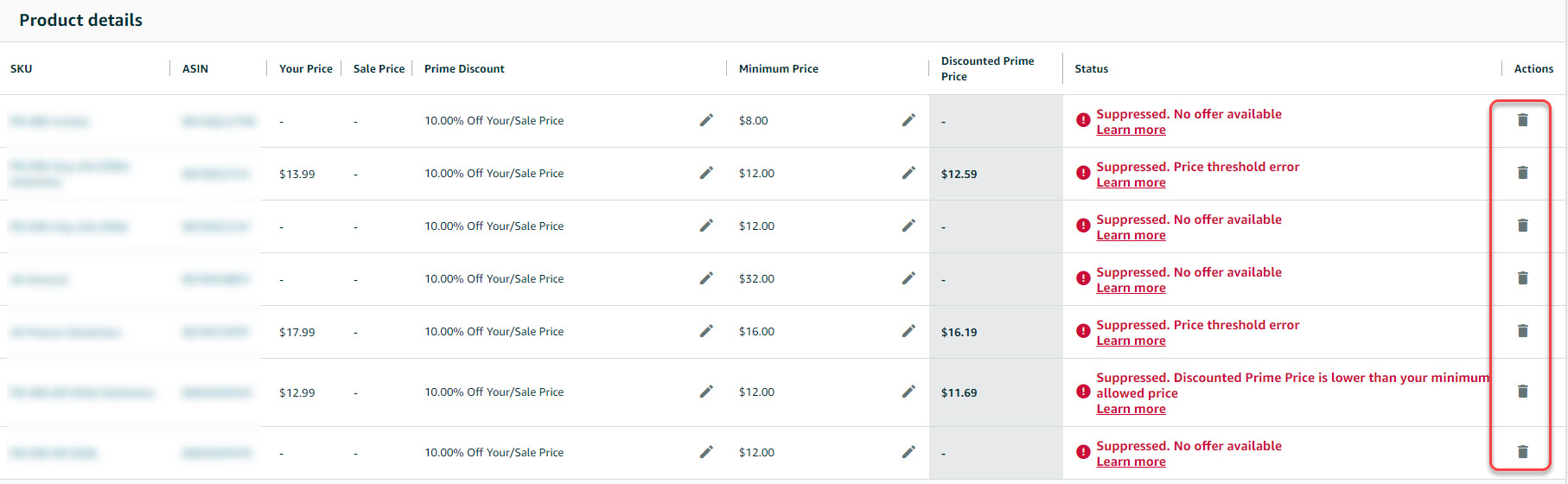
- You can discard changes to an SKU by clicking the "Trash Bin" button.
- To edit the Title and Start and End Dates, go back to the Prime Exclusive Discount main dashboard and click the current title of the discount.

- To add more products, click the "Add More Products" link at the bottom of the page to upload an updated spreadsheet.
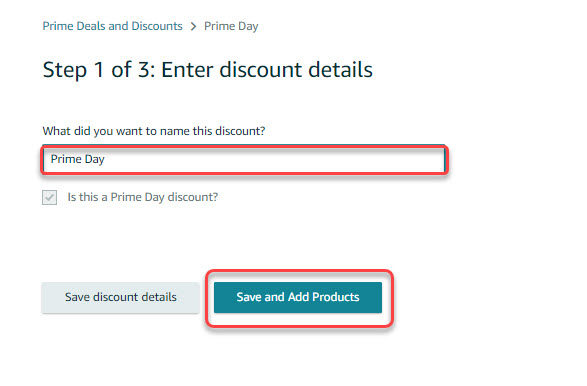
- Remember to save your changes by clicking the "Save All and Submit" button.

- To edit your offer via Upload Template, edit the template first by selecting the letter "e" in Column E for any existing SKUs you want to change.
- Select "d" to remove SKUs and "a" to add new ones.
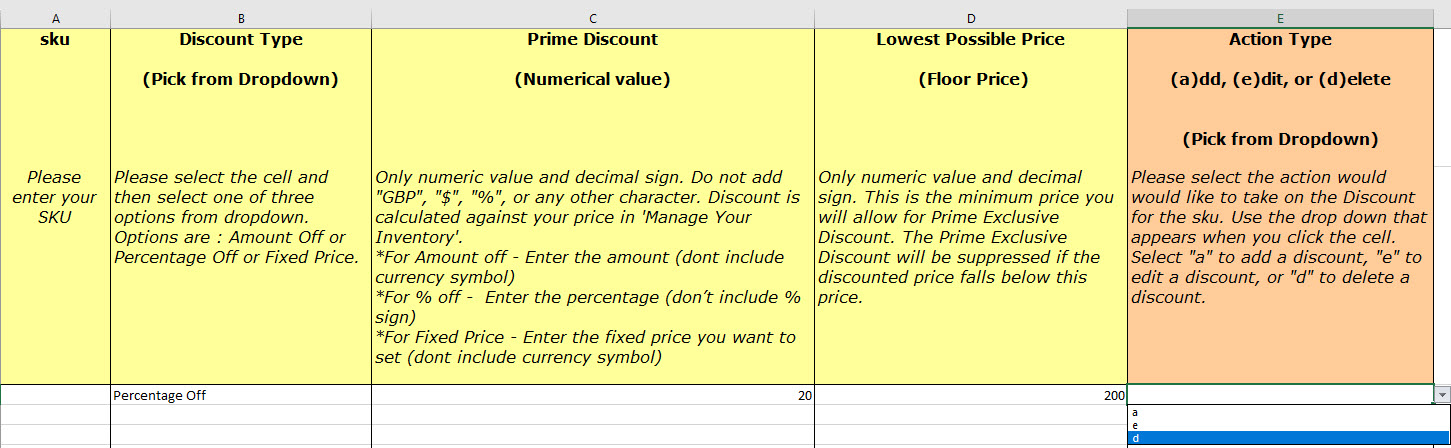
- Save the amended template with a new name, and go back to the "Prime Exclusive Discounts" page.
- Click the current title of the Prime Exclusive Discount.

- Click the "Add More Products" link, and choose your amended template to re-upload it.
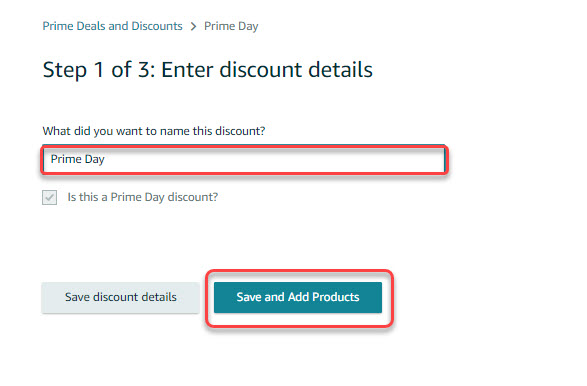
- Save your changes by clicking the "Save All and Submit" button.
