Check and verify brands in the store:
1. Go to Seller Central, navigate to "Stores," and then select "Manage Stores."


2. Check if the brands listed are the ones you own. If the listed brands are correct, no action is needed. However, if an incorrect brand name appears in the store, follow the next steps.

3. File a Case to Amazon
To file a case, use the seller's central primary email address and contact Amazon Support. Report the unexpected brand on the brand store that was not owned by you and request that it be removed. Ensure to provide the MERCHANT TOKEN and request that the case be escalated to the brand registry.
4. Escalation and Follow-Up
There may be several back-and-forth messages between you and Amazon Support. Remain firm on the reason for the request and reiterate that the brand should be removed as it is not owned by you. As of the moment, only Amazon can resolve this issue.
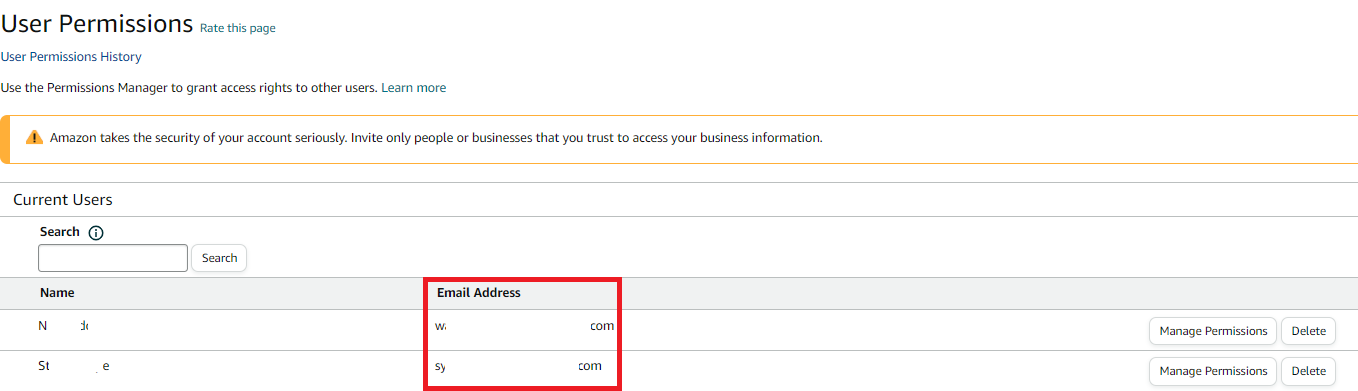
Where to Find Merchant ID and Administrator Email:
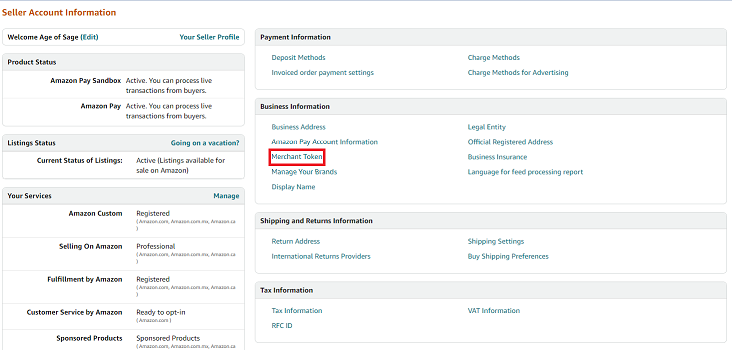
To locate the Merchant ID and Administrator email, go to "Settings" and select "Account Info.

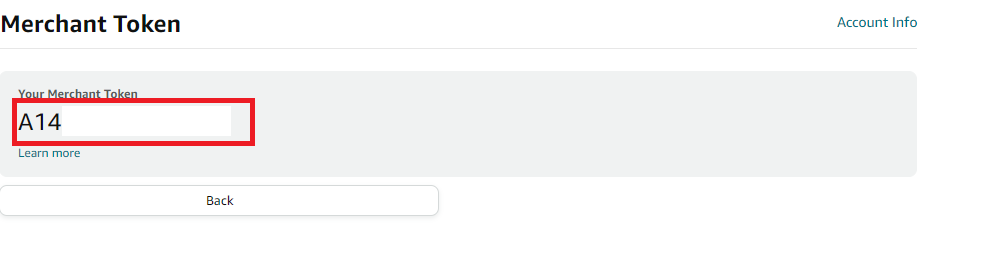
Click "Merchant Token" to find the Merchant ID
Next, navigate to the gear button and hover your mouse over it.
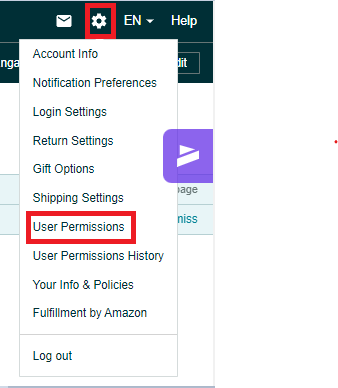
Click on "User Permission" from the dropdown menu that appears.
On the User Permission page, you will find your Administrator email address listed.