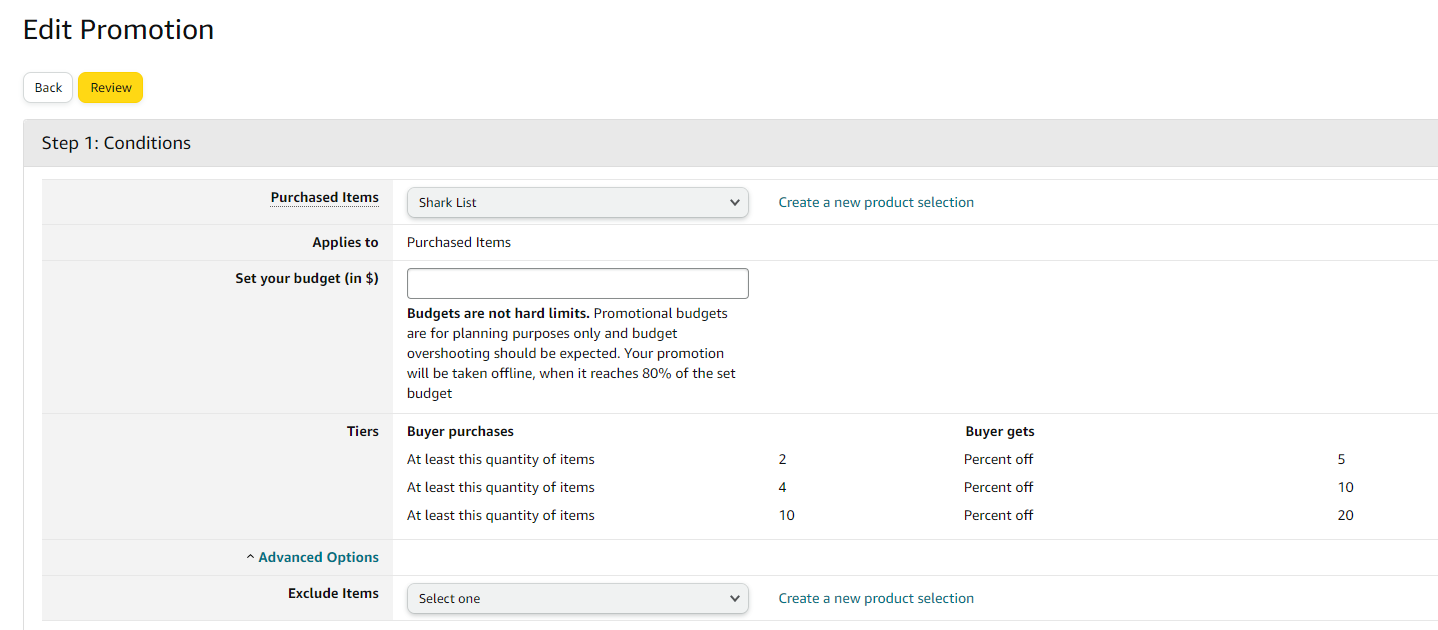
Who is this for: This is intended for sellers or individuals responsible for managing promotions on the Seller Central platform.
Objective: To provide step-by-step instructions on how to edit a Buy One Get One (BOGO) promotion on the Seller Central platform.
Unless there is a critical cause, it is important to communicate, and get client’s approval before implementing edits. Include the approval proof (screenshot or fireflies call link) as Task Details or as a Comment.
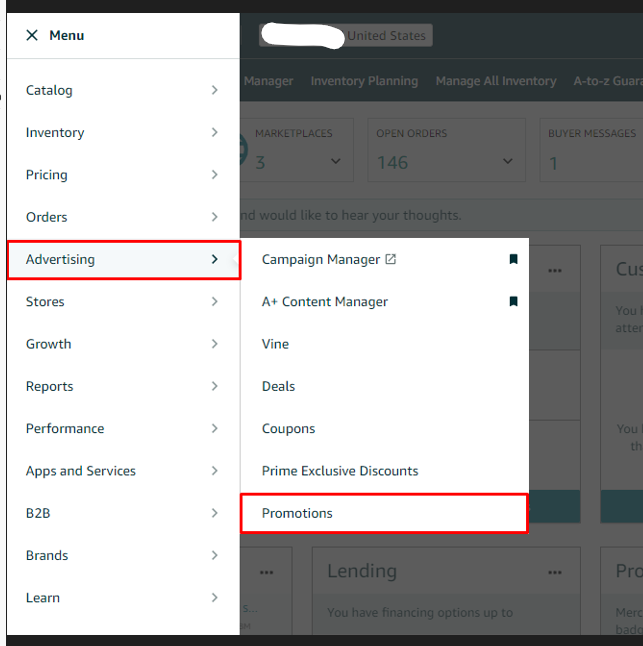
- To make changes to a Buy One Get One Promotion, go to the "Advertising" tab on the top menu of Seller Central and select "Manage Promotions" from the Drop-Down Menu.
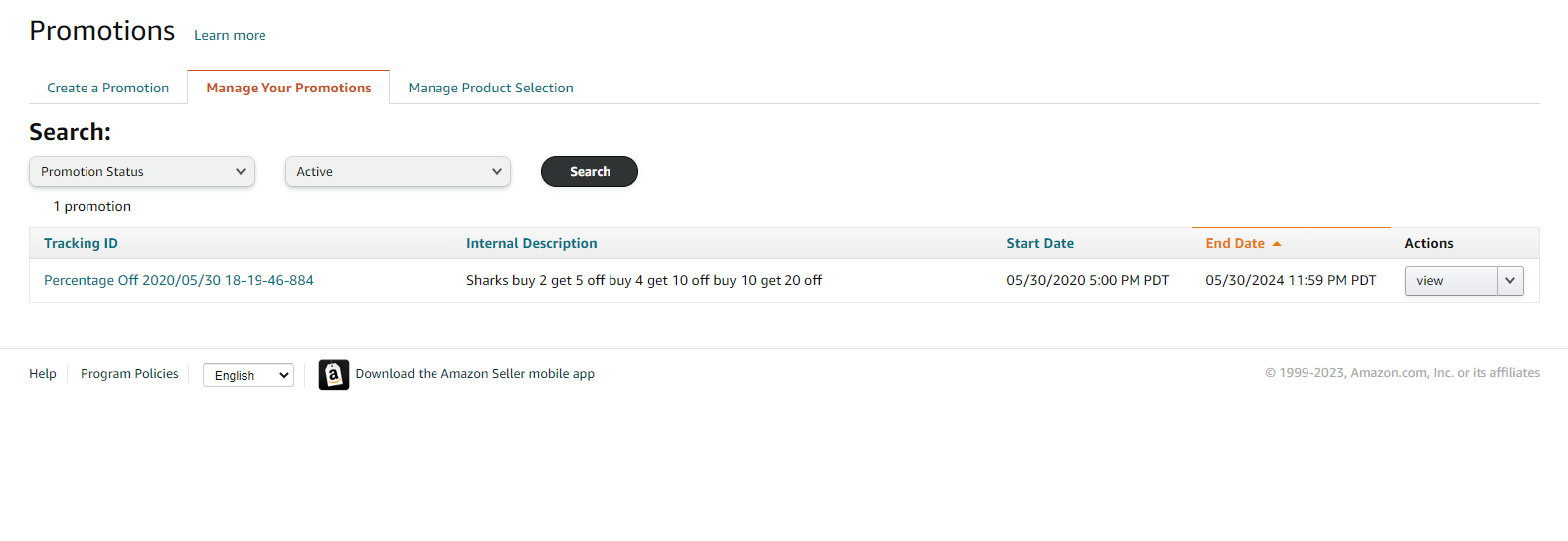
- On the next page, use the search option Drop-Down Menus at the top of the page to locate the Promotion you want to edit under the "Manage your Promotions" tab.
- When you see your Buy One Get One Promotion in the table below, click the Tracking ID to open it up for viewing.
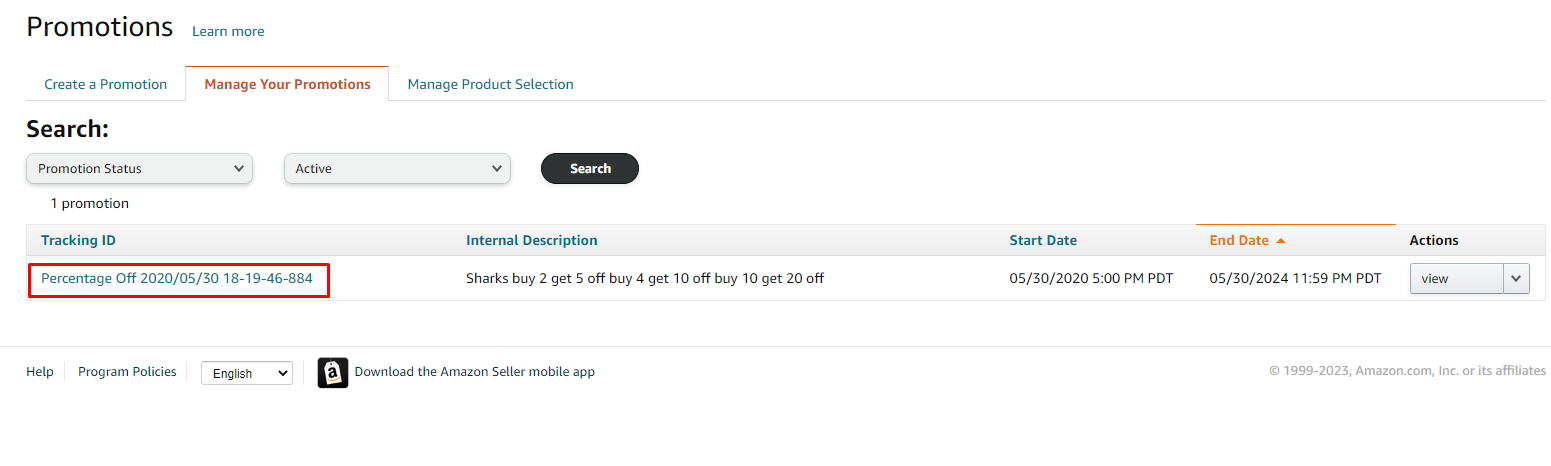
- Alternatively, you can click the "View" button to the right of the Promotion you want to edit.
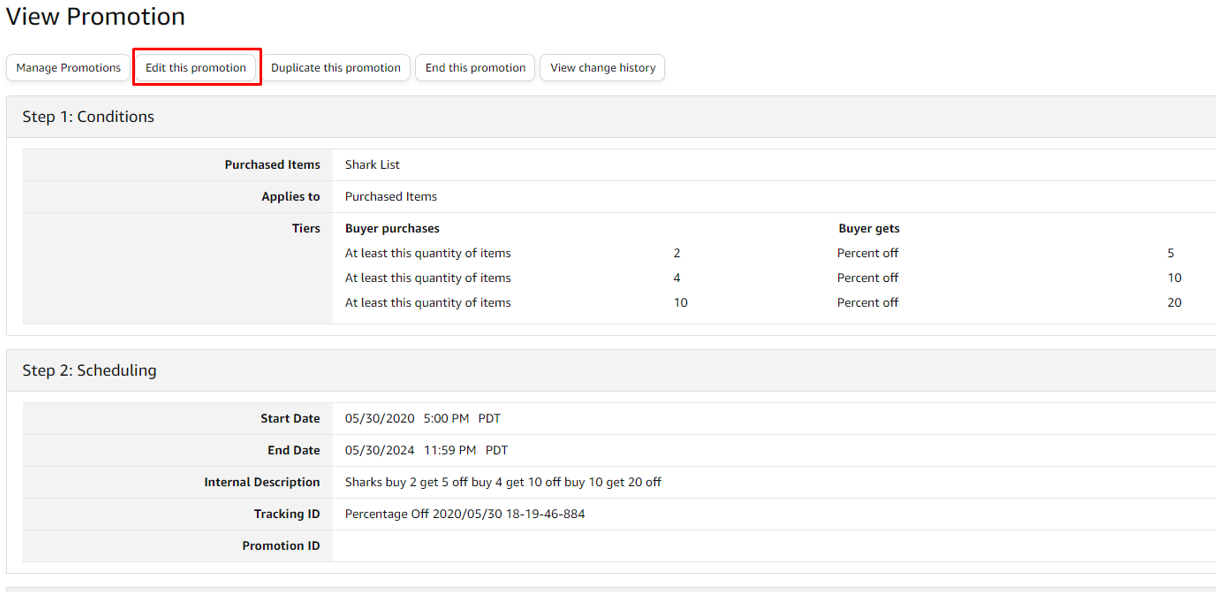
- On the Buy One Get One Promotion Page, click the "Edit this Promotion" button and make the necessary changes.
- Once you're satisfied with the edits, click the "Review" button again to review the updated Promotion, then click the "Submit" button to finalize the changes.