Amazon Promotions can help your products stand out from the competition and stimulate sales. However, promotions are most effective when your offer is the Featured Offer (formerly known as "Buy Box"). Otherwise, the promotional messaging cannot appear on the detail page.
Before creating a Promotion Code, it is important to communicate, and get client’s approval first. Include the approval proof (screenshot or fireflies call link) include in Asana as Task Details or as a Comment. Do the Same when there is an edit to be made on running promotions except if the need to edit is critical.
Before creating or implementing new discount, promotion or coupons, check first if there is an existing running or scheduled one to make sure that these don't overlap in a bad way or end up cancelling one another or cause pricing errors.
In a way, stacking or putting in two different price-off strategy could help more rather than a single flat discount or promotion as this will give both strike through and other discount badge on PDP price making it more appealing to buyer, but we have to confirm and get client's approval as they may not really approve such as for coupons which charges $0.60 for every redemption.
To set up Amazon Promotions in Seller Central, go to Advertising > Promotions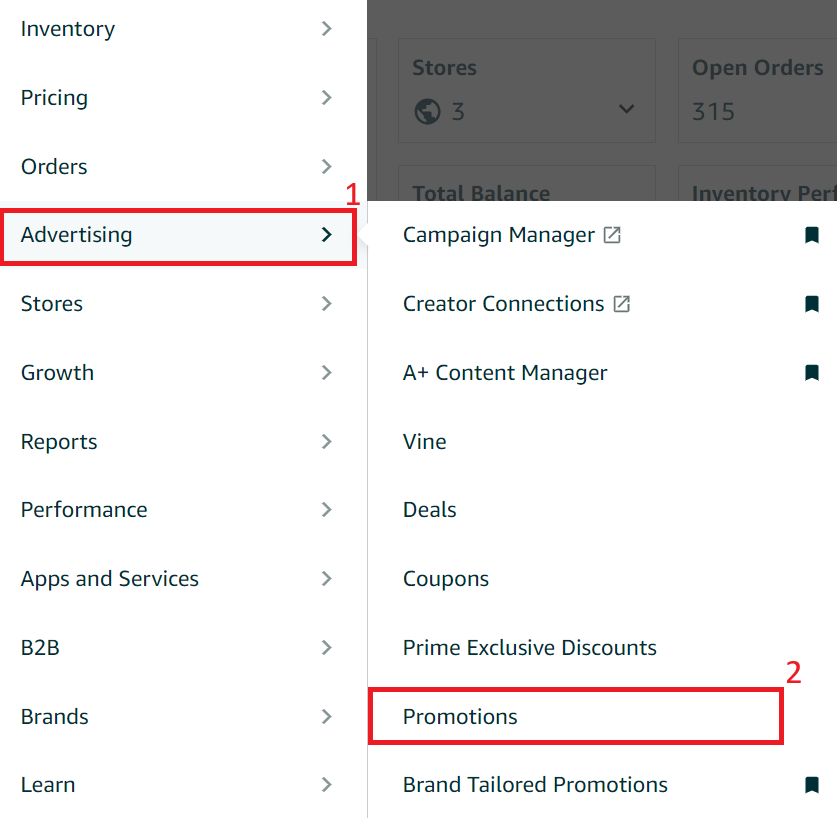
There are 3 kinds of promotions: Social Media Promo Code, Percentage Off, and Buy One Get One.

Setting up Social Media Promo Code
You can create social media promo codes to offer a percentage discount to customers on eligible products. Once you create a social media promo code, you’ll receive a URL for a unique landing page that contains a list of eligible products for the promotion and the promotion details. The landing page exclusively features your offers, so customers do not need to locate your offer in the Offer Display. Share this landing page on social media or marketing channels, such as paid search, to direct customers and promote sales for your products. Customers can add items to their cart directly from this landing page, and the discount will automatically apply.
Social media promo codes can start four hours after they are created and can run up to 30 days. The discount must be at least 5% and a maximum of 80% off the current price. You can set the code to be redeemed on one product or multiple products. After successfully checking out, a customer won't be able to redeem the promo code again unless you allow multiple redemptions per customer.
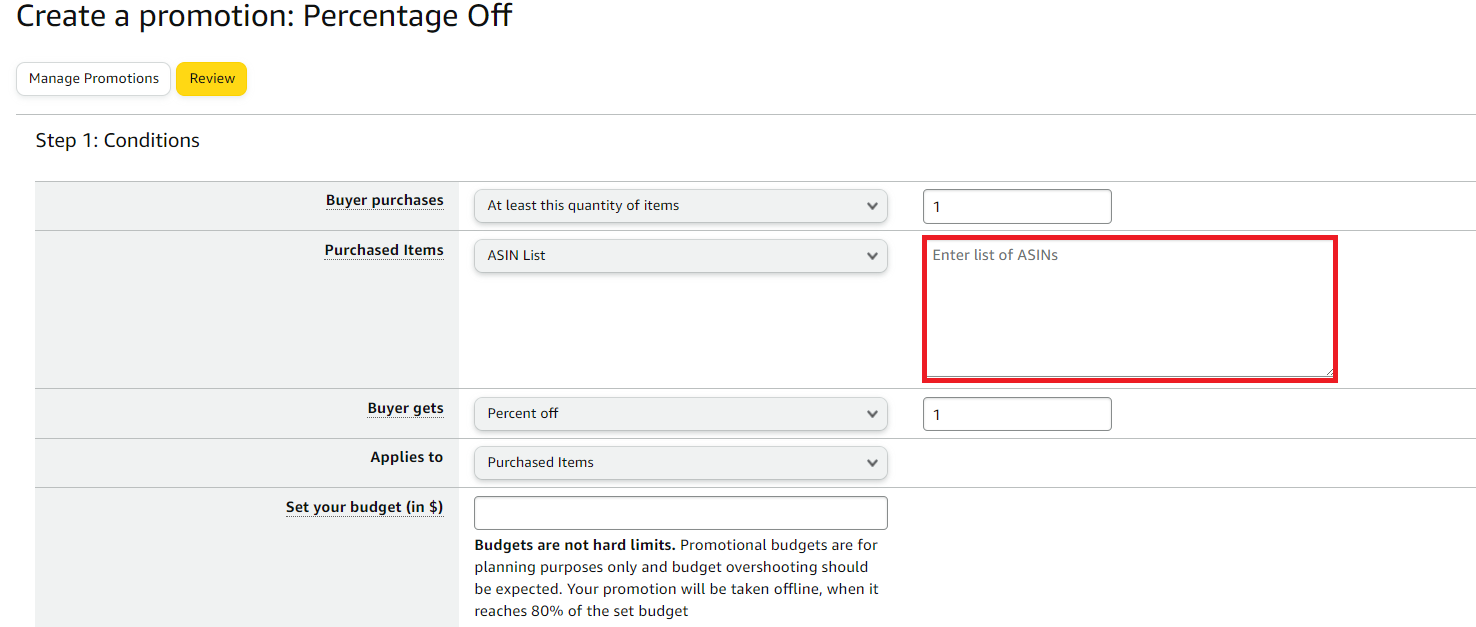
Purchase Items - Select the ASIN List and enter all applicable ASINs You can separate individual SKUs or ASINs using commas, semicolons, or line breaks.
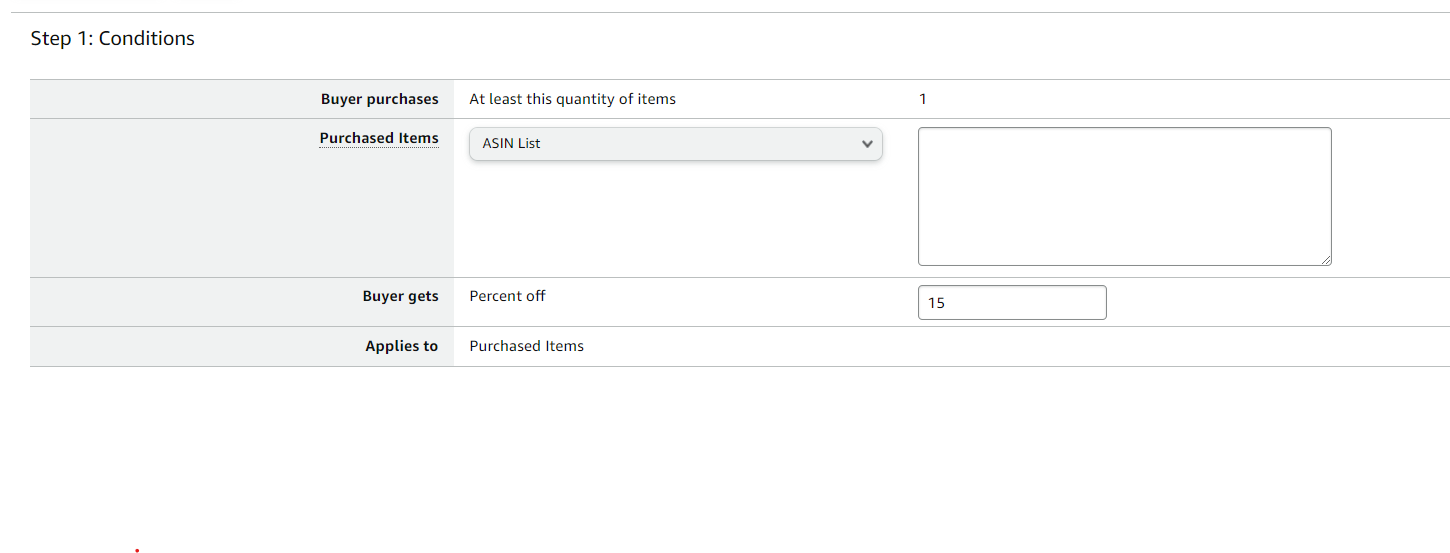
Fill out all the necessary information. Then click Review and Submit.
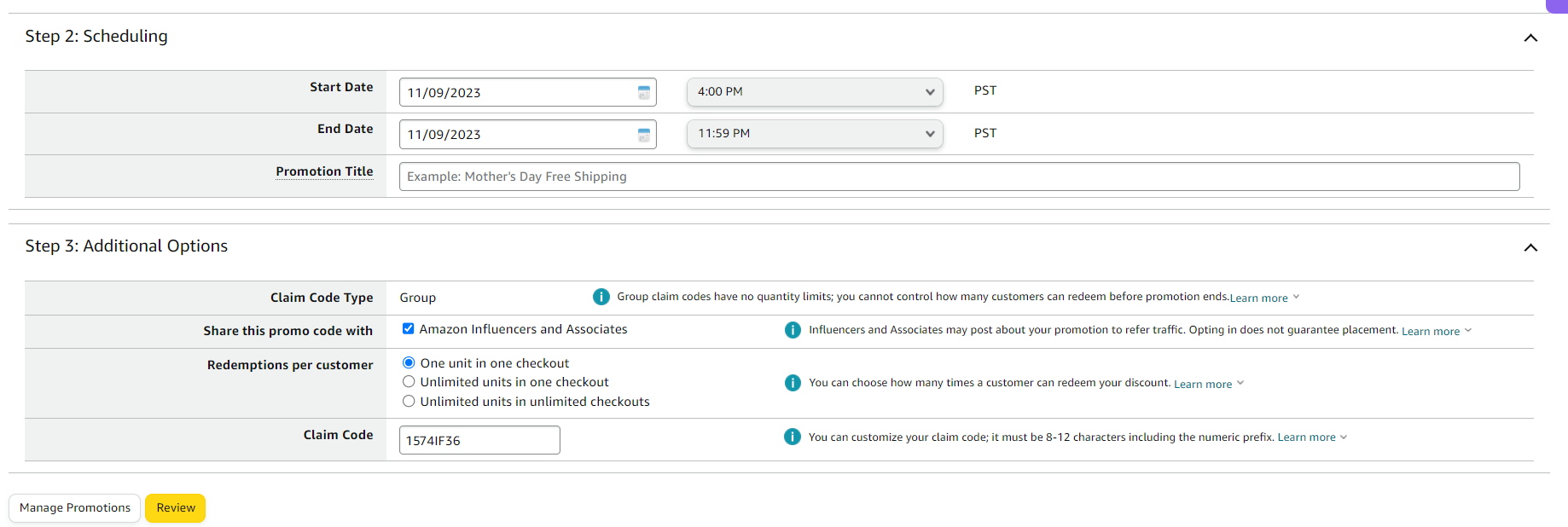
Navigate to the "Manage Your Promotions" tab to access a comprehensive list of promotions along with their respective durations. From this tab, you can seamlessly review, edit, or duplicate for use with another promotion.

Setting up Percentage Off
Use Advanced options to set up a promotion with a tiered discount structure to encourage customers to buy more because they get a better discount (no Buy Box impact). To discount single-unit purchases, consider implementing a limited-time Sale Price (impacts Buy Box).
Buyer purchases - we have 3 options to choose from
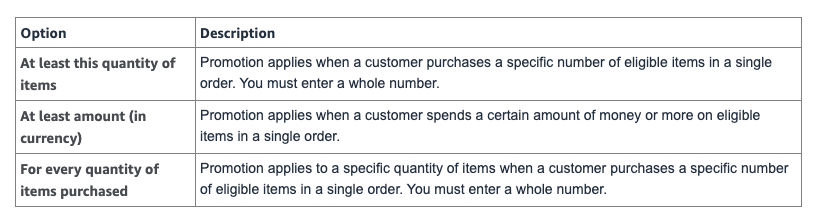
Purchased Items - If the promotion encompasses the entire catalog, please choose it from the dropdown menu. Alternatively, if the promotion does not cover the entire catalog, you can select specific SKUs or ASINs to include in the promotion.
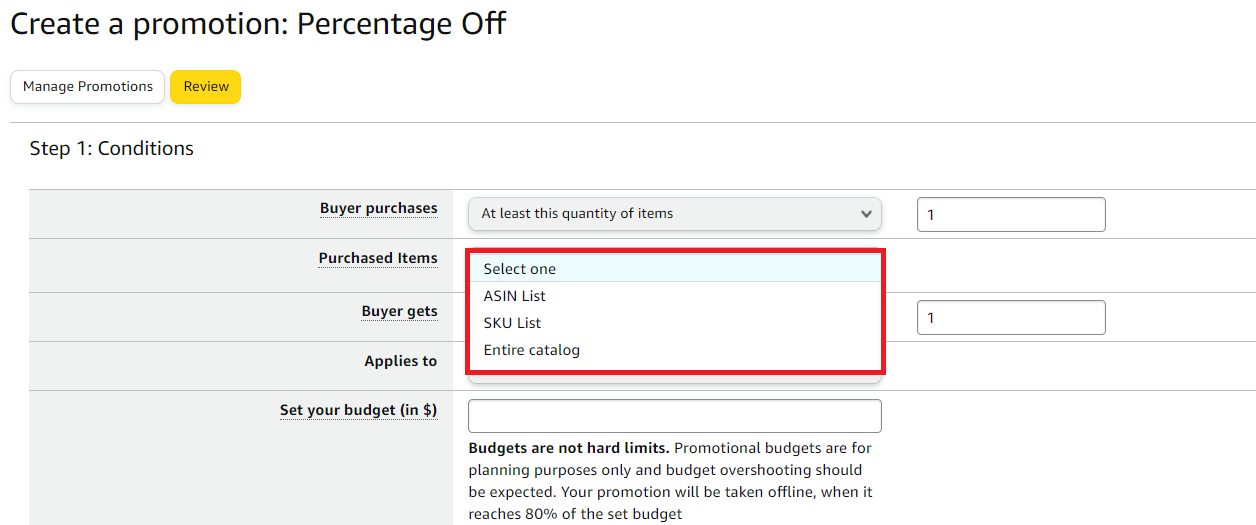
When you require the selection of specific SKUs or ASINs, please click on "ASIN" or "SKU" within the "Purchased Items" field and proceed to list all the relevant ASINs or SKUs. You can separate individual SKUs or ASINs using commas, semicolons, or line breaks.
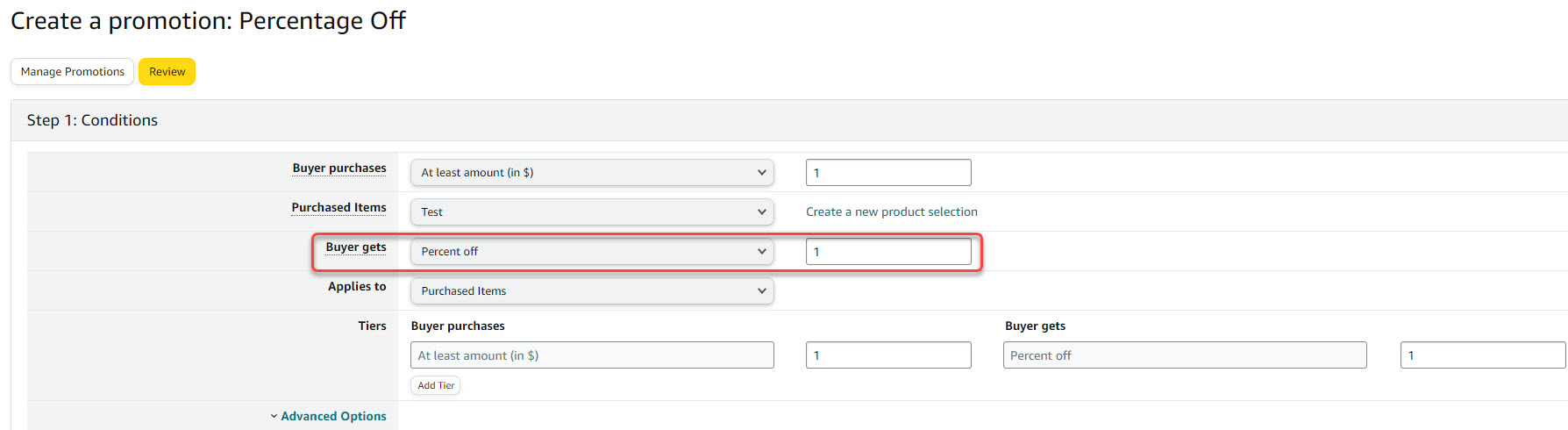
The buyer gets - the percent of the discount the customer gets with the promo.
Applies to - Purchased Items/Additional Item - A promo discount is applied to the purchased items or to an additional Item. If an Additional Item is selected, specify the ASIN of the Additional Item.
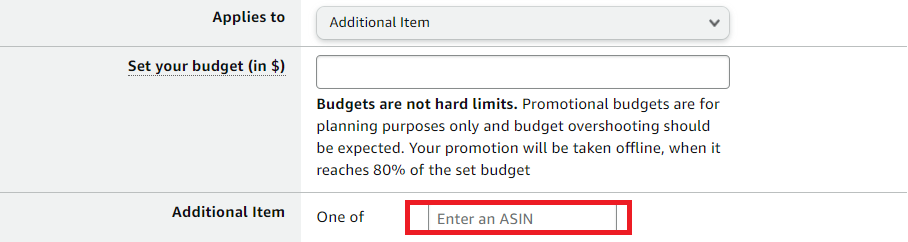
Set the budget: Budgets are not hard limits. Promotional budgets are for planning purposes only and budget overshooting should be expected. Your promotion will be taken offline when it reaches 80% of the set budget
You can also set a tiered discount, and customize the discount given depending on the number of items purchased.
Put in the Promotion Title and Set the Start and End Dates of the promotion.

NOTE : The Promotion Title and Tracking ID are identifiers for you promotion. Choose Promotion Titles that would easily identify the type of promotion you are running unless specified by the client or in the task. Example : Mother’s Day Free Shipping.
Under the Additional Options field you can select one of the three types of claim code:
Single Use: Ideal if you have a limited inventory intended for the promotion. It generates a unique claim code each time a customer uses the promo. You can also limit this to one redemption per customer. However, you don't have the option to show the promotion on the product detail page when this is selected.

Group: Ideal if you want to sell out your inventory. Through this option, you can customize your claim code combinability as well. This can be risky if somebody posts the claim code on a social media platform if you have limited inventory intended for the promotion. You also have the option here to display the promotion on the PDP.
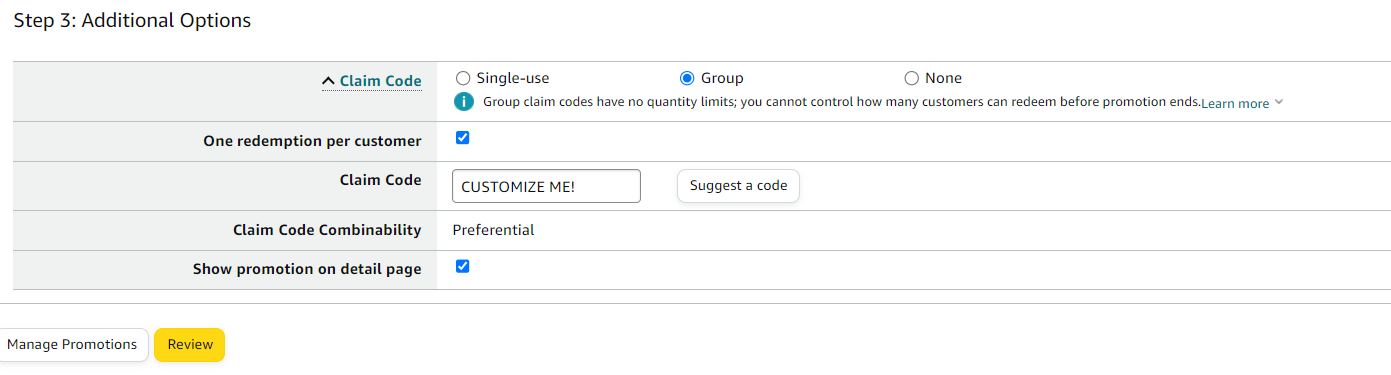
None - All promotions set will be added as a discount, regardless of whether the order qualifies for any given condition or not. This could be dangerous if there are multiple promotions set up under the account as all discounts get added up. You also have the option here to show or hide the promotion from the product detail page.

10. Review all the details before clicking the Submit button.

NOTE:
There are 3 options for Claim Code Combinability
Preferential: Only 1 promo will be applied to the purchase. If the customer attempts to add multiple promotions, only the one with the greatest discount will be applied. This is a good choice for sellers who are offering multiple types of promotions for the same product selection.
Unrestricted: Be extremely cautious before choosing this option, especially when you’re using a “group” claim code. This option means your promotion can be stacked along with other promotions that are running for your products. This could result in you giving multiple discounts for one order, and if you have Group promo codes, people can place unlimited orders.
Exclusive: This is the best option for most sellers. This states that no other promotions can be applied at the same time as this promotion. This prevents stacking promotions, and discounts, and ensures that you are protected from people who would abuse the system.
Setting up Buy One Get One
Set up a limited-time, "buy one (or many) get one free" offer to spotlight a new product or to get your current customers to buy differently.
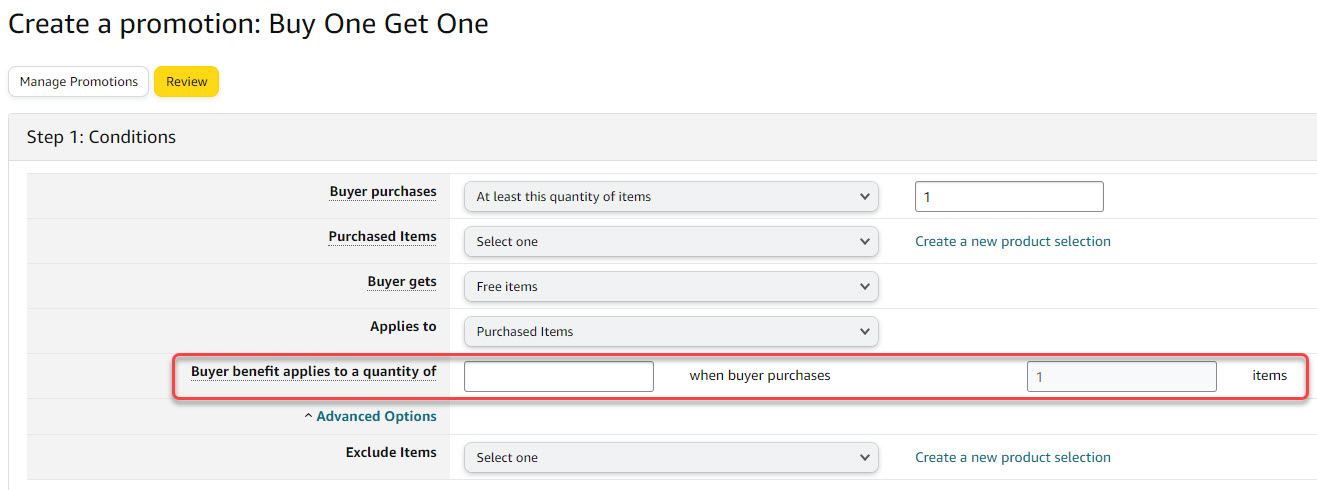
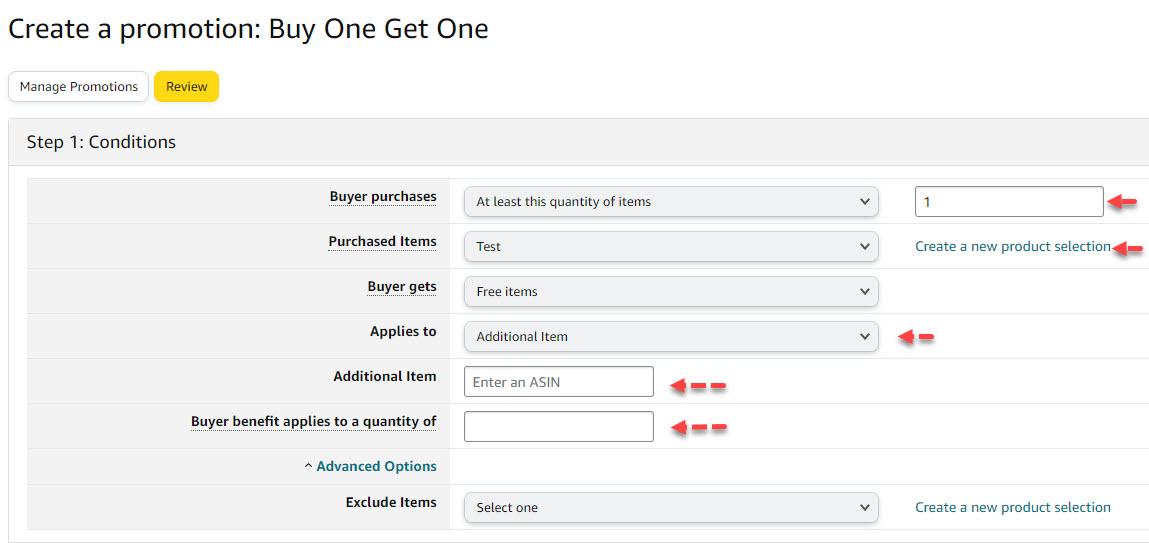
Setting up the Buy One Get One promo is almost the same process as the Percentage Off.
If applied to Purchased Items, you only need to set the number of freebies on the Buyer benefit applies to a quantity of fields.
If applied to an Additional Item, you need to set the freebie ASIN, and the number of freebies in the Buyer benefit applies to a quantity of fields.
Once done, click the Review button.
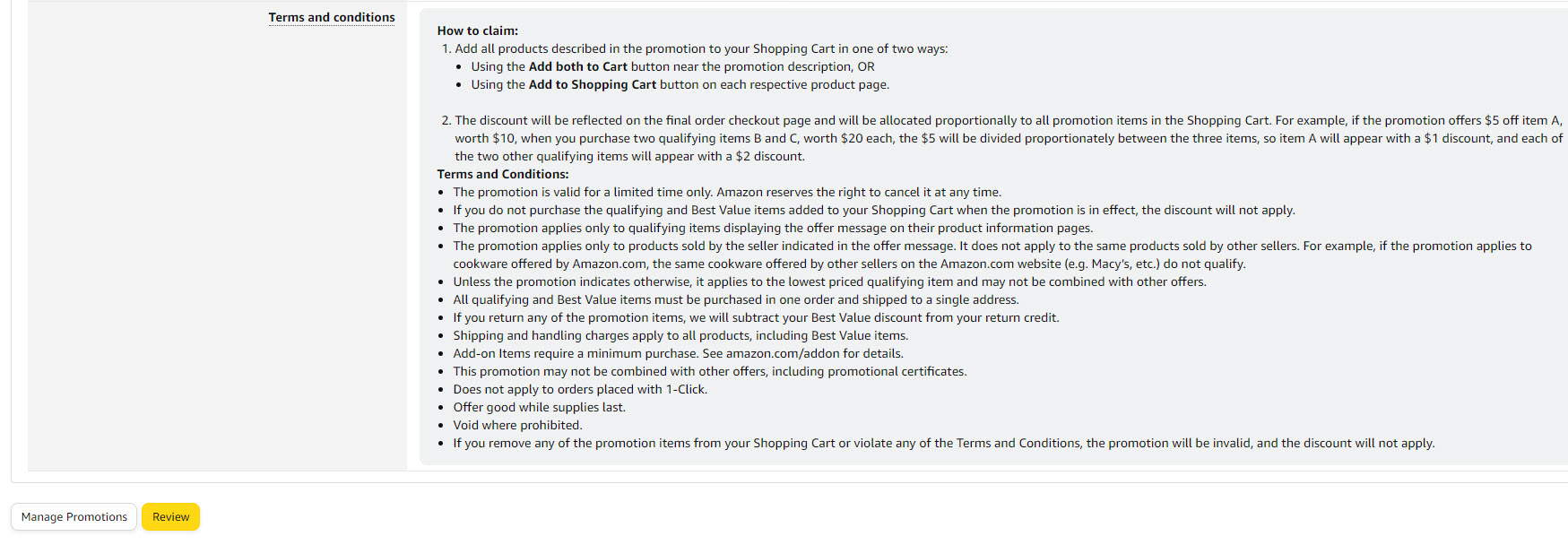
Review all the details before clicking the Submit button.

