Who is this for: For Amazon sellers who wish to list their products in gated categories (products that require approval) on the Amazon platform. It is also for those who are new to Amazon Seller Central and require detailed guidance on navigating the platform.
Objective: This document provides step-by-step instructions on how to navigate and successfully list their products in gated categories on the Amazon platform.
Note: Here's the list of Gated Categories: https://sellercentral.amazon.com/gp/help/help.html?itemID=G200333160&language=en_US
1. Identify the exact Category you want to list in
2. Download Listing Template for Your Products Category
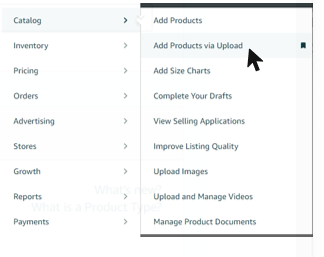
- Hover your mouse over Catalog and click on Add Products Via Upload. See Figure 1 below
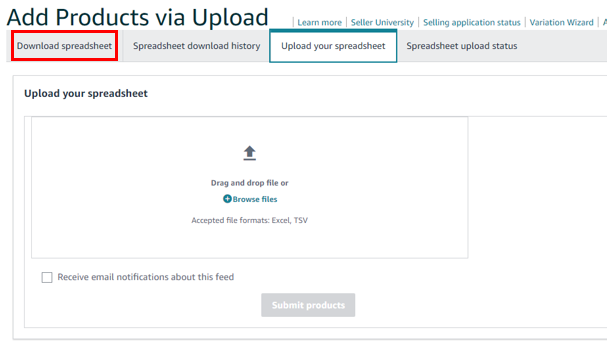
- Click "Download Spreadsheet".
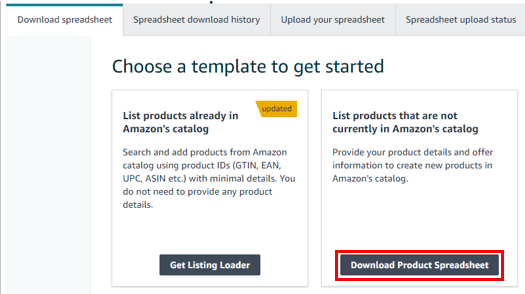
- Select "Download Product Spreadsheet".
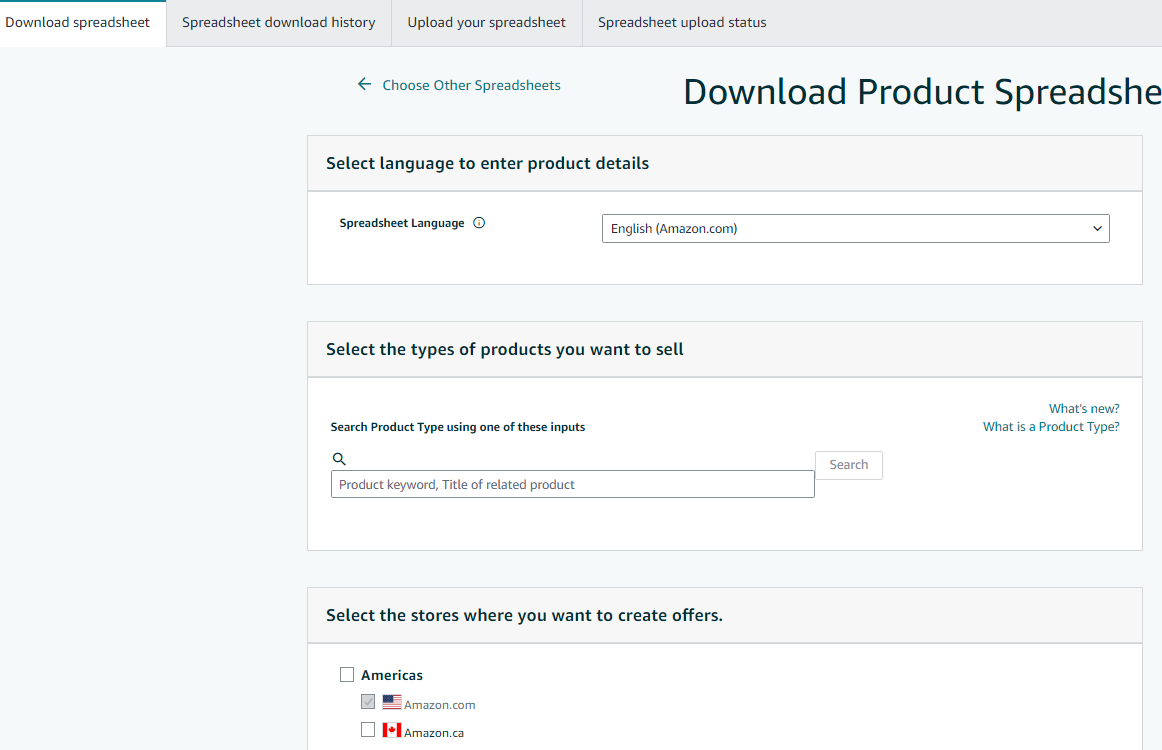
- Find the category of your products under the Product Classifier field, and download the spreadsheet.
NOTE: To remove the restrictions on your Category, you will need to seek out a pre-existing product to apply to sell for if it is Gated.
1. Go to Inventory and click on "Add a Product"

2. Search for a product in your category or subcategory
3. See Figure 3 Below and click on "Apply to Sell"
 4.Click request approval under the selling application as shown below:

Tell us about your products and business
1. Identify whether you are a Reseller Distributor, Manufacturer, or both.
2. Submit documents that prove your eligibility to sell.
 If you are a Reseller/Distributor:
Submit a purchase invoice with the following requirements:
- At least 1 purchase invoice for products from a manufacturer or distributor document must meet the following requirements:
- Dated within 180 days from the current date.
- Includes your name and address, matching the information in your selling account. Include the name and address of the manufacturer or distributor
- Show the combined purchase of at least 10 units
- Omit pricing information (optional)
- Submit product packaging photos that meet these guidelines: Photos of the product or its packaging document must meet the following requirements:
- Are live photos, rather than computer-generated images
- Clearly display all sides of the product or its packaging
- Include model number, product name, or both
- Include the name and physical location of the business or manufacturer
- Important information must be in the country's local language
NOTE: Products must have an address on the packaging. This address must MATCH your business address listed on AMAZON. To check for your business address go to the link below: https://sellercentral.amazon.com/sw/AccountInfo/BusinessAddress/step/BusinessAddress? ref_=macs_aibusadd_cont_acinfohm
If Manufacturer:
You must submit product packaging photos that meet these guidelines:
- Photos of the product or its packaging
- Are live photos, rather than computer-generated images
- Display all sides of the product or its packaging
- Include model number, product name, or both
- Include the name and physical location of the business or manufacturer
- Important information must be in the country's local language
NOTE: Products must also have an address on the packaging. This address must MATCH your business address listed on AMAZON.
If BOTH:
1. You must submit product packaging photos that meet these guidelines
- The document must meet the following requirements:
- Are live photos, rather than computer-generated images
- Display all sides of the product or its packaging
- Include model number, product name, or both
- Include the name and physical location of the business or manufacturer
- Important information must be in the country's local language
2. Submit the documents in the correct file type formats:
- docx
- png
- gif
- jpg
3. Also, Verify each of the checkboxes next to the requirements on the left side (As shown in Figure 5)
 4. Enter your email address, and contact information and hit the submit button.

5. You can follow up on the Application Status from Your Manage Applications Page

6. Follow up with Amazon if any additional information is needed within your case ID.
7. Once approved you will be able to list in the category needed.

