Who is this for? For sellers using Amazon Seller Central who need guidance on generating an FBA Customer Returns Report, downloading it in either CSV or TXT format, and setting up automated report generation for this specific report.
Objective: To provide clear instructions on how to generate an FBA Customer Returns Report on Amazon Seller Central. It aims to guide users in selecting the desired event date range, downloading the report in the preferred format, and setting up automated report generation at a specified frequency.
The FBA Customer Returns Report is a valuable tool for sellers on Amazon Seller Central to track and analyze customer returns. This SOP will walk you through the step-by-step process of generating this report, including selecting the event date range and specifying additional filters for a more specific report. Additionally, it will provide instructions on how to download the report in either CSV or TXT format. Furthermore, the SOP will outline the process for automating the report generation at your preferred frequency, ensuring you have the latest data available for analysis.
To generate an FBA Customer Returns Report, follow these steps:
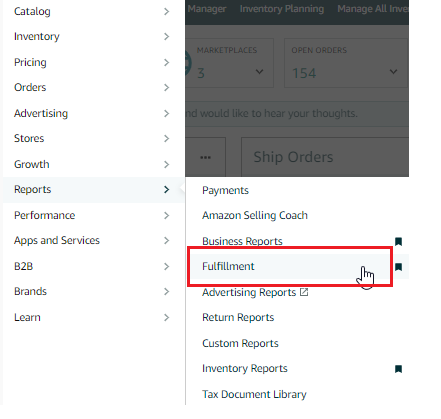
- Go to the "Reports" tab on the top menu of Seller Central and select "Fulfillment" from the drop-down menu.
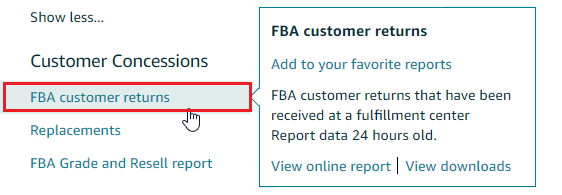
- Under the "Customer Concessions" header on the left-hand side of the page, click on the "FBA Customer Returns" link.
3. On the following page, choose the event date by selecting from the drop-down menu or selecting "Exact Dates" and entering the "From" and "To" dates using the calendar icons. You can also enter your Merchant SKU, Amazon Order ID, FNSKU, ASIN, or LPN to generate a more specific report.
To download a Txt or a CSV copy of the report, follow the instructions below:
- On the same page, click "Download".
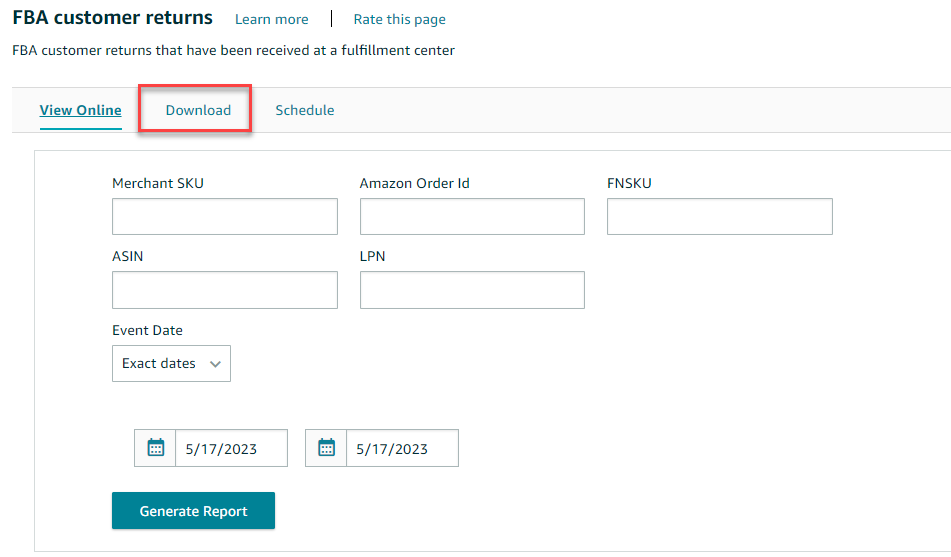
- Select the event date by choosing from the drop-down menu or selecting "Exact Dates" and entering the "From" and "To" dates using the calendar icons.
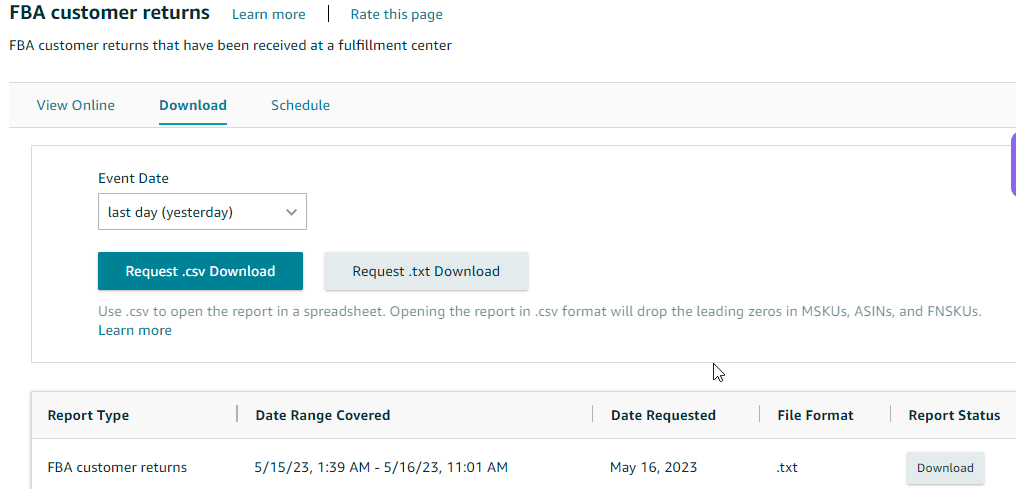
- Click the "Request .csv Download" button to download the report in Excel format, or click the "Request .txt Download" button to download it in text format.
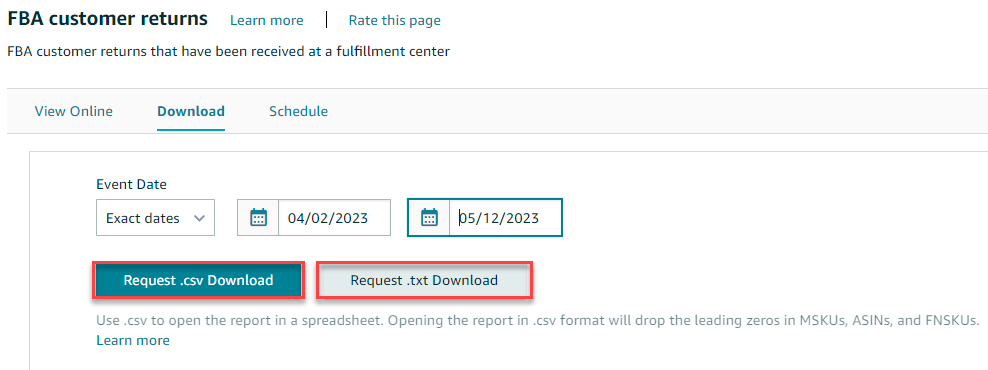
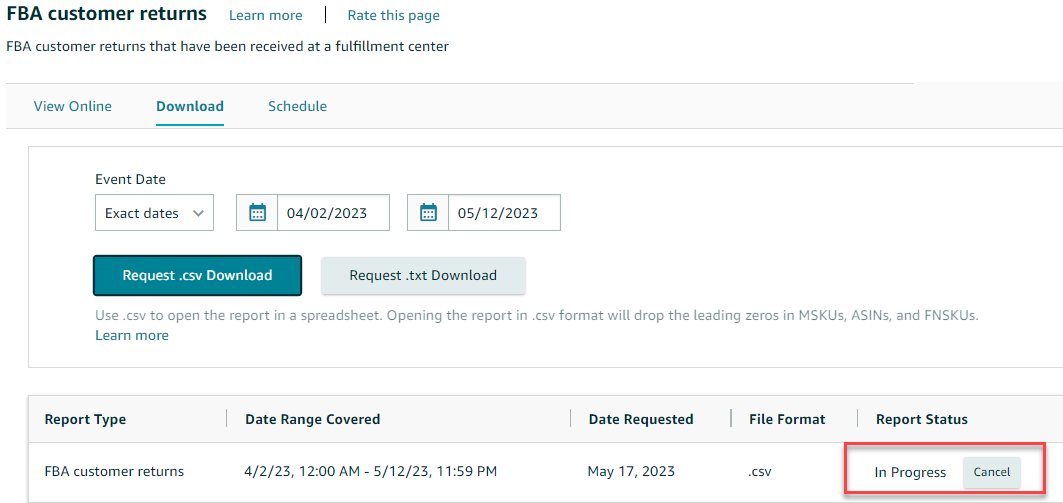
- The "Report Status" column in the table below will show the status as "In Progress".
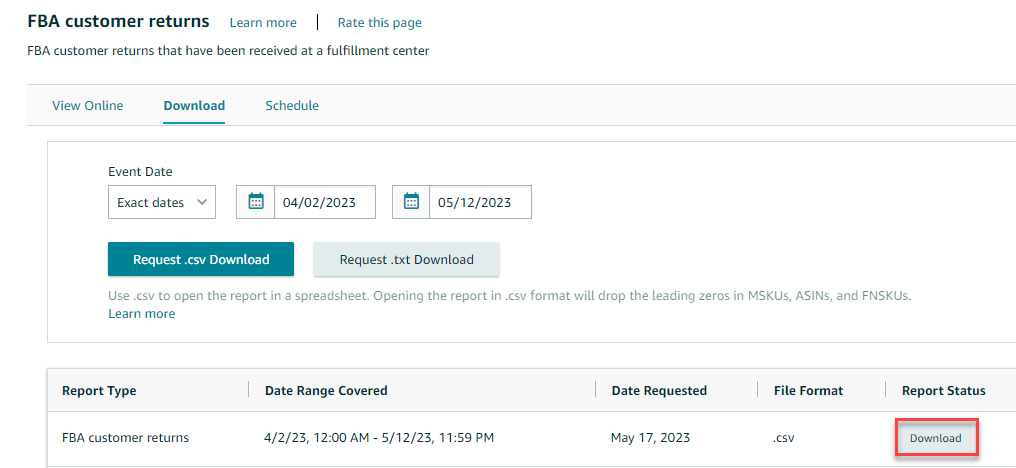
- Once the report is ready for download, the status will change to "Download". Click the "Download" button in the "Report Status" column to download your report.
To automate report generation at your preferred frequency, follow the steps outlined below.
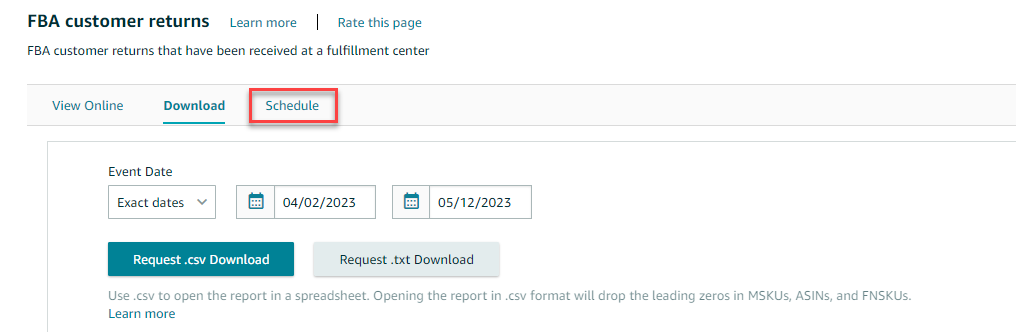
- Select the Schedule tab under the FBA Customer Returns page.
- Choose the desired frequency, start date (which must be in the future), and report format from the provided drop-down menus.
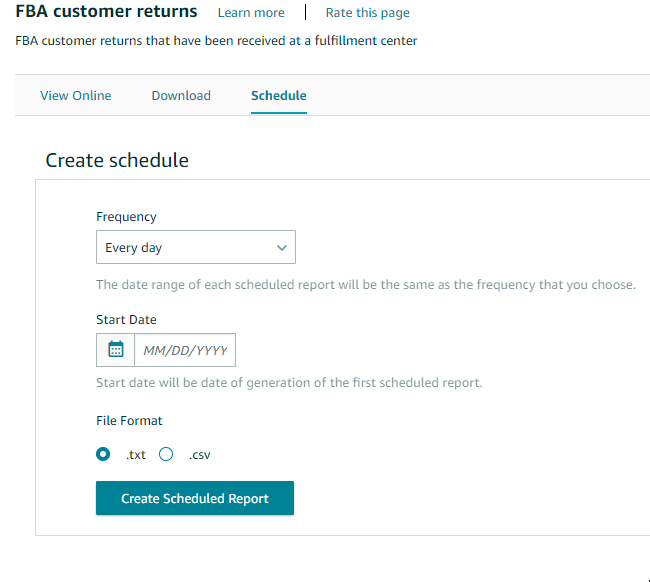
- Click on "Create scheduled report".
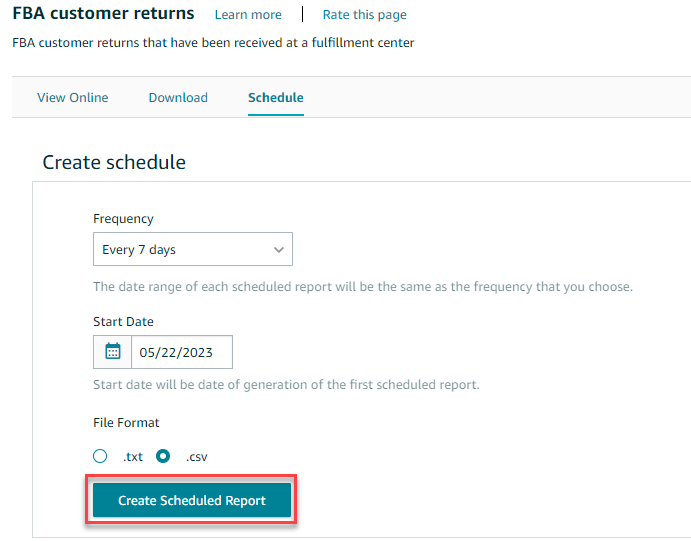
Notes: Your schedule will be displayed in the "My Schedule" section of the page. To make changes to the schedule, delete the current scheduled report and create a new one. Only one schedule is allowed per report.
The report will be generated around midnight in the time zone of your store, based on the selected frequency. Each time a scheduled report is generated, it will appear in the "Scheduled Reports" section. This section can hold a maximum of 30 reports, arranged chronologically.
