Overview
The Delta User Interface in Sellercloud offers a modern and user-friendly platform for e-commerce management. It simplifies tasks like inventory management, order processing, and sales channel management, making it easier for sellers to navigate and optimize their online operations. This article will walk you through the different ways to access Delta if you are using our Legacy Interface.
We have also introduced User Notifications, only available in Delta, to help you keep track of important events of your operation.
Log into Delta
Once your access rights are granted, there are 3 ways to log into Delta:
- Via your direct Server URL
- Via the Delta login page
- Via the App Switcher
Direct Server URL
The URL to access Sellercloud’s Delta interface is similar to Alpha but includes text delta, instead of CWA:
- Delta URL – Server ID.delta.sellercloud.com (for example, xx.delta.sellercloud.com).
- Alpha URL – Server ID.cwa.sellercloud.com (for example, xx.cwa.sellercloud.com).
If you choose to use your direct server URL, there will be no prompt to populate a team name – simply enter your Email and Password and click Login. Check the Remember Me box to save your credentials on trusted devices.
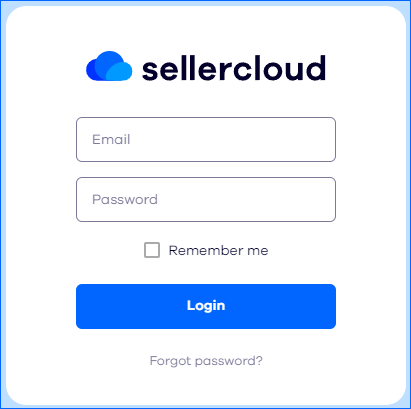
In case you don’t remember your credentials, use the Forgot password? link.
Delta Login Page
Another option to log in is to use the Delta login page. There, you should populate a team name to direct you to the correct server.
To access Delta:
- Open https://login.sellercloud.com/.
- Enter your team name and click Continue.
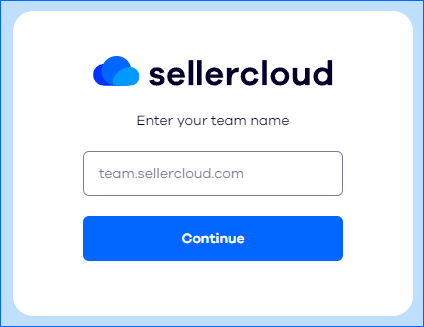
- Populate your username and password, and click Continue. If you are an existing Sellercloud user, use your existing team name.
App Switcher
You can also easily transition from the Alpha UI and different Sellercloud applications to the Delta Interface simply by clicking the App Switcher button located at the top right corner of your screen.
Generate QR Code
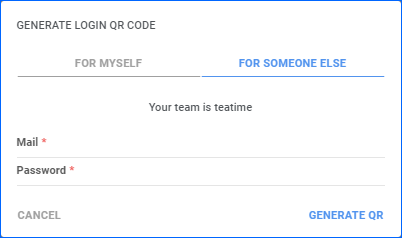
The Generate QR code feature allows you to conveniently generate and print 2D login barcodes for yourself or any other users of the application, making it easier to handle tasks related to user authentication and access control.
To generate a QR code:
- Click on your account’s name in the upper right-hand corner and select Account.
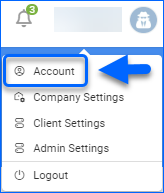
- Navigate to the General panel.
- Click Generate Login QR Code.
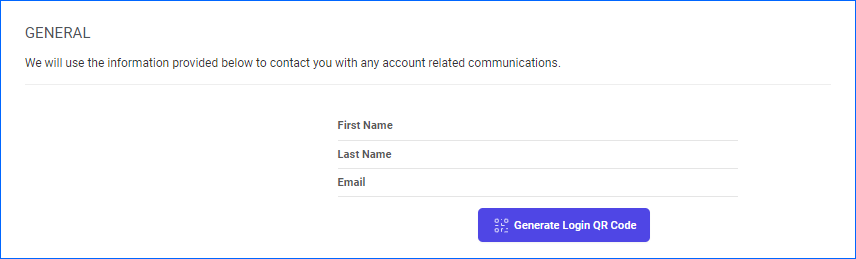
- Choose whether you want to generate the code for yourself or someone else.
- Enter the required email address and password fields.
- Click Generate QR.
You can use the generated QR code for easy access to all Sellercloud mobile applications.
