Amazon Vendor Central is the web interface manufacturers, and distributors use. If you sell via Vendor Central, you’re called a first-party seller – acting as a supplier and selling in bulk to Amazon. Registration on Vendor Central is by invitation only; as such, VC contributions weigh heavier than SC in most cases. When making changes to the account, and the product is listed in both the Seller and Vendor Central accounts, it is encouraged to update both as this increases the chances of pushing the changes on live detail pages.
Before uploading any images, it is important to communicate, and get client’s approval first. Include the approval proof (screenshot or fireflies call link) as Task Details or as a Comment.
NOTE : If we have ASINs selling in different marketplaces and the language on the images is country-specific, we must upload them through the country-specific upload to avoid issues
Image Upload
Log in to your Amazon Vendor Central account.
Go to Items, then Upload Images.

Search the ASIN you need to upload the images to.

On the right side, browse your images to be uploaded.
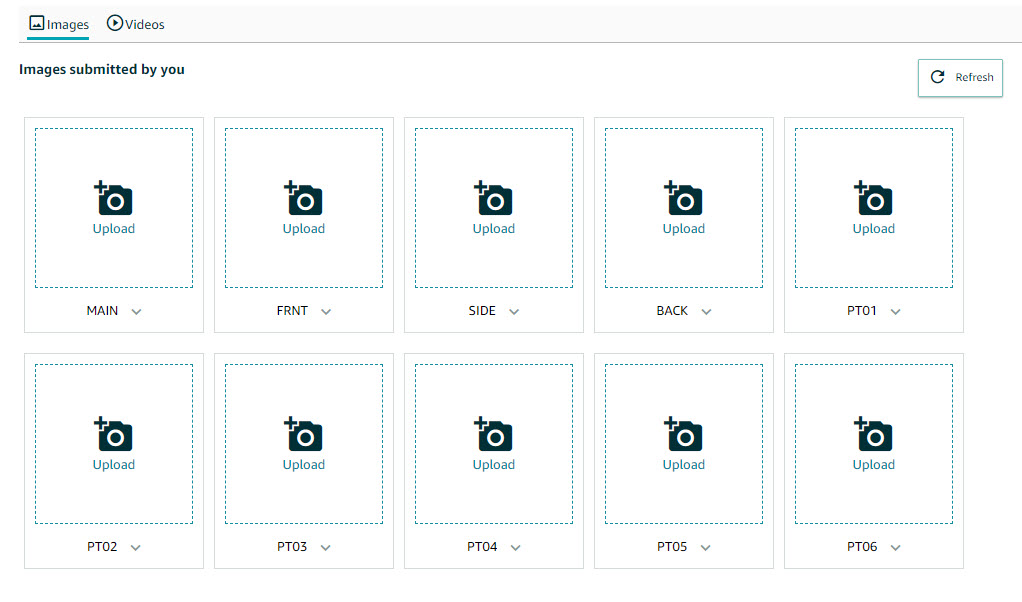
You can select which variant/sequence the new images will display on the PDP.
Aside from the MAIN image, the usual variation code range from PT01 to PT15.
There will be no confirmation button once the images are uploaded. Once you browse the new images, it's already being uploaded. Though you can still replace the images anytime.
Replacing/Uploading VC Images via Bulk File
Download all the images to be uploaded. Put them in a single folder.
Rename it to ASIN.Variant
i.e. ASIN.MAIN, ASIN.PT01, ASIN.PT02, ASIN.PT03, etc.

Once all images have been resized and renamed, compress the folder into a .zip file.
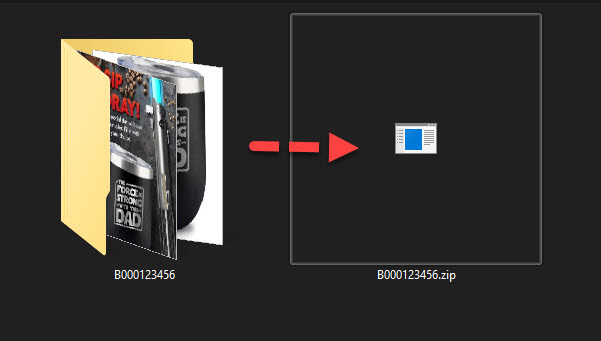
Go back again to the VC home page. Go to Items, then Upload Images.

Click the Bulk image upload tab.
Drag or browse the image zip file created earlier.
Select the correct Vendor Code from the dropdown.
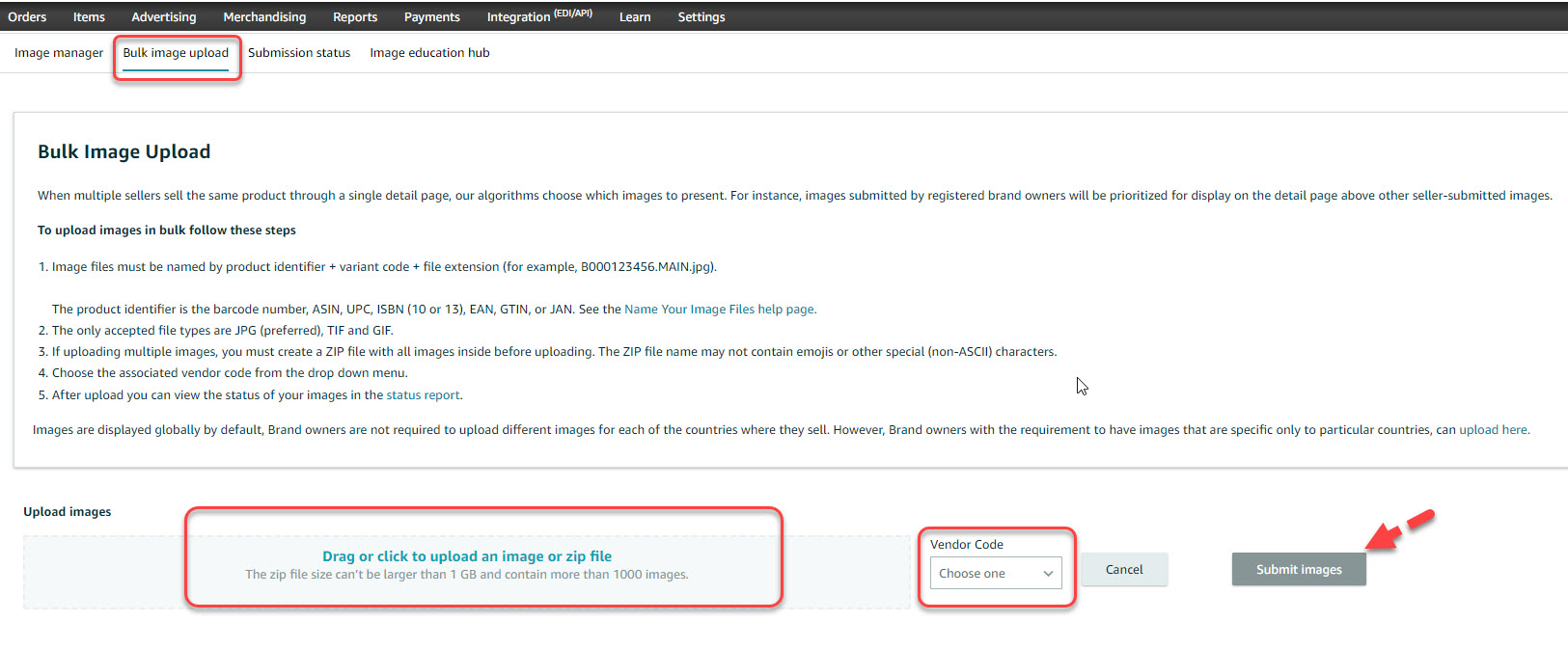
Click Submit Images. A progress bar will appear in the box where the zip file was uploaded.
Once the upload is complete, you verify the status of the upload by clicking the status report.
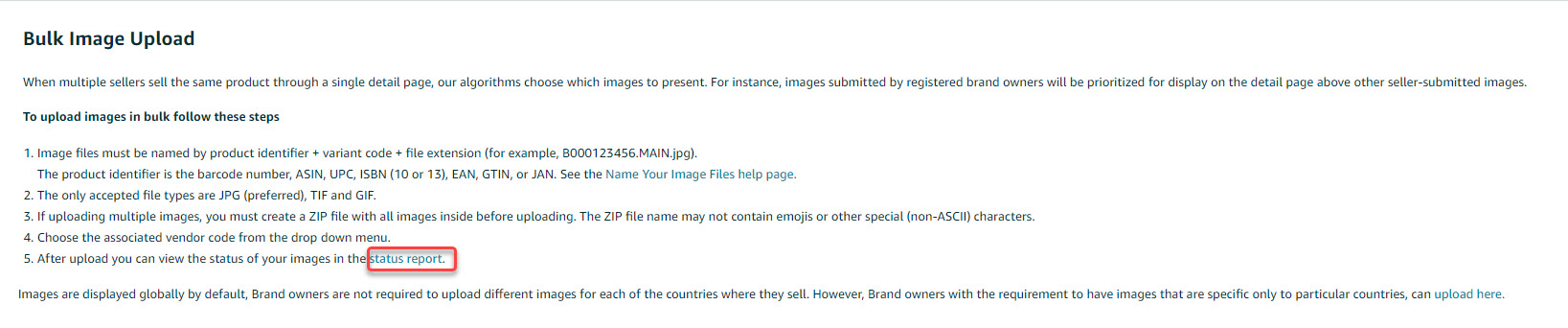
You can search for the ASIN. The status should display SUCCESS - APPROVED.

VC Video Upload
The process here is the same as with image upload.
Go to Items, then Upload Images.

Click Videos tab.

Fill out the necessary information.
Click Upload video and browse the video to be uploaded.
Title should be less than 60 characters long.
ASINs where the video should be displayed on the PDP.
You can add up to 1500 ASINs in a single upload.
Video will automatically take up the 7th slot in the Image Stack.
If after ASIN input it came up with a RED font, you need to remove that particular ASIN and check its Brand Name. The issue with it is Amazon is not recognizing the Brand Name of that particular ASIN.
If no thumbnail is available, Amazon will automatically create one that will be displayed on the PDP
Once all fields are filled, click Submit.
NOTES:
Avoid uploading videos that is showing product/website URLs.
Avoid uploading videos that display firearms/ammunition.
Avoid uploading videos that are too close to sensual/seductive.
You can upload multiple videos to display on the PDP. The pecking order will be based on which video was uploaded. The most recent video uploaded will be the first to display.
