Who is this for? For sellers using Amazon Seller Central who need guidance on generating a Replacements Report to track and analyze replacements issued to customers for completed orders.
Objective: To provide clear instructions on how to generate a Replacements Report on Amazon Seller Central. It aims to guide users in selecting the desired event date range, downloading the report in either CSV or TXT format, and monitoring the report status for a successful download.
The Replacements Report is a valuable resource for sellers on Amazon Seller Central to monitor and analyze replacements issued to customers. Please expect the report to be updated within 24 hours.
Fee Replacement Reasons:
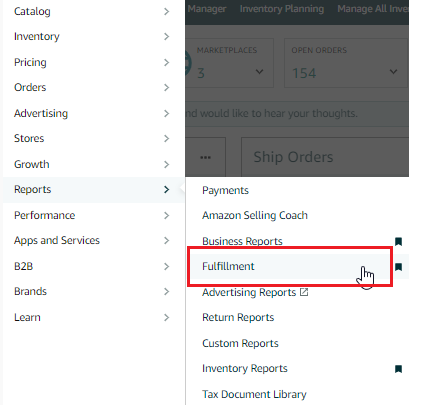
- To generate a Replacements Report, navigate to the "Reports" tab on the top menu of Seller Central and select "Fulfillment" from the drop-down menu.
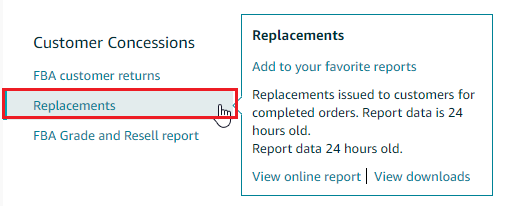
- Under the "Customer Concessions" header located on the left side of the page, click on "Replacements."
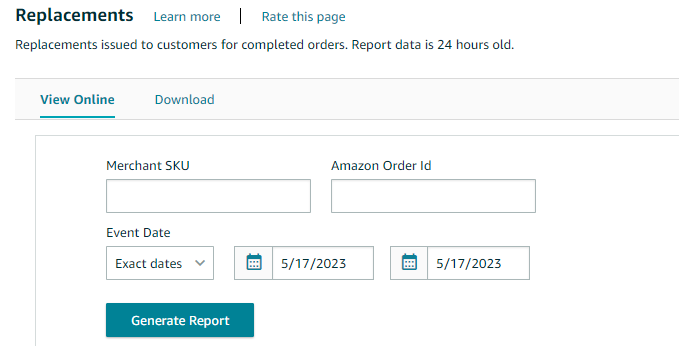
- On the following page, choose the event date by selecting from the drop-down menu or selecting "Exact Dates" and entering the "From" and "To" dates using the calendar icons. You can also enter your Merchant SKU or Amazon Order ID to generate a more specific report.
 To download a Txt or a CSV copy of the report, follow the instructions below:
1. On the same page, click the "Download" tab.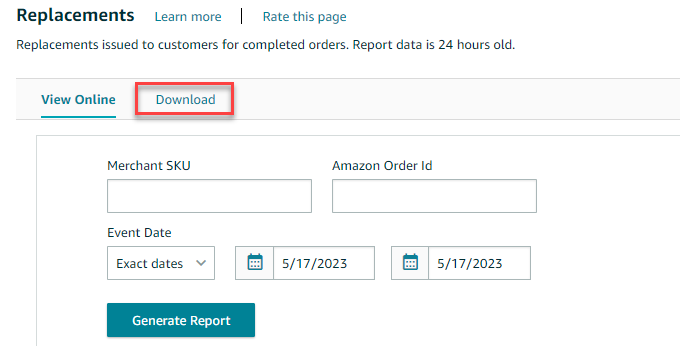 2. Select the event date by choosing from the drop-down menu or selecting "Exact Dates" and entering the "From" and "To" dates using the calendar icons.
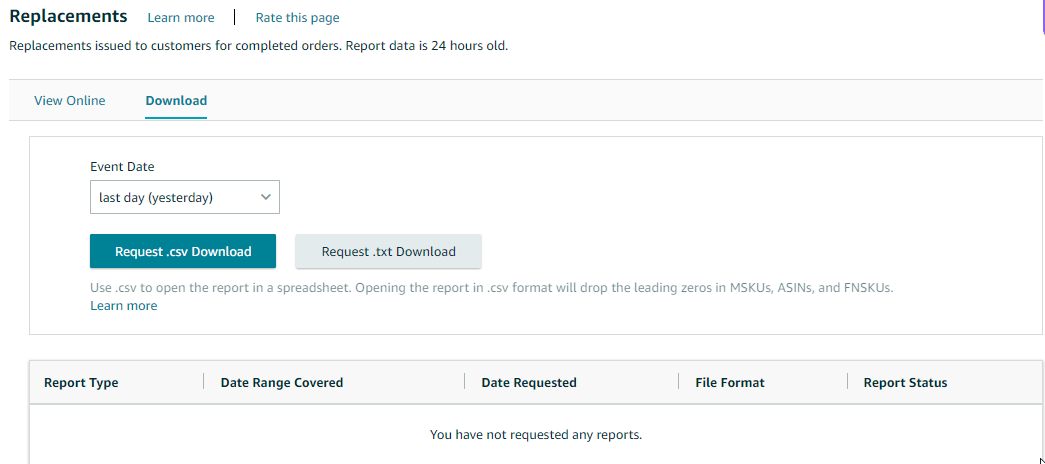 3. Click the "Request .csv Download" button to download the report in Excel format, or click the "Request .txt Download" button to download it in text format.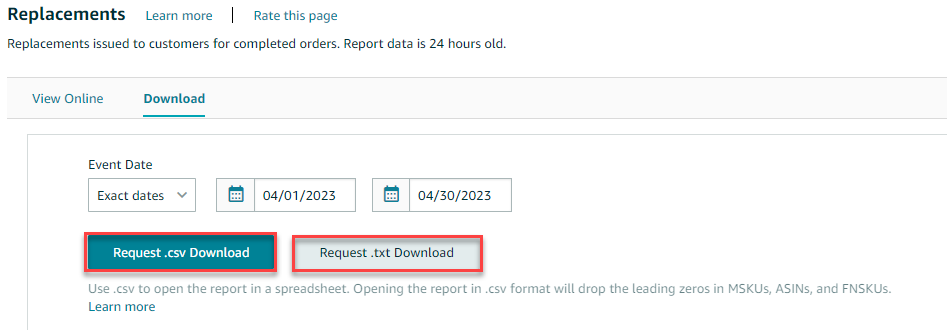
- The "Report Status" column in the table below will show the status as "In Progress".
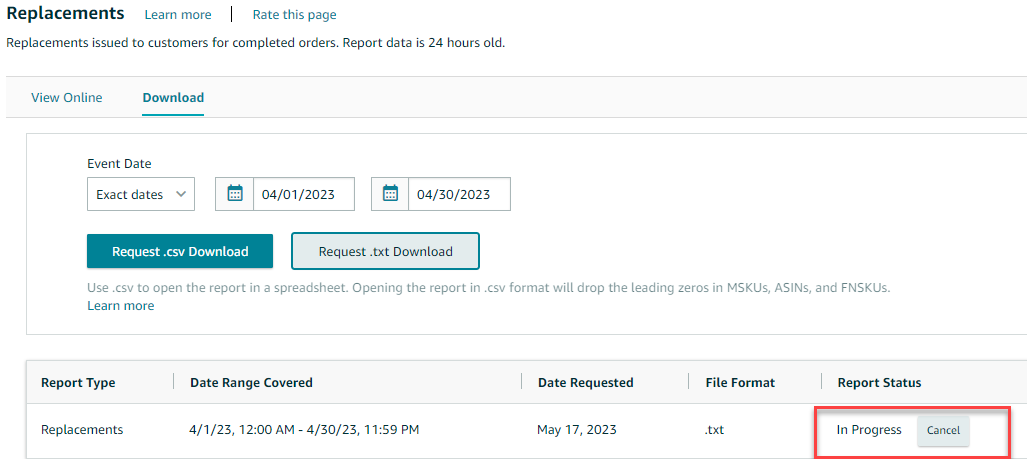
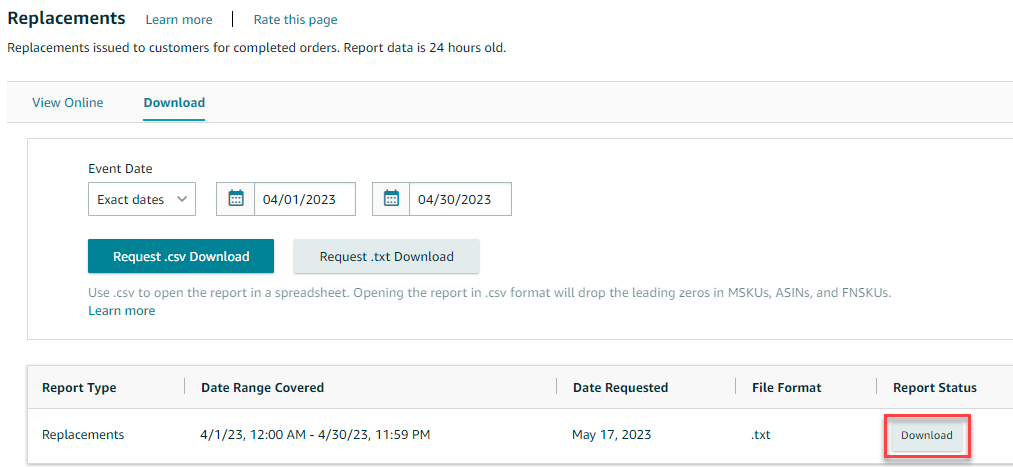
- Once the report is ready for download, the status will change to "Download". Click the "Download" button in the "Report Status" column to download your report.
 To download a Txt or a CSV copy of the report, follow the instructions below:
 2. Select the event date by choosing from the drop-down menu or selecting "Exact Dates" and entering the "From" and "To" dates using the calendar icons.
 3. Click the "Request .csv Download" button to download the report in Excel format, or click the "Request .txt Download" button to download it in text format.
