Advertising First-Time Setup and Segmentation
Who is this for? This pertains to individuals seeking to initiate ad setup on new Amazon accounts or enhance pre-existing ones.
Objective: The objective of this document is to provide a comprehensive, step-by-step guide on the necessary tasks involved in the ad setup process.
Outline:
1- Segmentation and Keyword Research
Create an Empty Segmentation Sheet
Gather ASINs to Advertise Using Business Report
Find Keywords and ASINs to Target
Check for Duplicates
Build the Segmentation Sheet
2- Optimizing, Renaming, and Organization
Optimize the old campaigns
Rename and organize the old campaigns
Create or rename portfolios
Budget Caps on Old Portfolios
3- Strategy, Ads Creation, Bidding, and Budgets
Ads creation strategy based on the budget
Create new campaigns
Bidding Strategies
Budgets
I - SEGMENTATION AND KEYWORD RESEARCH
1. Create an Empty Segmentation Sheet
2. Gather ASINs to Advertise Using Business Report
Open Business Reports
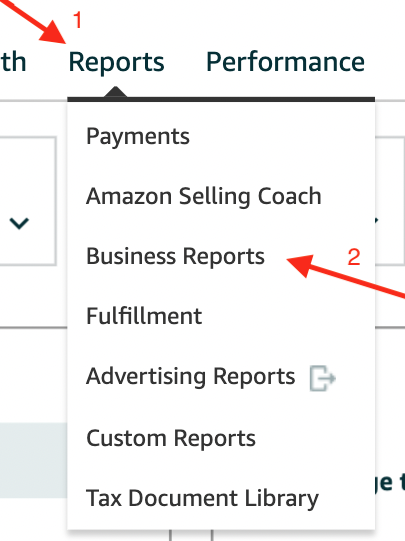
Click on Detail Page Sales and Traffic By Child Item
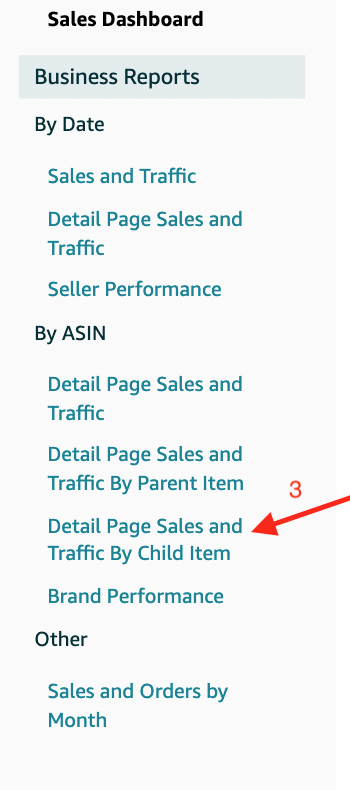
Sort by Ordered Product Sales

Choose the best 10 Top Sellers products. This step might change depending on the size of the account. It can be top 50, top 100
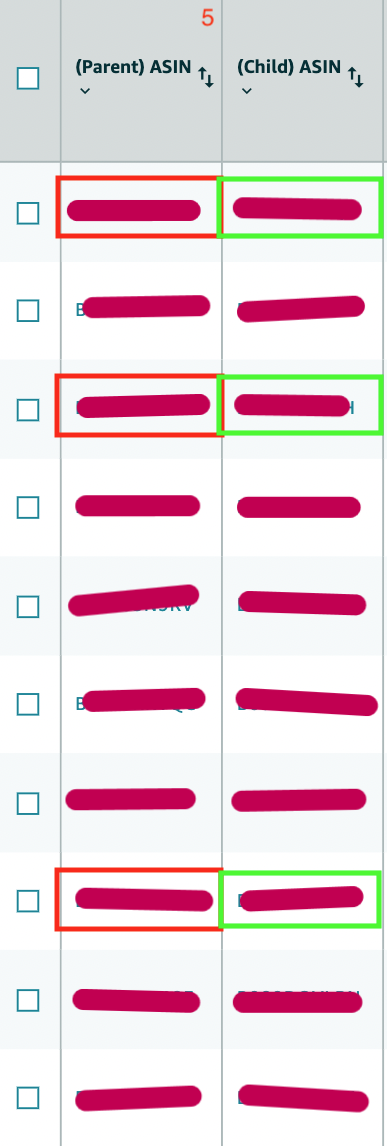
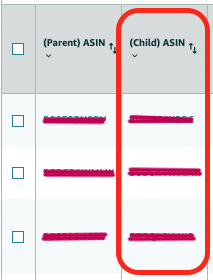
It is imperative to discern between the Parent ASIN and the Child ASIN, ascertaining their unique identities. The visual aid provided illustrates the Parent ASIN clearly demarcated in red and the Child ASIN demarcated in green.
3. Find Keywords and ASINs to Target
4. Check for Duplicates
Check for duplicate keywords to not to have the same keywords targeting the same ASINs in different campaigns when we do the ad setup.
Follow the document here to find the duplicate keywords that you might have in your segmentation sheet before creating new campaigns. This way we will be able to keep the setup clean with min duplicates.
5. Build the Segmentation Sheet
In the image below we have the segmentation sheet with 7 important columns
ASIN COMP - We target Competitor ASIN
KW BROAD - We target Short-tail Keywords - 2 max 3 words
SV - Search Volume
KW EXACT - We target Long-tail Keywords - 4 or more words
KW SELF - We target our own brand-related keywords
ASIN SELF - We target our own brand-related ASIN

This is an example of how a final segmentation should look like:

Segmentation Glossary
ASIN COMP: Take the ASINs from the competitor products you decide to target and add those ASINs to this column.
KW BROAD: Take the KW with 2-3 words you decide to target and add them to this column
SV: Take the Search Volume from Helium10 or Search Query Report (monthly) and add them to this column
KW EXACT: Take the KW with more than 4 words (long tail KW) and add them to this column
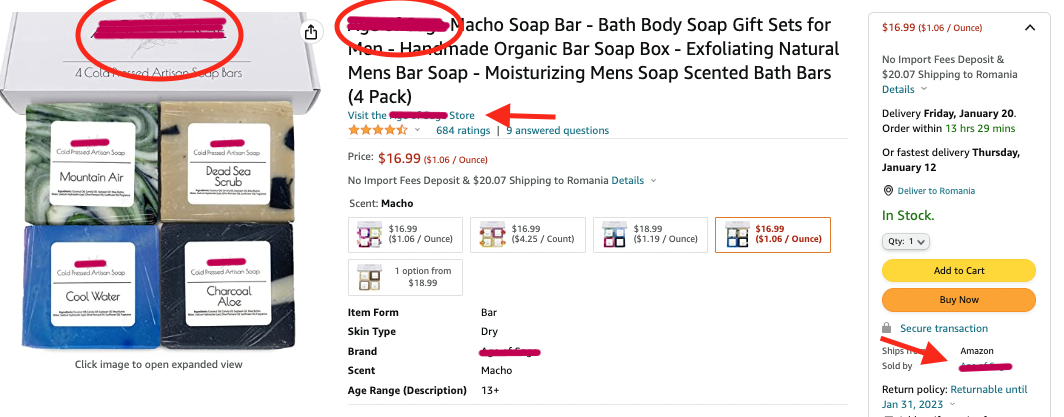
KW SELF: Use ONLY Brand related keywords in Broad Match. There are multiple ways to find the brand name. Make sure that you add the brand name KW only in this column. See the below image:
ASIN SELF:Use all of the ASINs from the (Child) ASIN column from “Detail Page Sales and Traffic By Child Item” on the Business Report. See the (Child) ASIN column below the image:
Here is a very good example of doing Segmentation, KW Research, Renaming, and some Optimization
II - OPTIMIZING, RENAMING, AND ORGANIZATION
When we begin working with most accounts, we often find that they already have active campaigns. Our goal is to identify the campaigns that are performing well in terms of conversion and keep them running while pausing any unnecessary ones.
Our final goal is to only create campaigns that are missing from the account. To do that, we need to complete 3 important steps:
1. Optimize the old campaigns
1st Filter - Active Campaigns | 0 Orders | Data Range - Select Manually Last 60 days
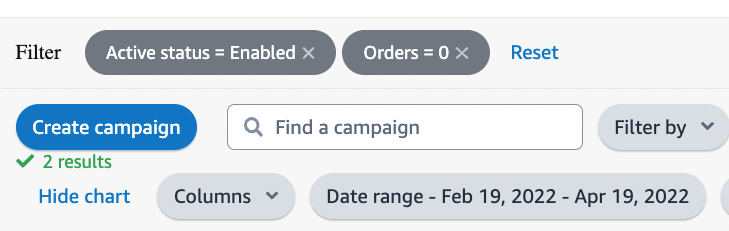
Create a new Google Tab in your segmentation sheet named Actions. Export all the campaigns in that sheet. After that, you can select all campaigns and pause them.

We do that because we want to pause all the campaigns with no sales in the last 60 days to clean the ads and to have a better view of what’s missing.
2nd Filter - Active Campaigns | ACOS > 150% | Orders > 0 | Orders <5 | Data Range - Select Manually Last 60 days
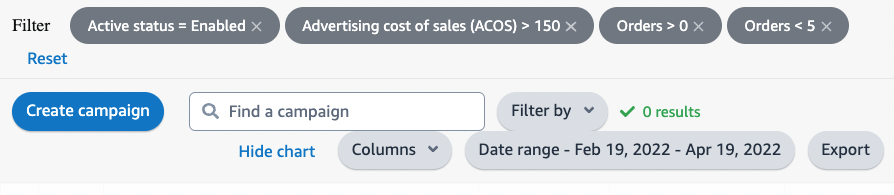
Export all the campaigns in the same Actions tab. After that, you can select all campaigns and pause them.
We do that because we want to pause all the campaigns with slow sales and high ACOS and create campaigns according to our own strategy. We don’t want to pause campaigns with more than 5 sales in the last 60 days ( even if the acos is more than 150% ) because we can optimize them.
NOTE 1:
Never pause a campaign with a high amount of orders >5 in the last 60 days even if the ACOS it’s high. We need to protect the account and we don’t want to lose traction on the ads.
NOTE 2:
Some accounts might have more than 150% ACOS goal. In that case, check the goals first before pausing anything.
2. Rename and organize the old campaigns
After we finish the optimization we will remain with the ads that deserve renamed. These ads will remain active and will be part of our strategy.
Naming convention file Advertising SOP: Naming Conventions and Creation Guidelines
To start the renaming use the “Rename” sheet on your segmentation sheet.

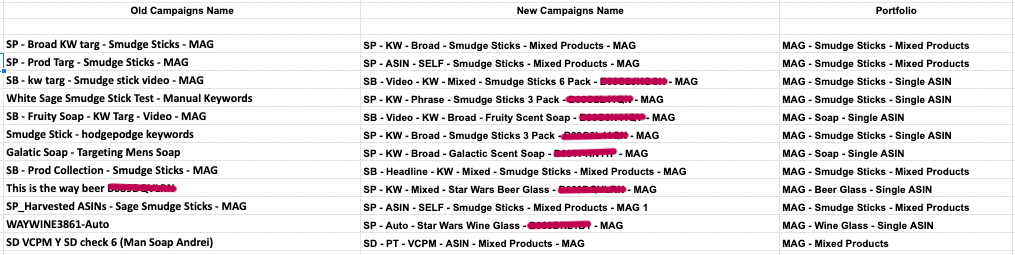
In this tab you will see 3 columns:
Old Campaigns Name
New Campaigns Name
Portfolios
The last step it’s to export all the old campaigns that are already optimized and put them on the list.

Each campaign has to have a portfolio. When we rename the old campaigns we need to assign them a portfolio. The only campaign that doesn’t accept portfolios is the Sponsored Display Audience campaign.
The final result should look like this:
3. Create or rename portfolios
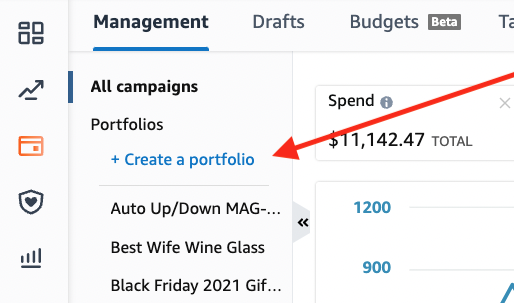
For a better organization, we should have portfolios on all our accounts. To create a portfolio you need to click on the left blue button + Create a portfolio
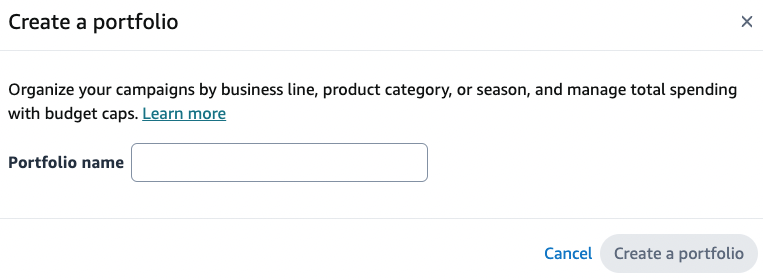
IMPORTANT NOTE: Because we cannot remove a portfolio, we need to rename all the old portfolios before starting to create new ones.
4. Budget Caps on Old Portfolios
We need to check if we have a budget cap on the portfolios that were created before us. Before removing, make sure to understand the goals.
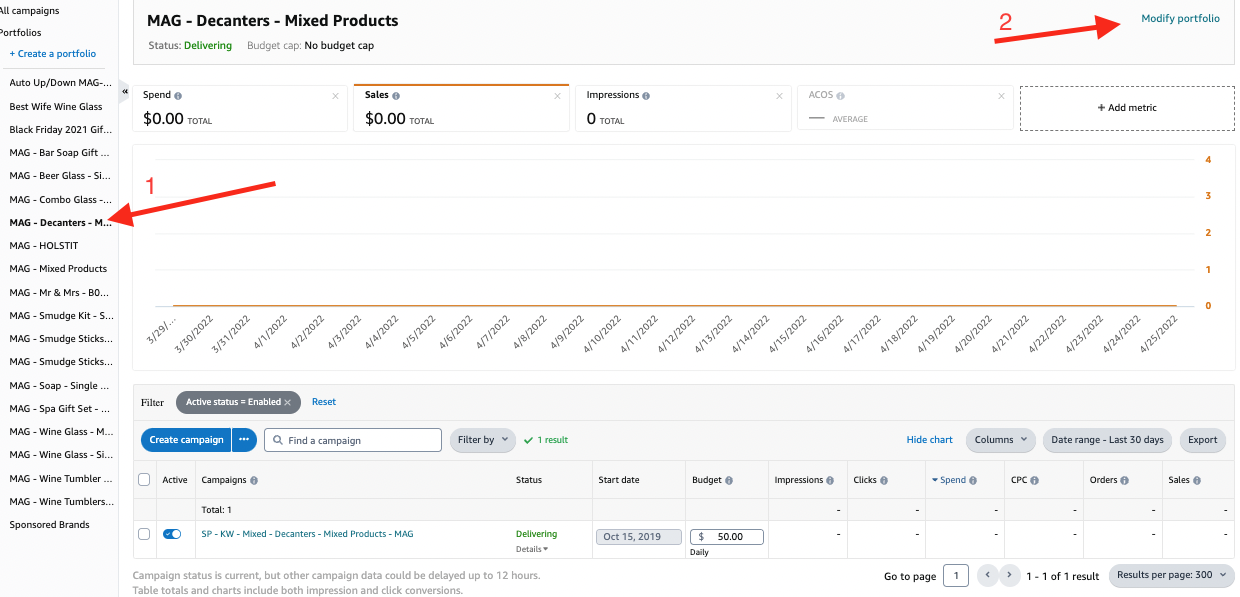
Click on a Portfolio (1) and after that click on Modify Portfolio (2)
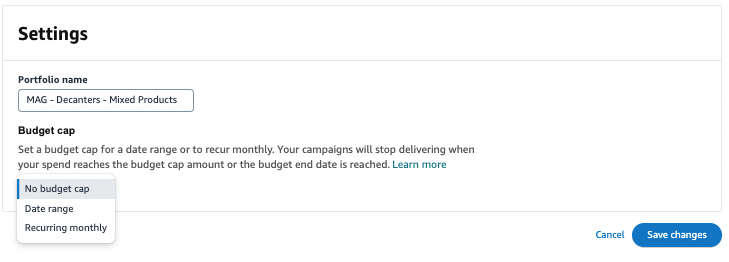
Portfolios offer us 2 types of Budget Caps.
Data Range - Specific budget for a custom date range.
Recurring Monthly - For a monthly budget cap
III - STRATEGY, ADS CREATION, BIDDING, AND BUDGETS
1. Ads Creation Strategy Based on the Budget
The most important thing we must have when we start a strategy is the budget. Most of the time, we are allocated a monthly budget although occasionally we are provided with a weekly budget instead. To have a better view of how many campaigns we should create on an account we need to convert this monthly or weekly budget into a daily one.
If the monthly budget it’s $3000 our daily budget it’s 3000/30 = $100 / day
If the weekly budget it’s $700 our daily budget it’s 700/7 = $100 / day
Here are some mathematical calculations to find out how many campaigns we can create with how much budget.
For example with a $100 budget/day, we can create 10 new campaigns with $10 for each one. $10 it’s the recommended budget to start a campaign with.
As a recommendation, because the budget will not spread equally each day we can have 20% more on the current budget (This can only be applied to the new ad setups)
For example, if our budget it’s $100 a day we can consider that the budget it’s $120 and we can create a total of 12 new campaigns with $10 each.
NOTE: We should only create missing campaigns for a specific ASIN or Segment. We shouldn’t create duplicate campaigns as we already checked before.
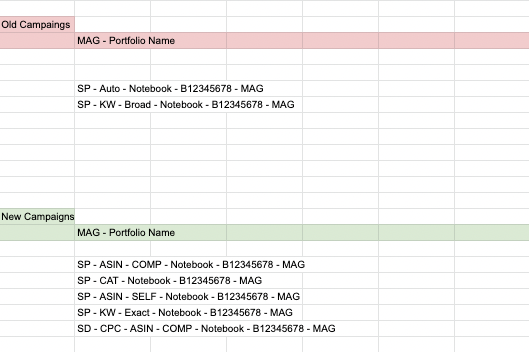
Here is one example of an ASIN (B12345678) with two active campaigns in the account;
OLD campaigns that we already renamed with a good ACOS;
SP - Auto - Notebook - B12345678 - MAG
SP - KW - Broad - Notebook - B12345678 - MAG
NEW campaigns that we can/should create;
SP - ASIN - COMP - Notebook - B12345678 - MAG
SP - CAT - Notebook - B12345678 - MAG
SD - VCPM - ASIN - COMP - Notebook - B12345678 - MAG
We can create more or fewer campaigns based on the budget we have. In this specific example, we didn’t need to create an Auto or Broad keyword campaign since they were already in the account. We ONLY apply this strategy for new account setups.
2. Create New Campaigns
So until this point, we have;
Done a keyword and competitor research
Found Duplicate Keywords / Campaigns
Created a Segmentation Sheet
Now it’s time to take action. We can go ahead and create the campaigns that are segmented in our segmentation sheet. When you are creating campaigns and adding keywords, Amazon will ask you to enter a bid for each keyword. So take a look at the bidding strategies step next.
3. Bidding
Bidding can be very different depending on:
Goals
Product Price
Both Goals and Product Price
Always go with lower-than-suggested bids on high-volume keywords.
Bidding Rules
If the product price is less than $15 we should start with a bid of < 0.8$
If the suggested bid is higher than $1 we should limit it to $1 maximum
4. Budgets and Estimated Campaigns
How many campaigns can we create with a specific budget?
Budget / Month | Estimated Campaigns ($10 each) |
|---|---|
$500 | 2 - 4 campaigns |
$1000 | 4 - 6 campaigns |
$2000 | 6 - 10 campaigns |
$3000 | 10 - 14 campaigns |
$4000 | 14 - 18 campaigns |
$5000 | 18 - 25 campaigns |
For more than $5000 a month, please calculate based on the table above
Example calculations;
$6,000 a month budget we can create $5000+$1000 = 21-31 campaigns
$10,000 a month budget we can create $5000+$5000 = 36-50 campaigns
Example:
If we have a monthly budget of $3000 a month and 3 ASINs to be advertised, we should create 4 campaigns for each ASIN in a total of 12 campaigns.
Budget Allocation
The budget is flexible and can be changed based on research and/or results.
70% Sponsored Products Ads
20% Sponsored Display Ads
10% Sponsored Brand Ads
NOTE 1
If the monthly budget is very low ($500 / month) we can focus first on 100% Sponsored Products Ads.
If the monthly budget is medium ($1000 - $3000 / month) we can spread 85% Sponsored Products, 10% Sponsored Displays,s, and 5% Sponsored Brands
If the monthly budget is high (>$5000 / month) we can use our main rule 70% 20% 10%
NOTE 2
This budget allocation can also depend on the number of products.
EX: If we have an account $3000 / month budget and 5 different ASINs to be advertised and we need to create Auto campaigns and KW campaigns for each of the ASINs so we can allocate 100% of the budget on Sponsored Products.
NOTE 3
All the above stats are only examples. We need to understand the account and make a plan based on what we find.
EX: If the account has a lot of SB - Video campaigns that are working great we can expand our budget here and test more SB - Videos even if we can reach 30% of our budget.
NOTE 4
SB headline is not the best option for newly launched products, so try to stick with SP, SD, and SB video if any.
