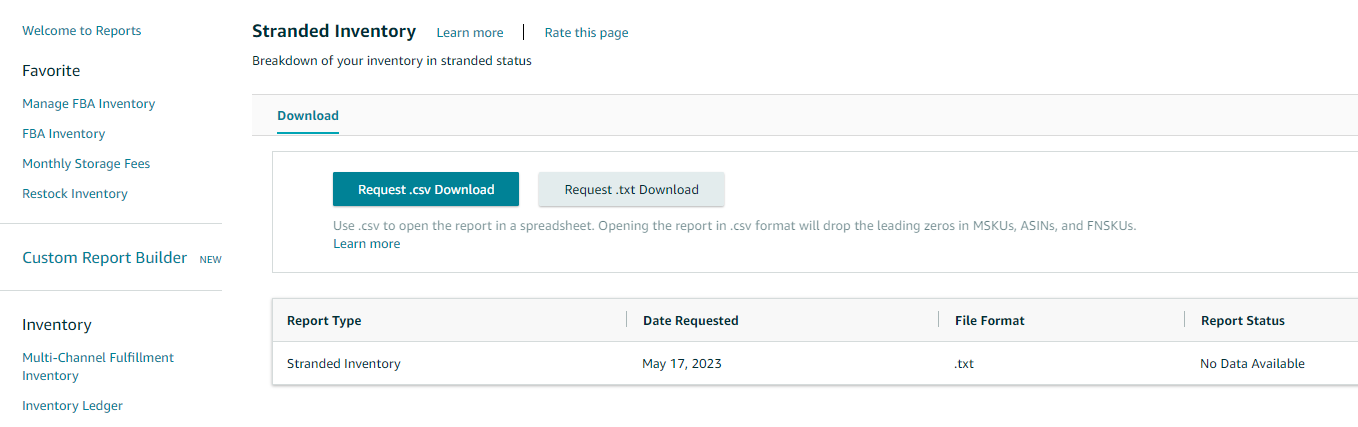
Who is this for? This is for all individuals and sellers who want to know how to download a Stranded Inventory Report.
Objective: This Standard Operating Procedure (SOP) will help you understand how you can download a Stranded Inventory Report. The stranded inventory report shows a breakdown of units in your inventory that are in stranded status.
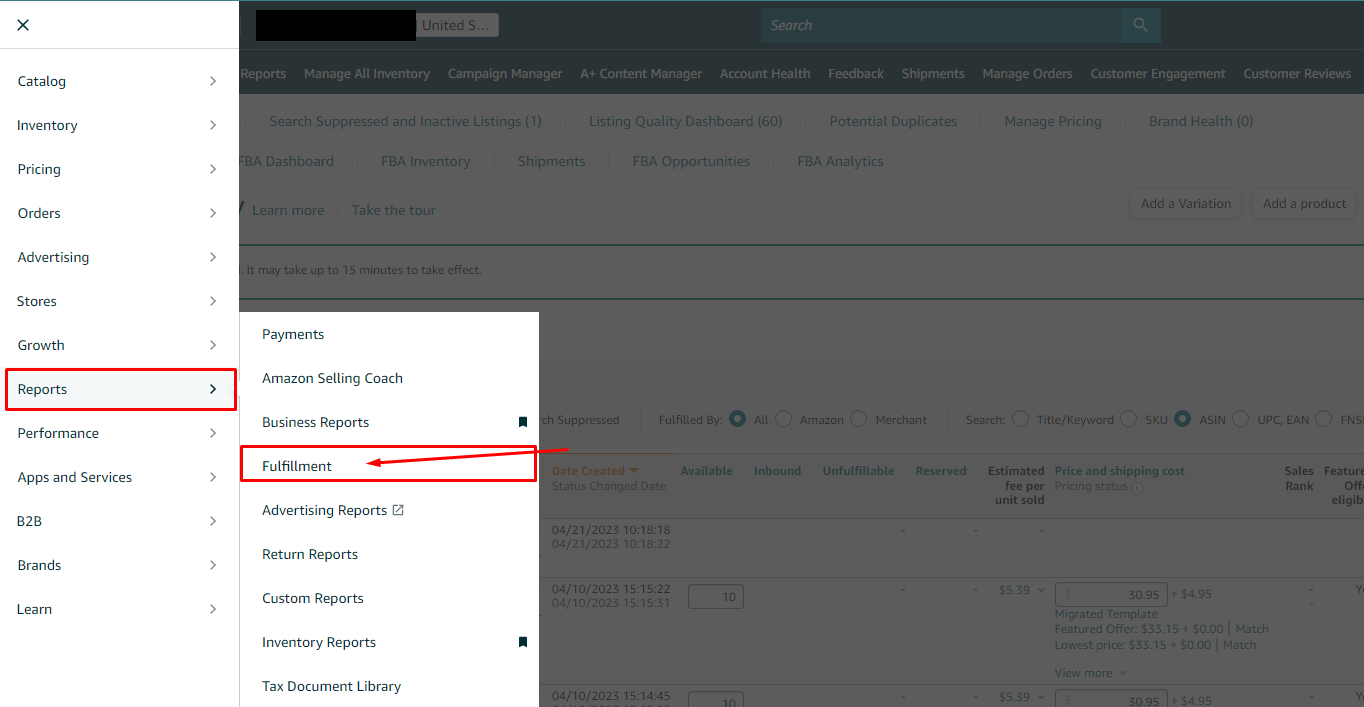
- Go to the "Reports" tab on the top menu and select "Fulfillment" from the drop-down menu.
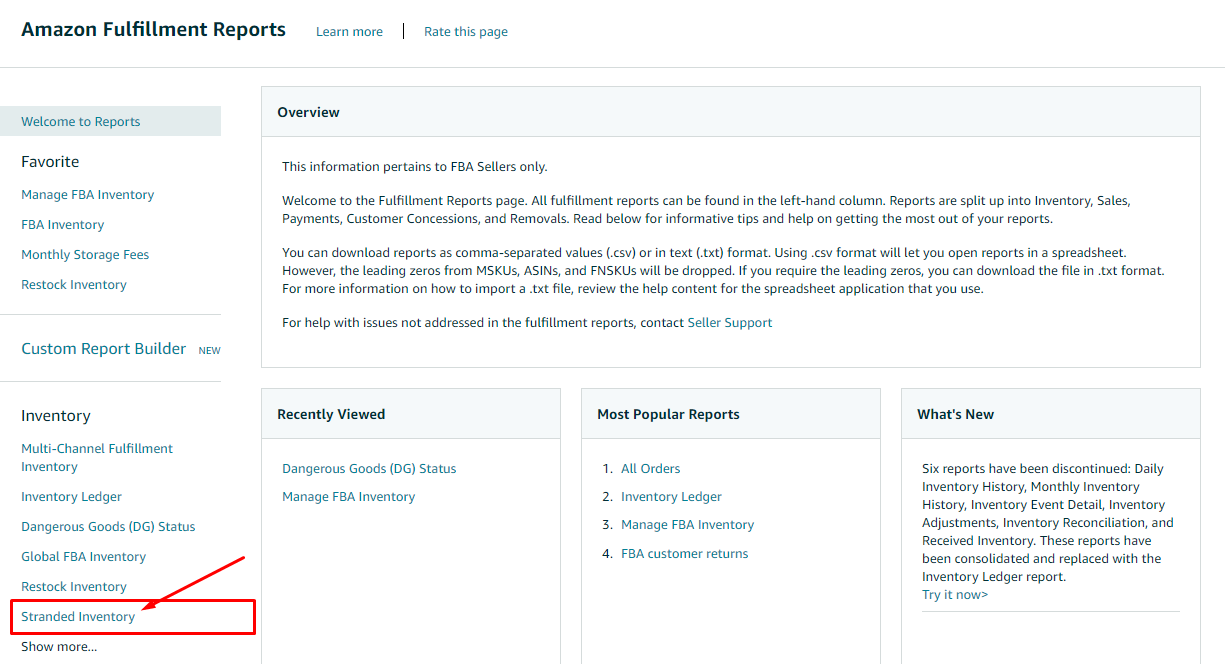
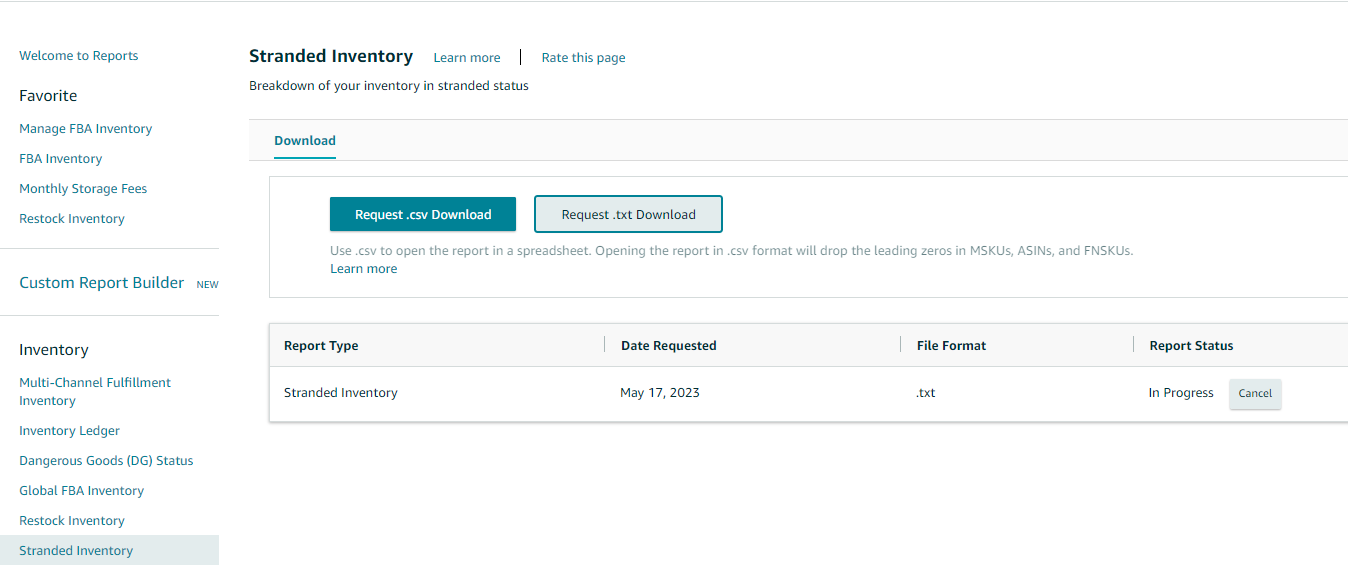
- Click the "Stranded Inventory" link under the "Inventory" header on the left-hand side of the page.
- On the next page, you can download the report in Excel format by clicking the "Request .csv Download" button.
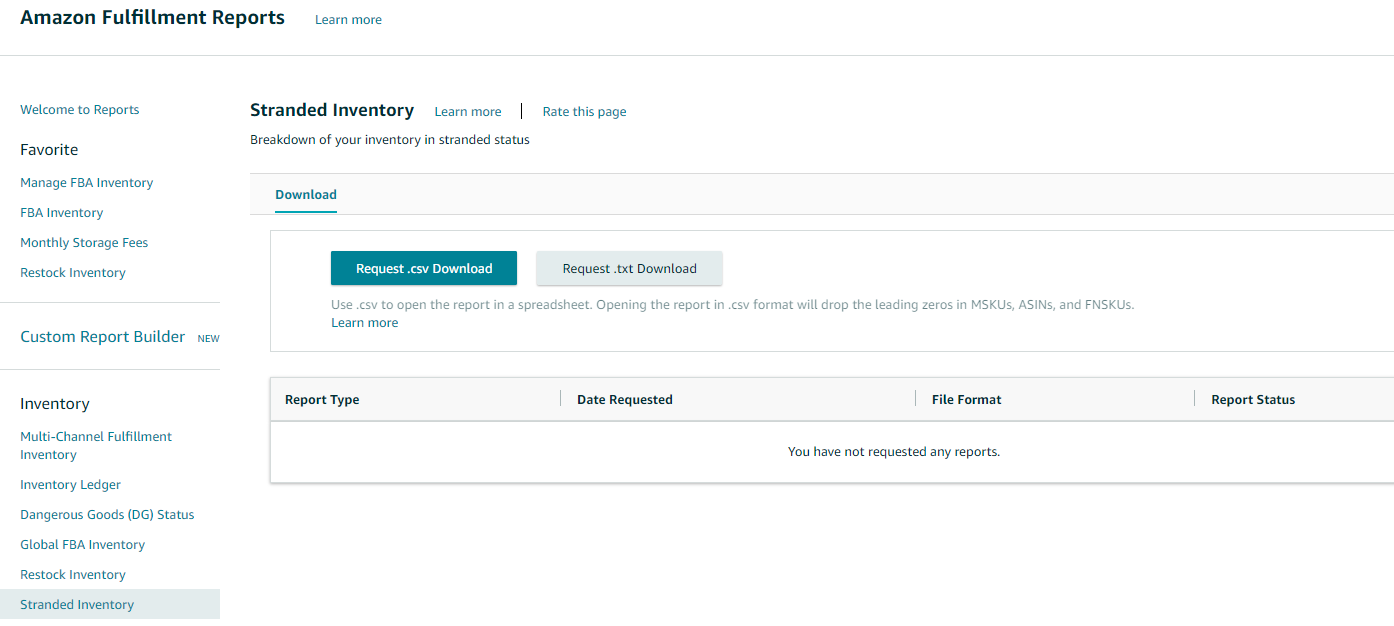
- If you prefer a text format, click the "Request .txt Download" button.
- The "Report Status" column in the table below will show "In Progress" until the report is ready.
- Once the report is ready, the status will change to "Download".
- To download the report, click the "Download" button in the "Report Status" column. If you don't have any Stranded ASIN, you will see "No Data Available" under the "Report Status" column.