Who is this for? All individuals who need to manage their Featured Offer (Buy Box Percentage).
Objective: To manage the Featured Offer on Amazon, which highlight a specific seller's product as the primary or most prominent option for customers.
Requirements:
Sellers must have a Professional Selling Account and their product should be in “New” condition
Seller must set a competitive price for the product.
Good Customer Service that is Measured in the Order Defect Rate and Shipment Performance
Checking on Order Defect Rate (ODR)
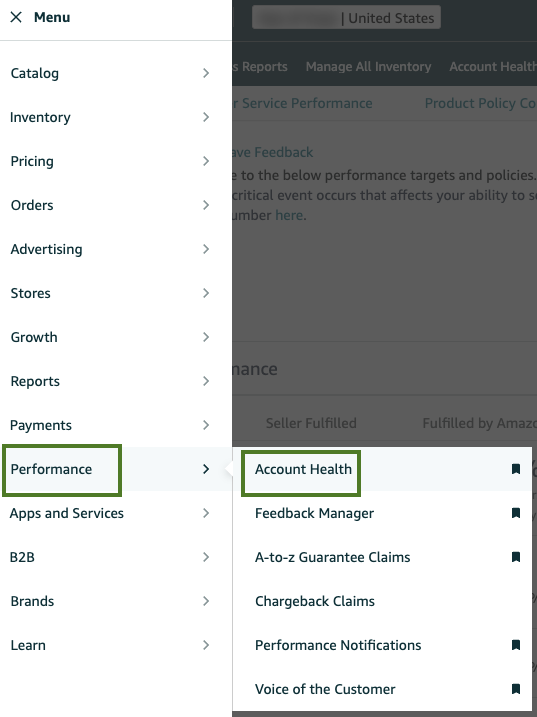
Go to the Menu and click on “Performance” then “Account Health”.
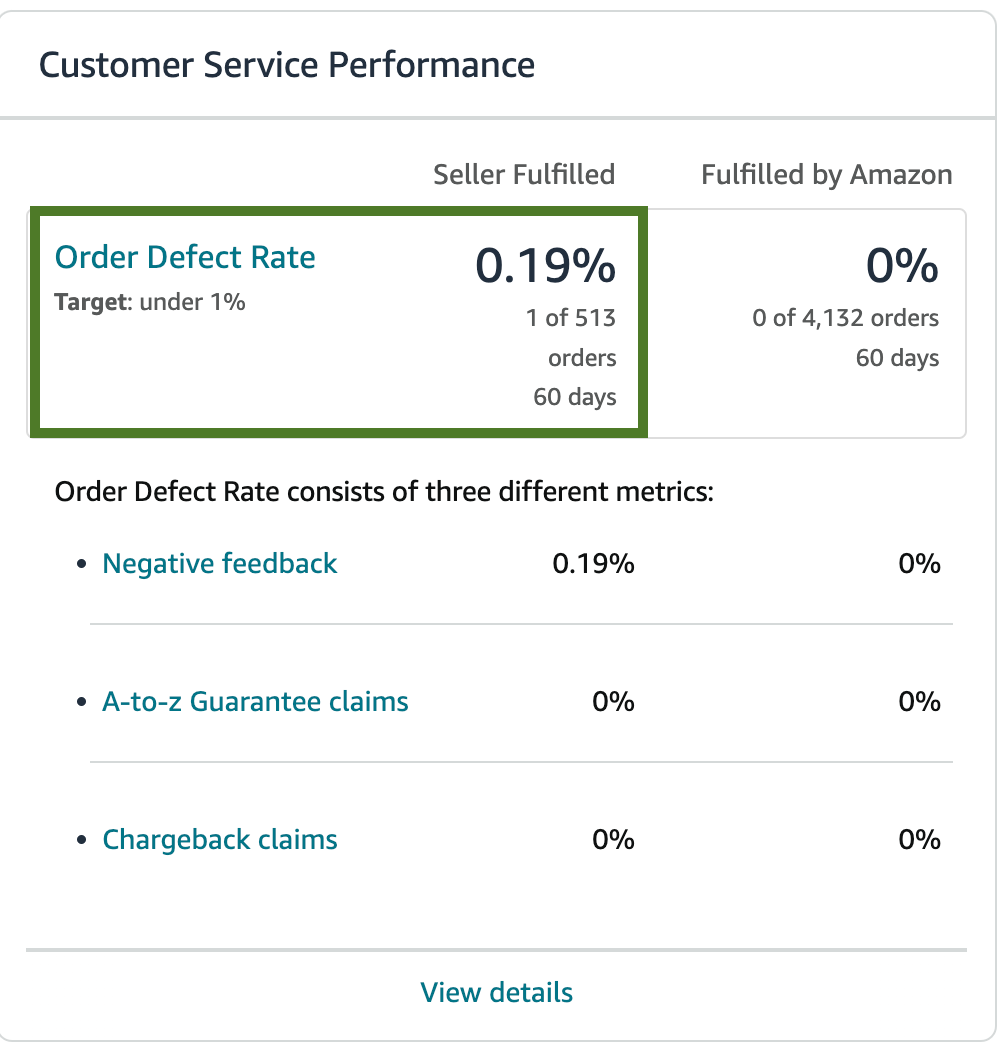
You can check your “Order Defect Rate” (ODR) from the Customer Service Performance. To get a better understanding on what affected your ODR, you can click on the metrics below. Note: To be eligible your ODR must be under 1%.
Checking on Shipping Performance
From the “Pricing Health” Menu, look at the “Shipping Performance” section on the right most side. There are 3 factors to consider :
Late Shipment Rate - Must be under 4%
Pre-fulfillment Cancel Rate - Must be under 2.5%
Valid Tracking Rate- Must be over 95%

Checking on Featured Offer Price
Prior any actual price change implementation, it is important to inform and get client’s approval. Include the approval proof (screenshot or fireflies call link) as Task Details or as a Comment.
Note : For these items, you have several options.
Match the Featured Offer price, on all offers for the same ASIN and condition. Also compare with prices from retailers outside Amazon. Continue automated pricing after updating prices elsewhere.
Automate Pricing helps you stay price competitive by automatically adjusting your prices in real-time, which may increase your likelihood of being the Featured Offer (Buy Box).
Reference Prices may refer to the Featured Offer (Buy Box) price, Price derived from the per unit Featured Offer price based on smaller packs of this product, 60-day average selling price, or list price.
From the “Menu” click on “Pricing” then “Pricing Health”
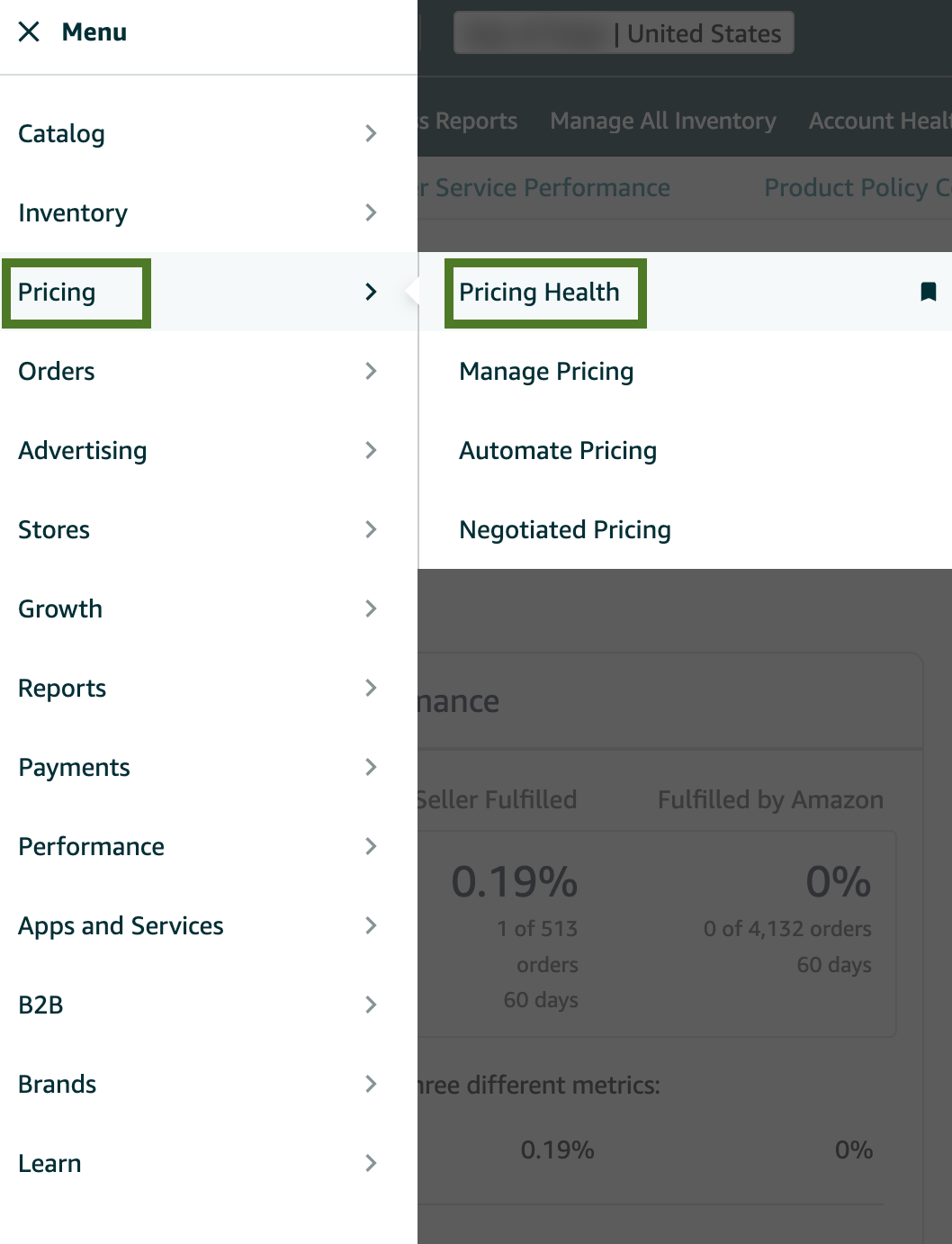
Go to the “Pricing Opportunities” section. Note : If there are eligible ASINs for the featured offer it will show here and just download the report.

Alternative way of checking for the Featured Offer Price
Via the Manage All Inventory Page
From the Menu go to “Inventory” then “Manage All Inventory”.
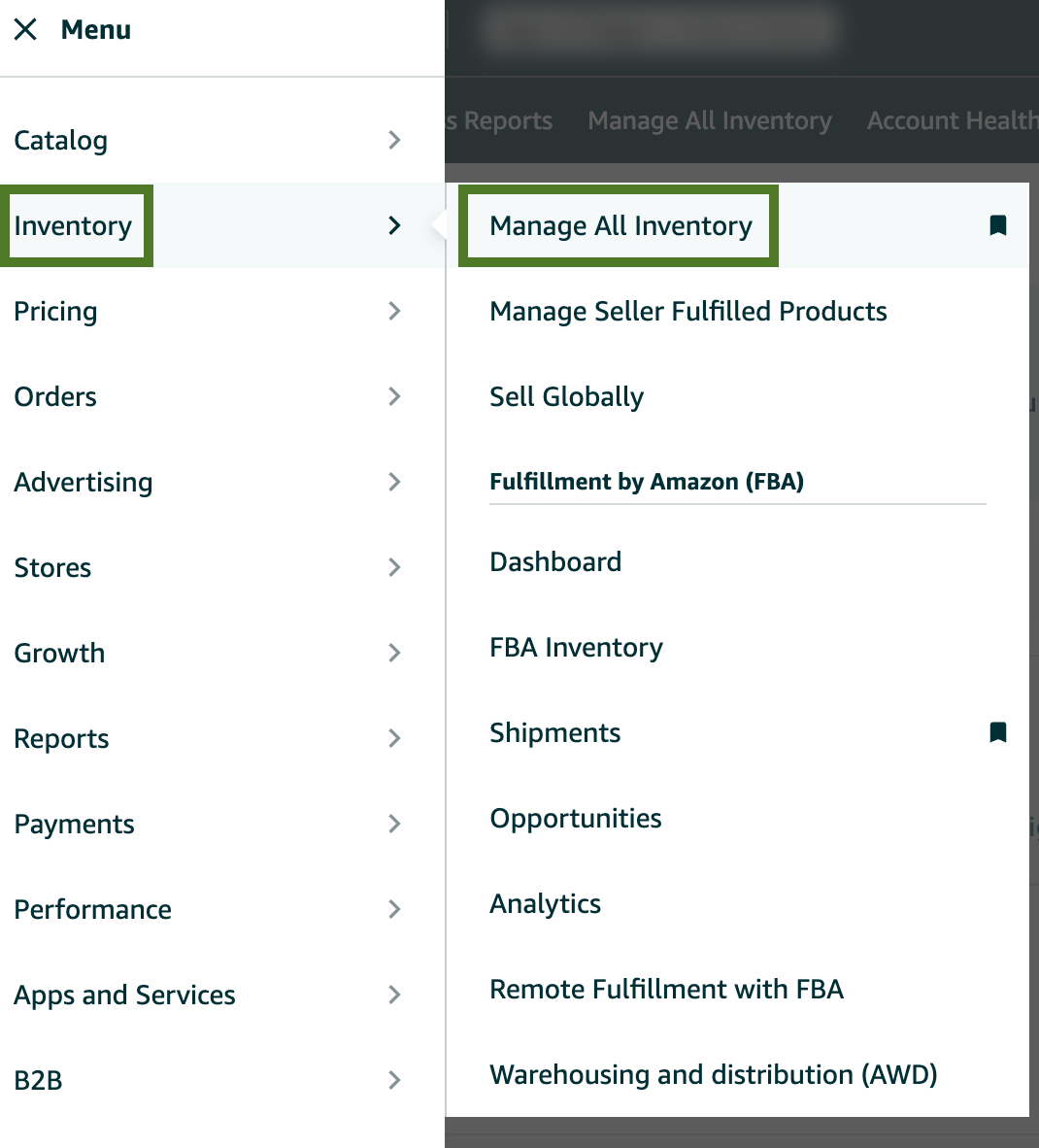
Select the listing you want to check and go to the “Price and Shipping cost “column to see the Featured Offer price

Note : For this Option you can not see the winning rate for the Featured Offer. If you wish to see your Winning Rate click on the SKU then scroll down until the “Pricing” portion.

Via the Help Hub.
Enter the ASIN that you wish to check on the Dialogue box provided

