Overview
The User Notifications in our Delta interface display important Sellercloud updates such as new features, global issues, and errors related to your channel accounts (e.g., if an API token has expired). You can view your notifications regardless of which specific page you are on, and they are color-coded based on urgency:
- Red – indicates there is an Urgent notification.
- Orange – indicates there is a High Priority notification, but no urgent ones.
- Blue – shows you that you only have Standard Priority notifications.
- Green – these are Custom Notifications.
Manage Notifications
When you are logged into the Delta Interface, the Bell Icon is at the top right corner of your screen. If you have any new notifications, a small digit in the corner of the bell icon indicates the number of unread notifications.
Tag an Employee
The Delta Interface also allows you to tag specific Users when creating a Note on any of the Details pages that support this functionality:
- Order Details page – supported for General Note Type.
- Purchase Order – available only for type Purchase Notes.
- WFS Shipment Plan
- FBA Inbound Shipment Details Page
- Vendor Invoice
- Customer Details page
- Product Details page – available in both Catalog and Inventory view, for both Note Types.
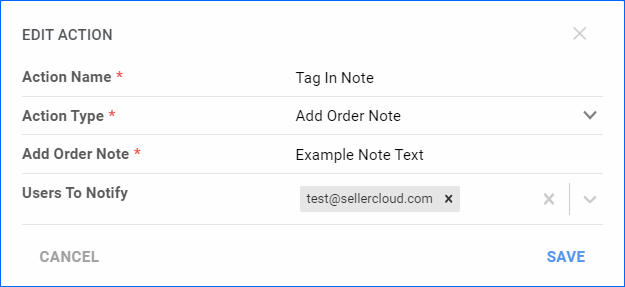
Additionally, you can tag users in notes added automatically via the Order Rule Engine. The action must be Add Order Note.
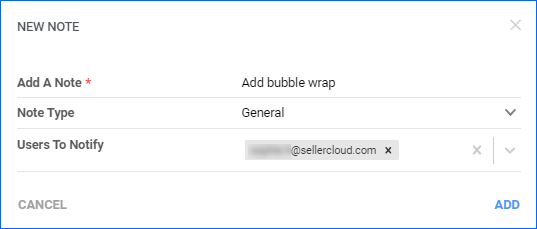
The note itself will display who created it and the tagged user. The steps below are for tagging a user in an Order Note, but the process is similar on all pages.
To notify an employee about a note:
- Go to an Order Details Page > click the plus icon in the Notes panel.
- In the pop-up dialog, select employees from the Users To Notify dropdown. You can also start typing to narrow down the search.
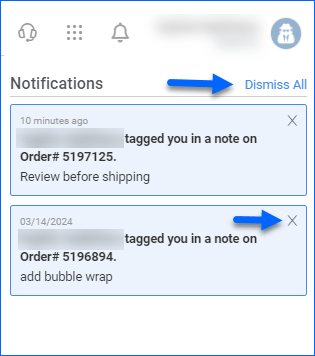
- When you add the note, the selected people will see they have a new Standard Priority notification. This feature is only available for the General Note Type.