Who is this for?: For Amazon sellers who are responsible for order fulfillment, logistics, and customer service within an organization using Amazon's fulfillment services.
Objective: To outline the process for downloading an Amazon Fulfilled Shipments Report. This report provides comprehensive information on shipments that have been fulfilled by Amazon, including order details, shipping information, and tracking numbers. It enables stakeholders to effectively track and manage their shipped orders, ensuring accurate and timely delivery to customers.
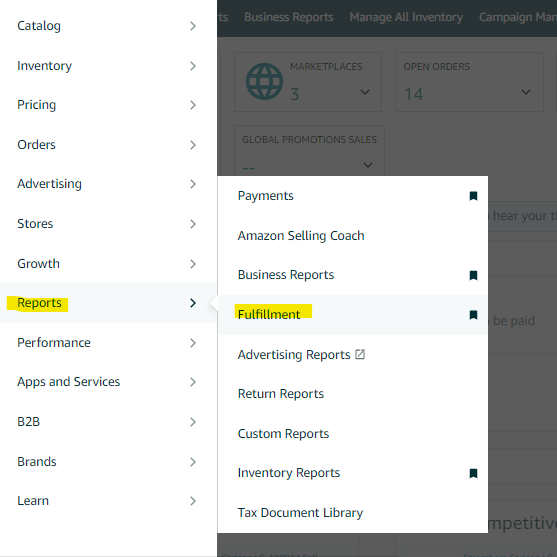
- Go to the "Reports" tab in Seller Central and select "Fulfillment" from the dropdown menu.
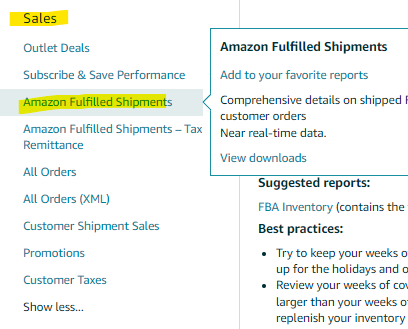
 2. Under the "Sales" header on the left side of the page, click on "Amazon Fulfilled Shipments".
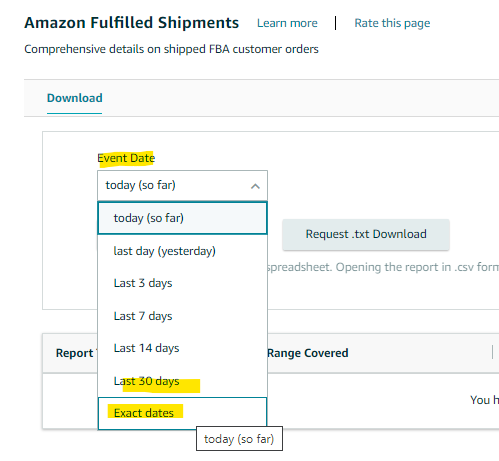
 3. On the next page, select the event date range by choosing from the available options in the dropdown menu or by selecting "Exact Dates" and entering the "From" and "To" dates from the calendar icon.
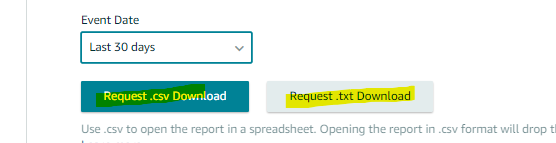
 4. Click on the "Request .csv Download" button to download the report in Excel format, or click on the "Request .txt Download" button to download it in text format.
 5. Check the "Report Status" column in the table below for the status of your report, which will initially show as "In Progress".
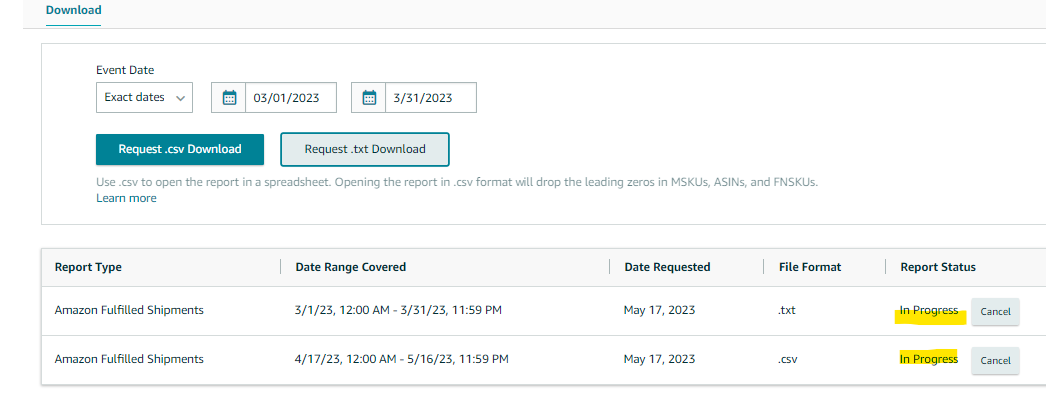 6. Once the report is ready for download, the status will change to "Download".
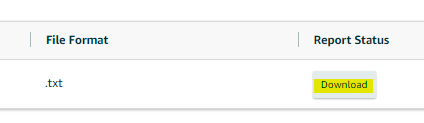 7. Click on the "Download" button in the "Report Status" column to download your report.
 2. Under the "Sales" header on the left side of the page, click on "Amazon Fulfilled Shipments".
 3. On the next page, select the event date range by choosing from the available options in the dropdown menu or by selecting "Exact Dates" and entering the "From" and "To" dates from the calendar icon.
 4. Click on the "Request .csv Download" button to download the report in Excel format, or click on the "Request .txt Download" button to download it in text format.
 5. Check the "Report Status" column in the table below for the status of your report, which will initially show as "In Progress".
 6. Once the report is ready for download, the status will change to "Download".
 7. Click on the "Download" button in the "Report Status" column to download your report.