Who is this for? This SOP is designed for sellers or teams who have access to Amazon Seller Central and are responsible for managing reimbursements. It is suitable for users who need to generate a Reimbursements Report to track and review reimbursement transactions on the platform.
Objective: The objective of this standard operating procedure (SOP) is to guide sellers or teams responsible for managing reimbursements on Amazon Seller Central in generating a Reimbursements Report. The SOP aims to provide clear instructions on how to navigate to the report section, select the desired date range, and download the report in either Excel or text format. By following this SOP, users will be able to access comprehensive reimbursement information for tracking, reconciling financial records, and gaining insights into the reimbursement process.
The Reimbursements Report is a valuable resource for sellers on Amazon Seller Central to effectively manage reimbursement transactions. When you have requested reimbursements, refer to the case ID in the report to view the associated details. Similarly, for reimbursements linked to customer refunds, use the Amazon order ID in the report to access the relevant information. It is important to note that there may be a delay of up to five days for reimbursements to appear in the report after they have been approved. Additionally, if multiple reimbursements are processed on the same day for the same issue, they may be combined into a single transaction. By following this SOP, sellers can efficiently track and analyze their reimbursements, ensuring accurate financial management and operational decision-making on the Amazon platform.
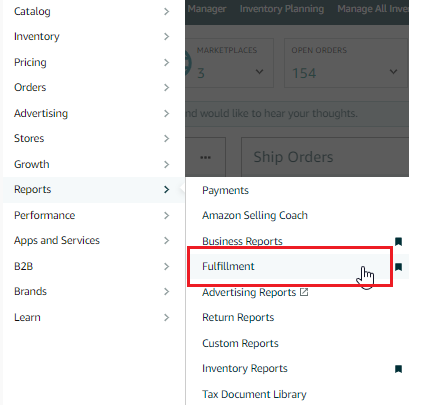
- To generate a Reimbursements Report, navigate to the "Reports" tab on the top menu of Seller Central and select "Fulfillment" from the drop-down menu.
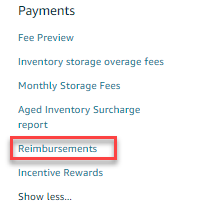
- Under the "Payments" header on the left-hand side, click the "Reimbursements" link.
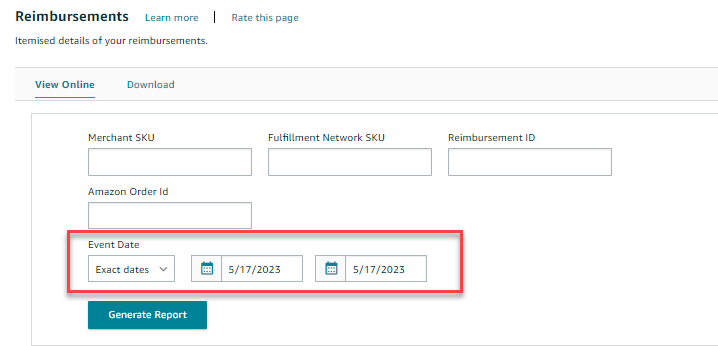
- On the following page, choose the event date by selecting from the drop-down menu or selecting "Exact Dates" and entering the "From" and "To" dates using the calendar icons. You can also enter your Merchant SKU, Fulfillment Network SKU, Reimburse ID, or Amazon Order ID to generate a more specific report.
- To download a CSV or a Txt version of the document, click "Download".
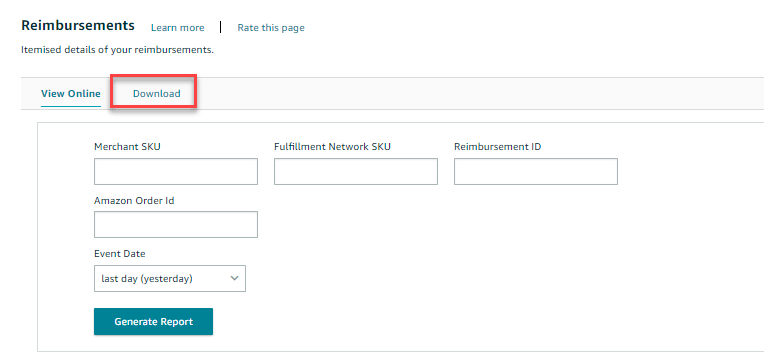
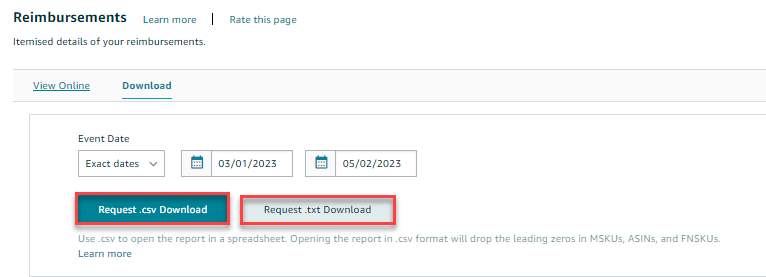
- Select the event date by choosing from the drop-down menu or selecting "Exact Dates" and entering the "From" and "To" dates using the calendar icons.
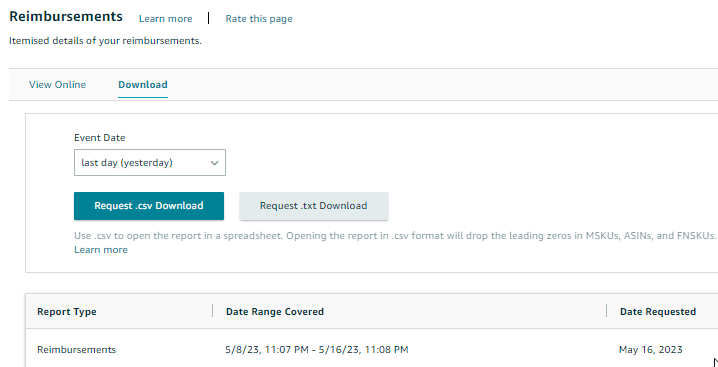
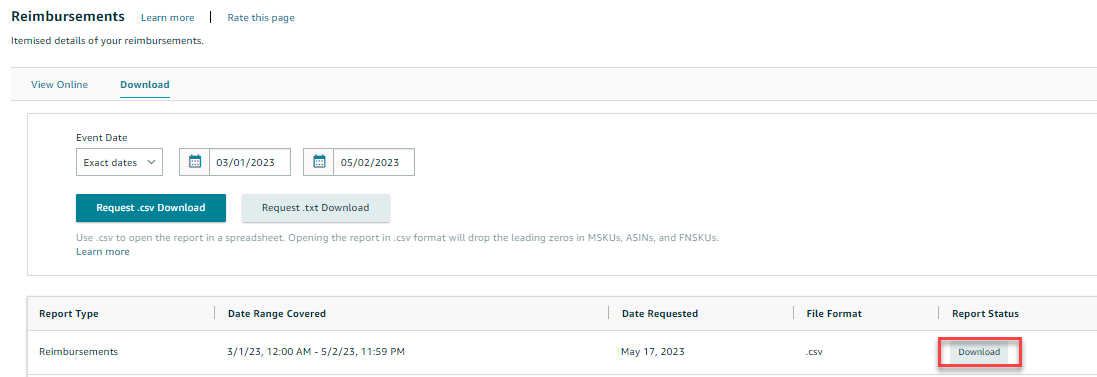
- Click the "Request .csv Download" button to download the report in Excel format, or click "Request .txt Download" to download in text format.
- The "Report Status" column in the table below will initially show "In Progress."
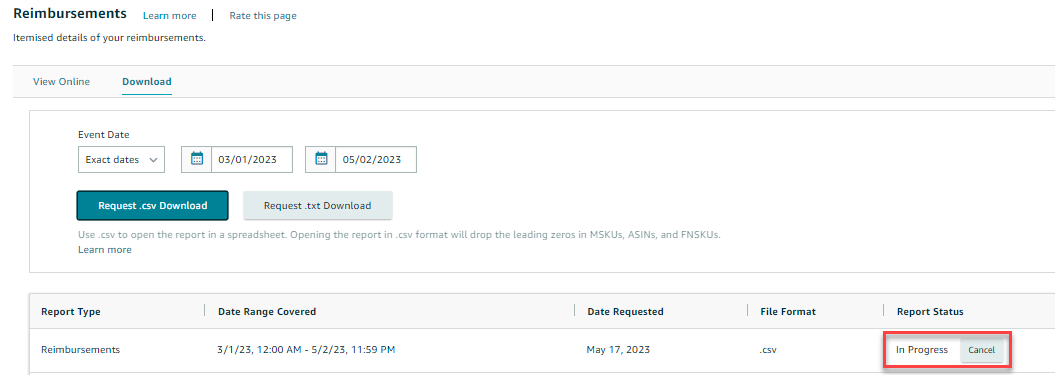
- Once the report is ready, the status will change to "Download." Click the "Download" button in the "Report Status" column to download the report.