SEO SOP : Competitor Research
Who is this for:
To individuals who seek to provide a high-level overview of how your competitors are faring on the Amazon marketplace.
Objectives:
To provide a high-level overview of how our clients’ competitors are faring on the Amazon marketplace
To know where our clients’ listings stand in the competition
To determine the monthly data of a specific product category, including competitor prices, search ranks, sales, reviews, average ratings, revenues, fees, and more
WHEN DO WE CONDUCT COMPETITOR RESEARCH?
After onboarding a new client
An existing client launches a new product
We want to check the competition for a product / category.
Upon client’s request
Process
Identify which ASINs / products you need to work on.For this example we will use wooden soap tray as our target listing.

Using the main keyphrase of the product, look for competitors on Amazon.
Important: Open the product detail page when performing this step. It is important to have the right product knowledge to determine the right search query to be used.
Ensure that you are conducting the search in the correct Amazon marketplace. The delivery address should also be in the same region covered by the marketplace.
You may use Amazon’s filtering tool to customize and narrow down the search results when conducting specific competitor research.
Once the results page renders, click on the Helium 10 extension on your browser and run Xray.

On the Xray page, scroll down and click on Load More Results to include the 2nd page search results.

Go through the products to determine which ones are relevant to the client’s product. Tick all the products that are not relevant (cannot be considered as competitors). Click on the trash icon to remove the ticked products.
Tip: You may use Xray’s filtering options to customize and narrow down the results.

After removing the irrelevant products, click on the download CSV report button to download the results to your computer.

Open your report template. Rename the file using the following format: “Client Name - Competitor Research Report”

Prepare / clean up the list by performing the following:
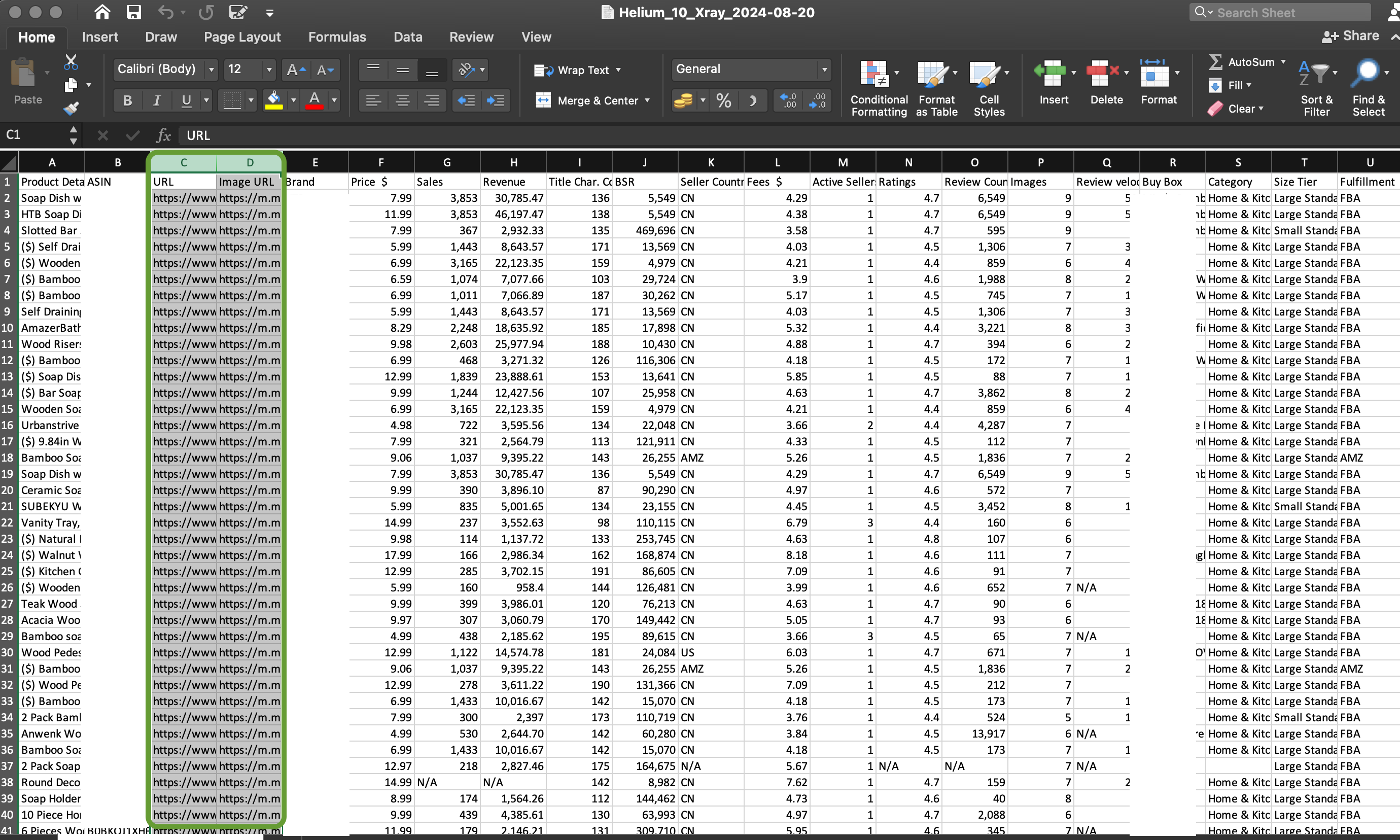
Remove the URL (C) and Image URL (D) columns
New columns might show up on the right most part, make sure to check this as well and remove if necessary.
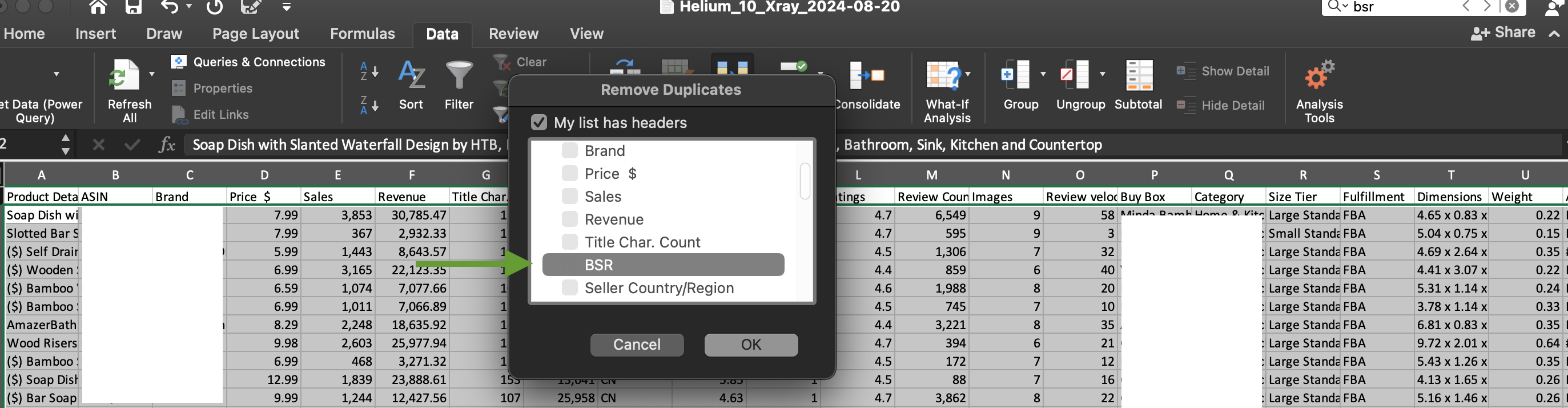
Remove duplicate BSRs
Remove listings that have no revenue and BSR data
Sort the BSR data in ascending order

From the sheet, transfer the list to your competitor research template. Use paste as values when performing this step to maintain the template’s formatting.

Name the report’s tab and the summary table's header using the search query used to look up competitors.
Double check the following before delivering the report to the client:
The competitors / products included in the report are relevant to the listing you are researching on
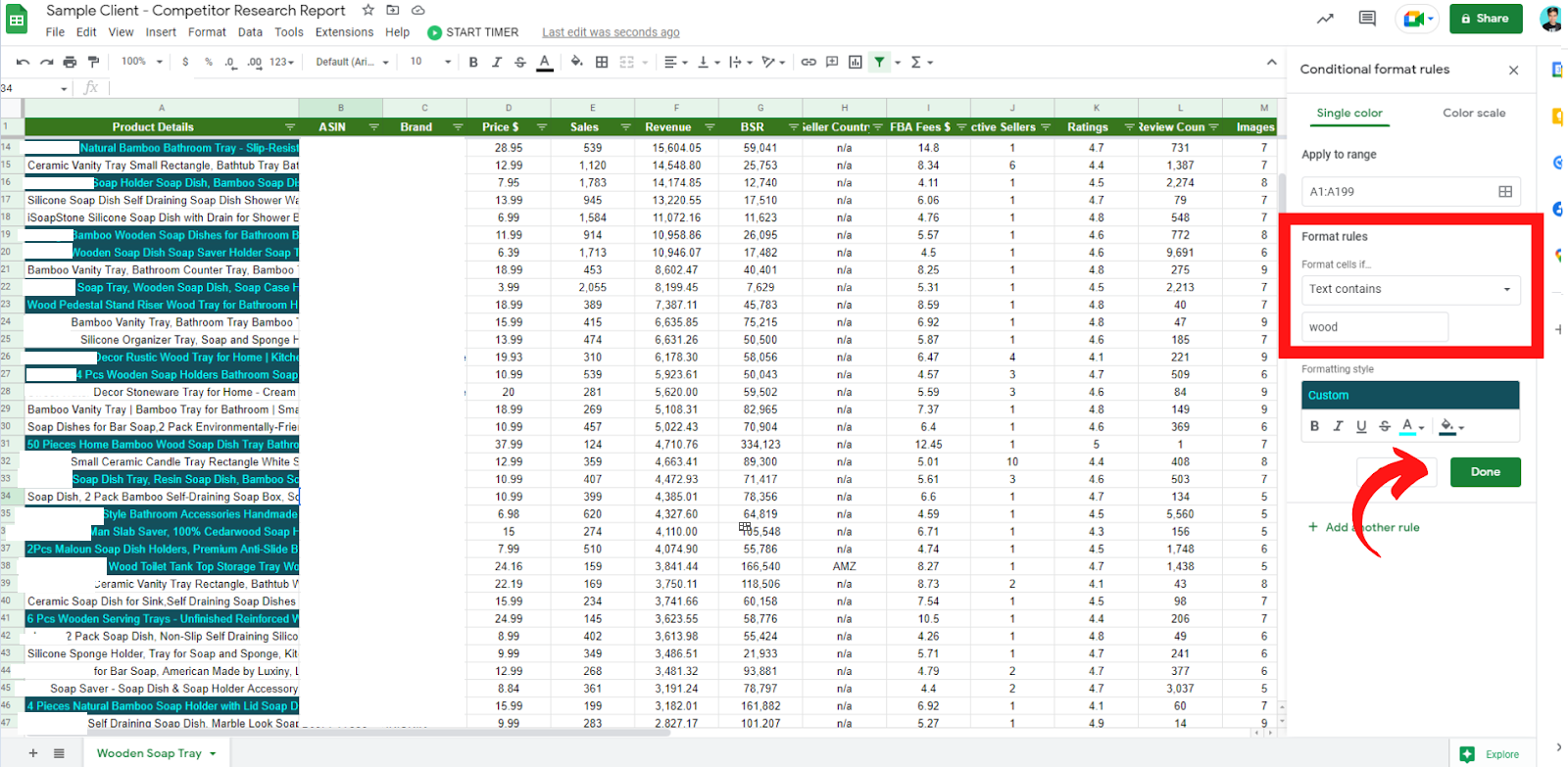
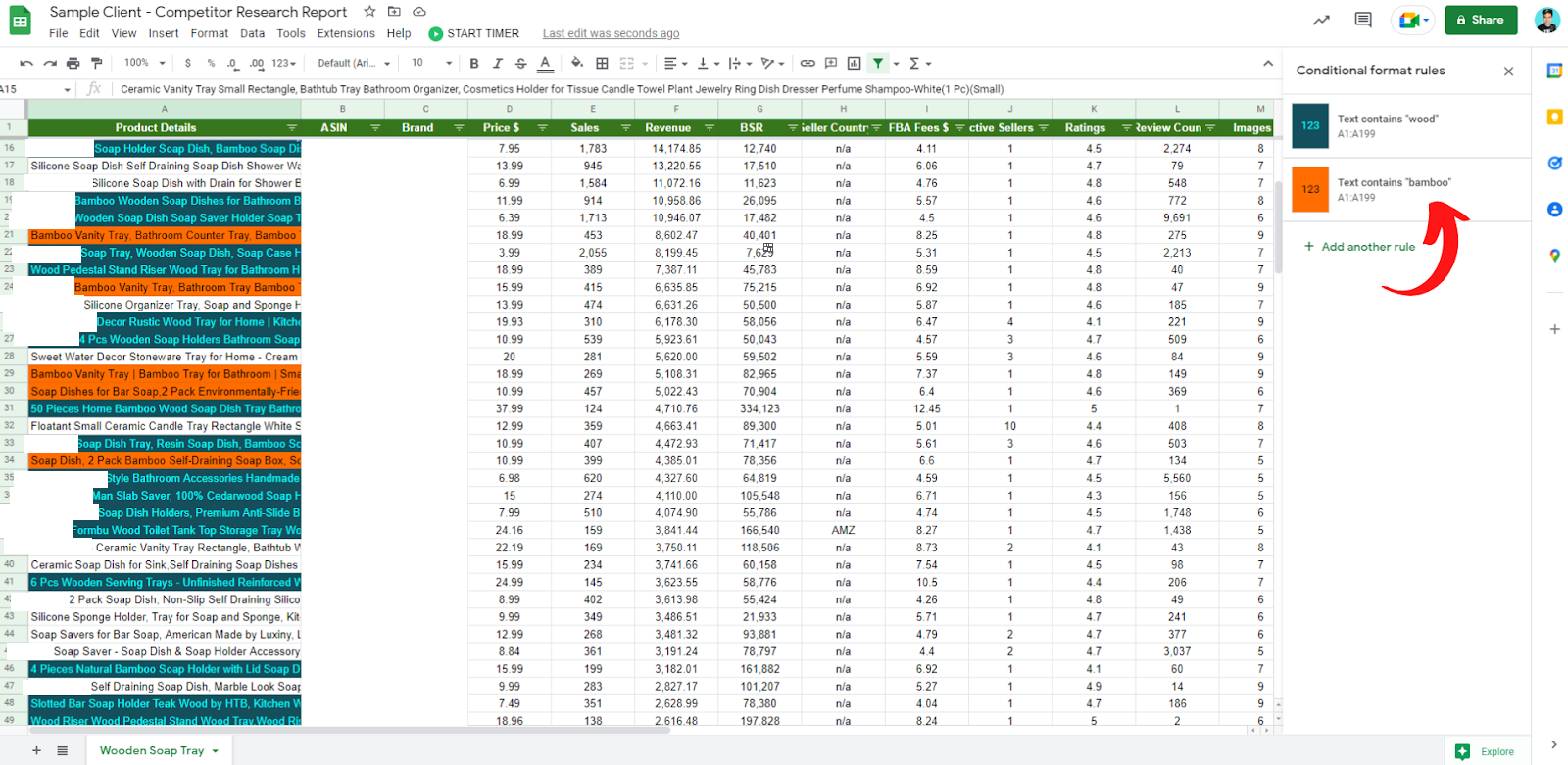
Most of the unhighlighted listings contain the keyword bamboo, which is classified as wood. This gives us an idea that the said keyword can be used as the second or alternate format rule.
From here, we can then remove those irrelevant listings (i.e. ceramic, plastic, glass, etc.) that were left unhighlighted. Additionally, we can narrow down the list of competitors by applying the next set of format rules by using the keywords soap and tray and removing all irrelevant (or unhighlighted) listings.
To further remove irrelevant listings, take a look at one of the unhighlighted listings and see what keywords are used. In this case, the keywords dispenser and white were the common words used in their listings, thus we shall be using these keywords as the next format rules.
The formulas applied in the summary table are correct
See Sample Worksheet : Competitor Research Sample Worksheet
Once you’ve used all the formatting rules possible to detect irrelevant listings, and deleted all the irrelevant listings from the sheet, you can then transfer your output to the final folder using the official template.

