Ticketing Walmart Support for Content and Image Update (Single Listing)
Who is this for? For various teams or individuals responsible for updating the content on the Walmart platforms.
Objective: To evaluate and improve the visibility and performance of a product listing on Walmart. To Identify any areas for improvement and implement changes if necessary.
To file a ticket to Walmart for updating the Title, Description, Key Features, Images, etc. First, prepare any proof of UPC.
Link to Manufacturer's website for a specific item
Image of the product with the product’s title and UPC in clear view
Receipt from GS-1 and screenshot from GS-1 showing that you are the owner of the GTIN
Another reputable retail website that shows matching UPC or Model Number
Most recent feed ID.
Instruction:
1. Log in to Walmart Seller Central account. Go to https://seller.walmart.com/

2. Once logged in, click Help -> Contact Partner Support.

3. Select Item and Inventory from the support category.

4. Choose Content update errors.

5. Click No

6. Choose to Open a case via Email.

7. You will be redirected to the case screen where you need to fill out or answer the following information:
This ticket is related to
Seller Center
Subject line
You can put "Title Update Error" if the case is about a title update.
What are you trying to accomplish?
Update Item Content
Are you facing this issue with a single item or multiple items?
Single
Item ID
You can get this by going to Items
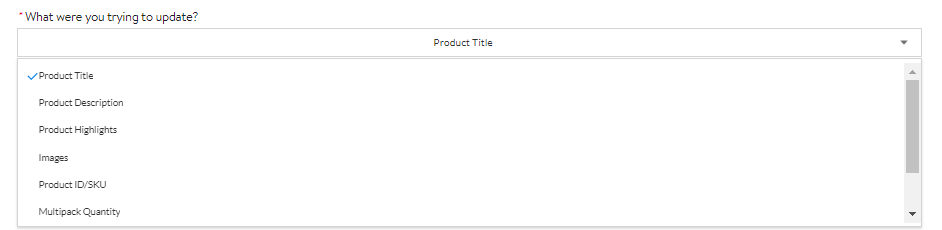
What were you trying to update? (Choose from the drop-down and click all the attributes that need to update.)
What content is incorrect?
You can put "Important Details Missing"
What is the correct content? If images, please provide the image URL:
Put the correct or proposed value
How will you provide proof of UPC?
Choose from the drop-down

Please provide the link to proof of UPC
If you choose the "Link to Manufacturer's website for specific item" How will you provide proof of UPC? dropdown then provide the manufacturer link.
Please provide the most recent feed ID.
You can get this by going to Activity Feed (make sure to provide the correct feed ID)

Tick the confirmation box and hit Submit Case & Upload Files
Sample of filled-out information

8. A case ID will be generated. Save the case ID for following-up or monitoring purposes. 9. To monitor or to follow up on your case click Help and choose View Case History.

10. Find the case ID and click the ID link to read Walmart support’s reply.

If the case is resolved, verify the changes in the backend and detail page. If not yet resolved, respond to the case accordingly.
